
You can fill Serial and Non Serial Items by providing Asset ID/Container ID, quantity or by using barcode scanner
App shows error message when
-
Item/Asset not on Order
-
If Order is unlocked it should fail to Fill
Workflow
-
Pick an asset by tapping on any item.
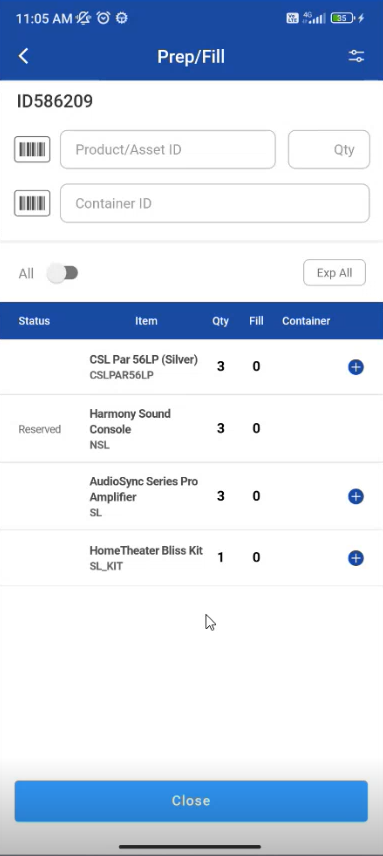
Figure: 1.0 Pick Asset Orders
-
Pick an asset by tapping on an item and pick an asset/item.
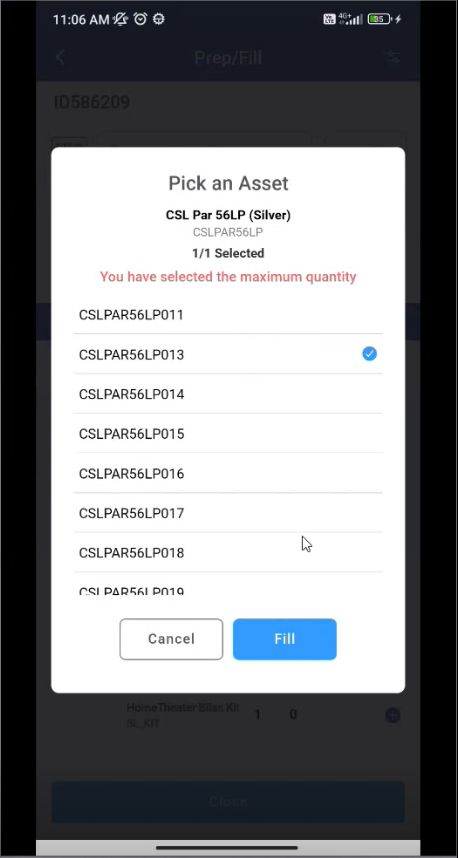
Figure: 1.1 Pick Asset From list
-
You can scan the item by using Scanner.
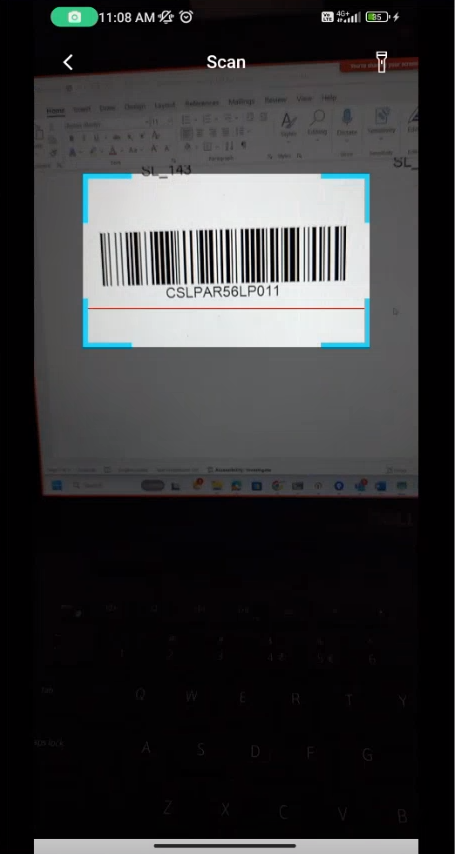
Figure: 1.2 Scan by Scanner
-
If select All is true then Filled items are displayed in the list.
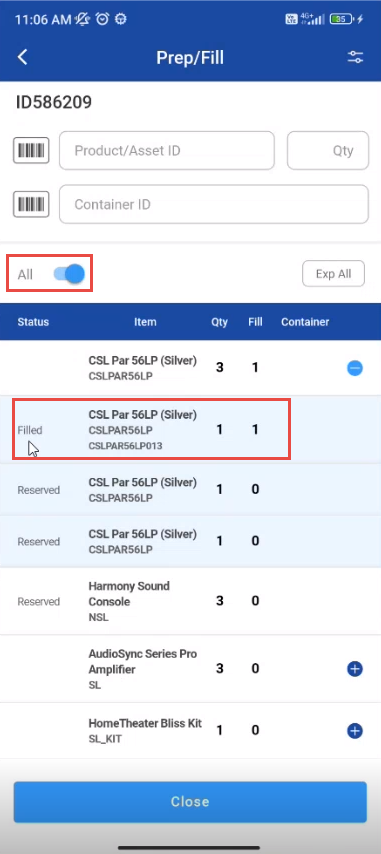
Figure: 1.3 Select All -
You can scan Serial/Non-serial item, Kit/Non-serial kit and by providing quantity.
-
You can search Items by Container ID and Product/Asset name.
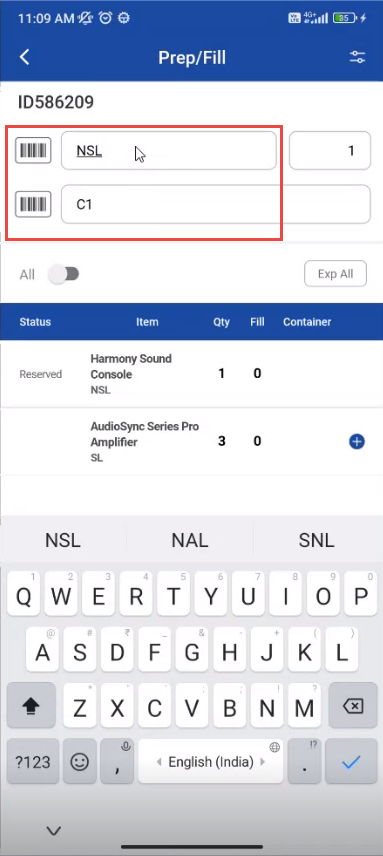
Figure: 1.4 Search by Asset or Container ID -
Select All toggle button and the list displays with items having container ID.
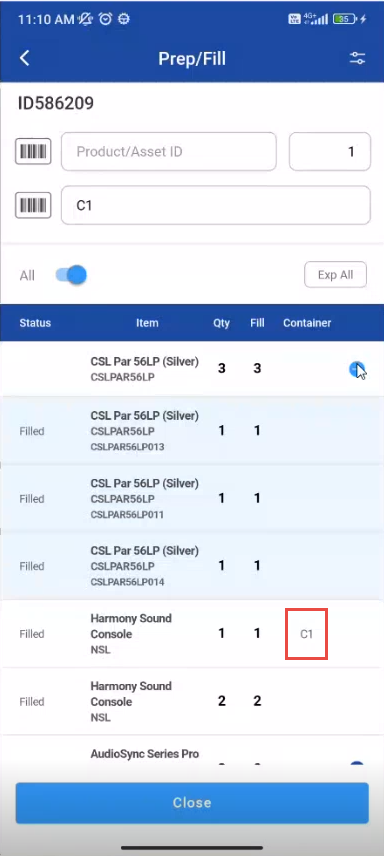
Figure: 1.5 Select Container ID from list
-
If you try to add a non existing item to the list the message is shown whether to add an item to the list
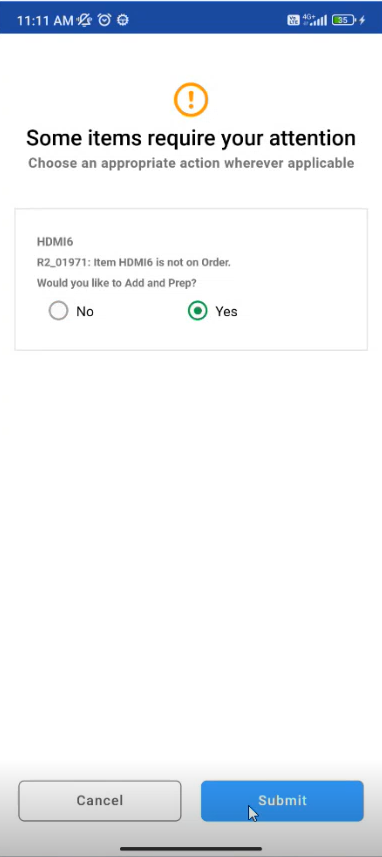
Figure: 1.6 Select Action
-
If you select yes and submit it, the item will be Filled.