
Reference No: R2-7366
Version No: 06.00.04-00
Prior to Version 06.00.04-00
When the Allow to edit kit weight check box in the Configuration module > General tab was cleared, the system did not display any prompt.
With Effect from Version 06.00.04-00
Now, when the Allow to edit kit weight check box in the Configuration module > General tab is cleared, the system displays a prompt.
The functionality is explained in the below Sample Work Flow:
Prerequisites
-
The grant "GRANT CREATE TABLE TO SCHEMANAME;" is required to access this feature.
The above details are included in the Version - 06.00.04-00 Release Notes.
-
Select the Configuration module > General tab.
-
Select the Allow to edit kit weight check box, as shown in Figure 1.0.

-
Save and Exit the Configuration module.
-
Relaunch the R2 application.
Sample Workflow
-
Select the Maintenance module > Items tab.
-
Create a Serial Item [MINI EXCAVATOR] with 3 Qty and Weight [100.00].
-
Create a Non-Serial Item [COMPACTOR] with 3 Qty and Weight [200.00].
-
Create a Non-Serial Kit [TOOL KIT] and add the Serial Item [MINI EXCAVATOR] and Non-Serial Item [COMPACTOR] with 1 Qty.
-
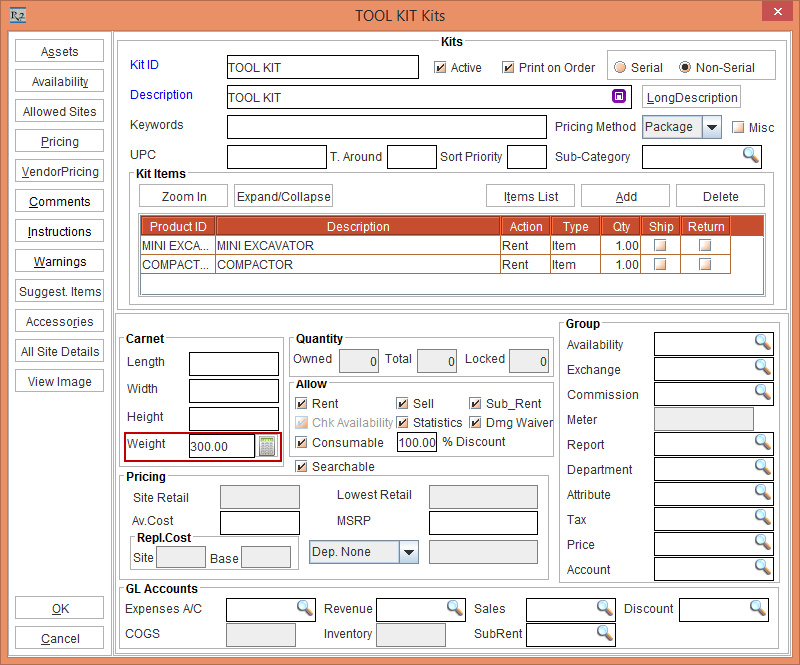
Click the Compute Weight button. The Kit Weight is displayed as [300.00], as shown in Figure 2.0.
-
Click OK.
-
Edit the Non-Serial Item [COMPACTOR] Weight [100.00] and click OK.
-
Open the Non-Serial Kit [TOOL KIT]. The Weight of the Kit is still displayed as [300.00].
-
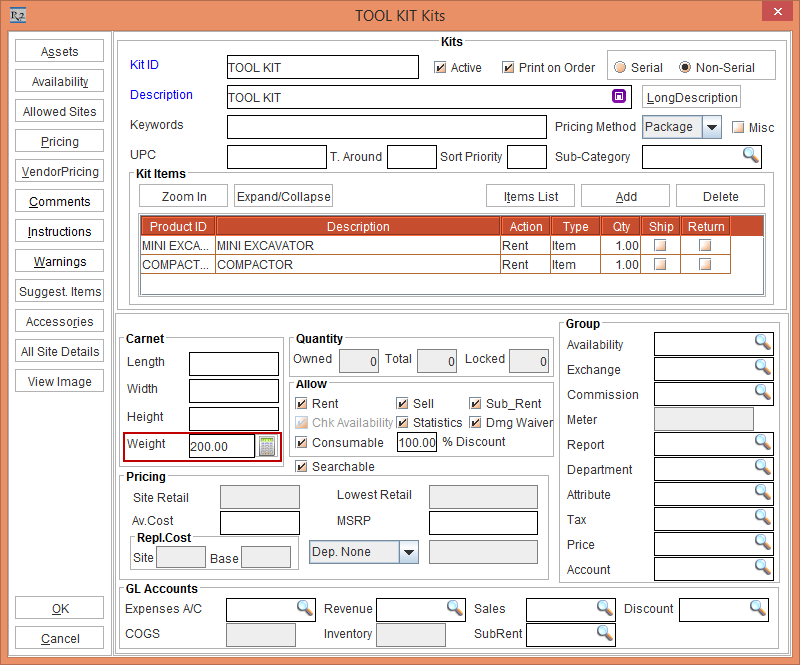
Click the Compute Weight button. The Kit Weight gets modified and is displayed as [200.00], as shown in Figure 2.1.
-
Click Cancel to revert the Compute Weight calculation.
-
Exit the Maintenance module.
-
Select the Configuration module > General tab.
-
Clear the Allow to edit kit weight check box. The system displays a prompt with the message "Deselecting the flag will take a while to recompute existing Kits Weight. Do you want to proceed?" with Yes and No buttons, as shown in Figure 2.2.

-
Clicking No will cancel the operation and the "Allow to edit kit weight" check box will remain selected.
-
Click Yes. The system takes time to execute the process indicating the mouse cursor busy sign, as shown in Figure 2.3.

-
After completing the process, the "Allow to edit kit weight" check box gets cleared, and the existing Kit's Weight field gets updated.
-
Save and Exit the Configuration module.
-
Relaunch the R2 application.
-
Select the Maintenance module > Items tab > Kits tab.
-
Edit the Non-Serial Kit [TOOL KIT].
-
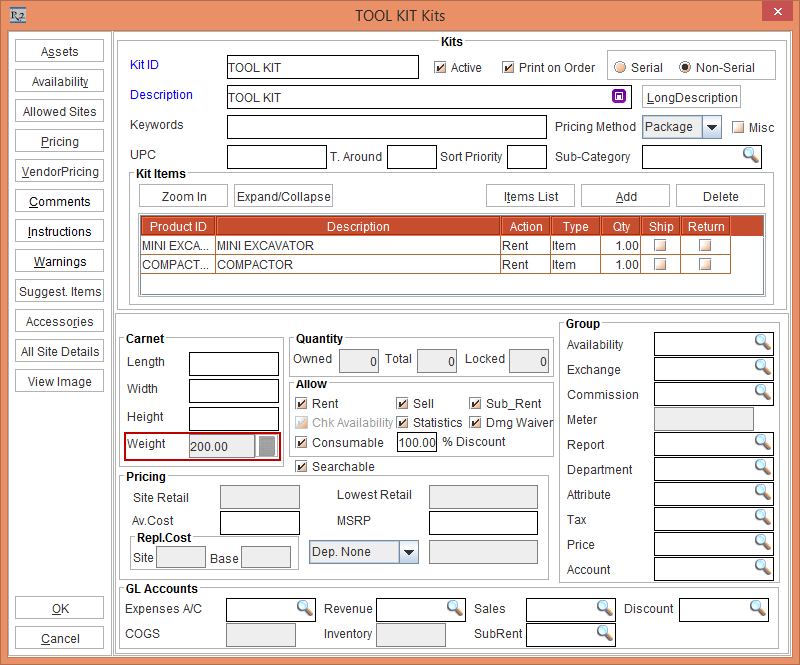
The Weight field is disabled displaying the computed weight as [200.00], as shown in Figure 2.3.
-
Click OK.
-
Exit the Maintenance module.