
Reference No: AHI-25
Version No: 06.01.03-00
Details
Support to print the Invoice Item Line Gross amount in Invoice Prints.
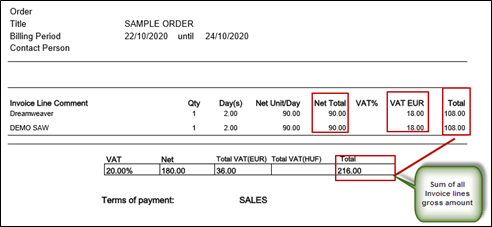
Gross Amount = (Discounted amount + Tax)
|
CID |
Description |
Invoice Type |
|
80022 |
Print Invoice Item Line Gross amount |
Credit/ Debit Memo/ Regular Invoice/LR-Invoice. |
Pre-requisites
Do the Form setup in the Maintenance Module.
Sample Workflow
-
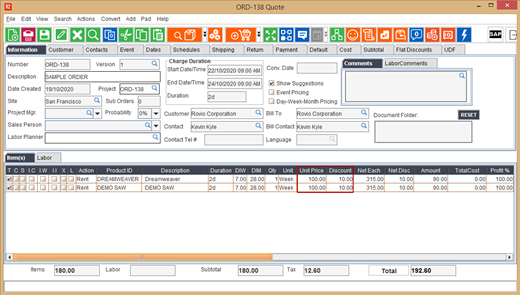
In Accounts module, create an order and add the items.
Ensure ‘Tax region’ is tagged (20% tax is considered for sample workflow).
-
Enter the Unit Price and discount for each item line.
-
Generate the Invoice.
-
In Invoicing module, create batch and post the generated Invoice.
-
In Accounts module, Go to View > Invoices.
-
Search the Invoice and click Print button.
-
Select the form and then click the Print button.
Discounted + Tax = Gross Amount.
System also displays the sum of all Invoice lines Gross Amount.
Disclaimer:
System rounds up the line gross total amount to two digits.
-
Hence, if each line gross total summed up and compared with Gross Total of the Invoice, there will be penny differences.
-
The Tax on Invoices is calculated by summing the tax of each line with larger precision and then rounding up and it is expected to behave like this to have unnecessary extra pennies paid as tax.
-