
A project in R2 is a method of grouping orders by a common number or name. By referencing multiple related orders by a project, one can quickly search and identify all orders belonging to the project.
From the Account screen, go to Search → Projects
.png?cb=af3cb91475bc99b2b9138a353d725a40)
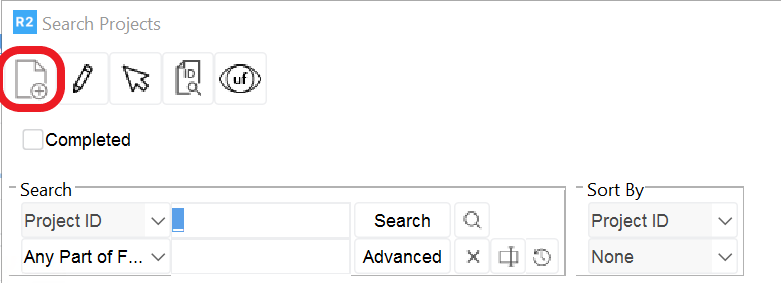
The following screen will open. Click on the Add icon:
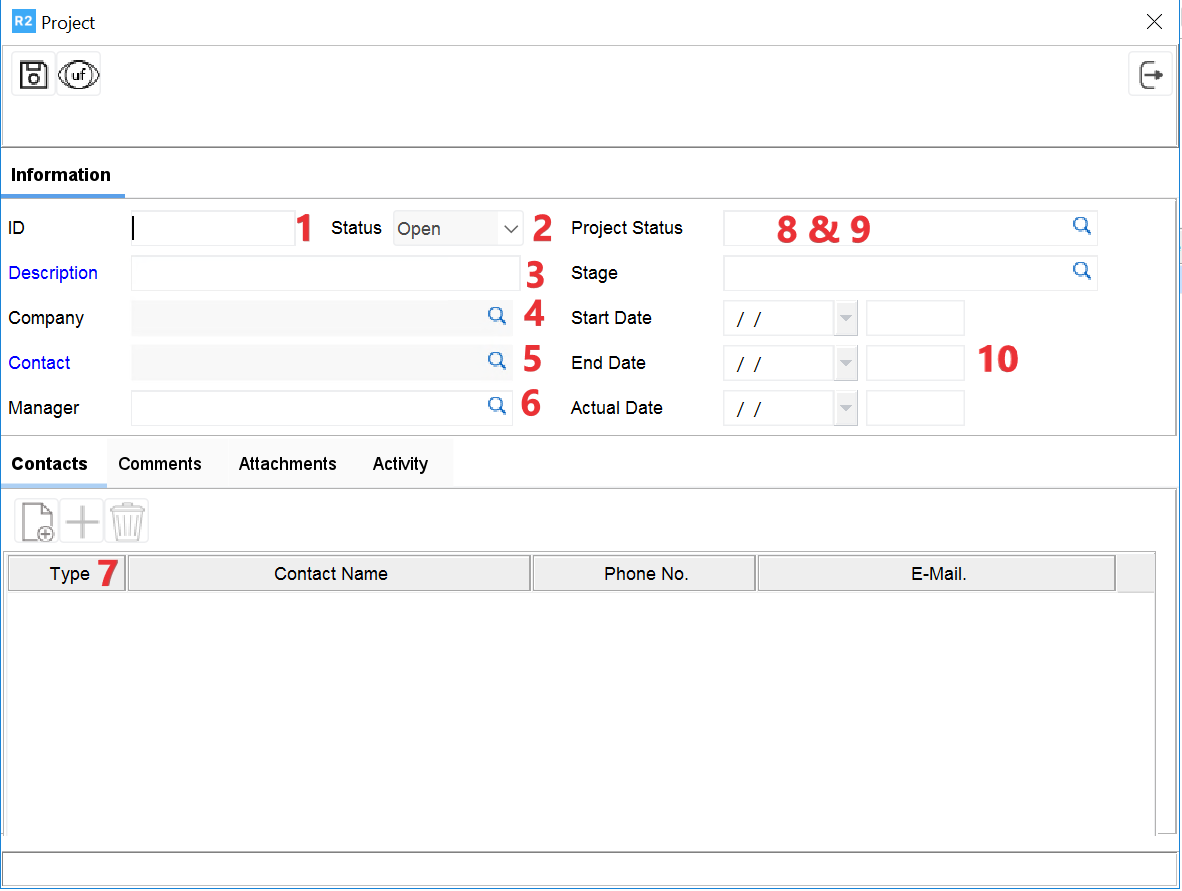
Enter the following information within the General Tab:
-
Project ID
-
Project Status: Open and Completed. This field defaults to “Open” and when the project is finished, you would change the status to “Completed”.
-
Project Description
-
Company: select the customer the project relates to.
-
Contact: select a contact from your list of customer-contacts who is the primary contact for the project.
-
Manager: select an EMPLOYEE who will be managing the project.
-
Additional Contacts: click on the ADD icon to add a new line.
-
Enter a “Type” of contact, or position that contact occupies. You can simply type directly into the “Type” field or click on the down-arrow for a list or previously entered “Types”.
-
Enter a Contact Name, Phone Number and E-Mail address
-
-
Project Status: user defined.
-
Stage: user defined.
-
Project Start Date, projected End Date and a field for you to set the Actual date the project was completed.
-
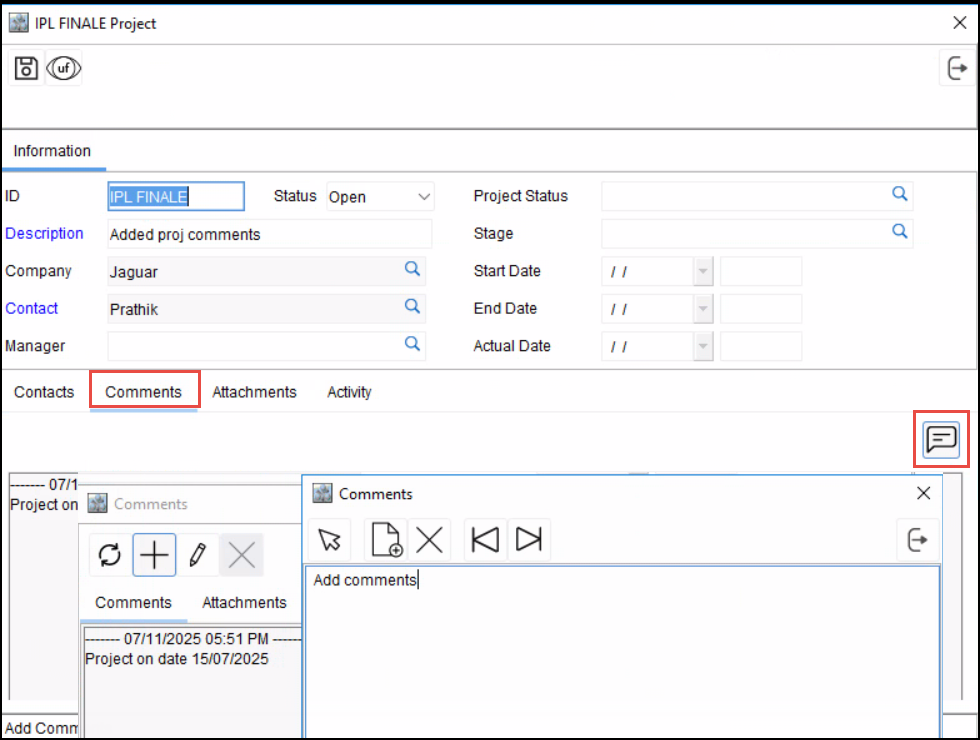
Click on Comments to add comments.
-
Click Save icon.