
Purchase orders can be filtered by:
-
Order type
-
PO type
-
Status
-
Vendor
-
Site
-
And defined criteria
To search by PO number, enter the number in the blank field and click the Search button.
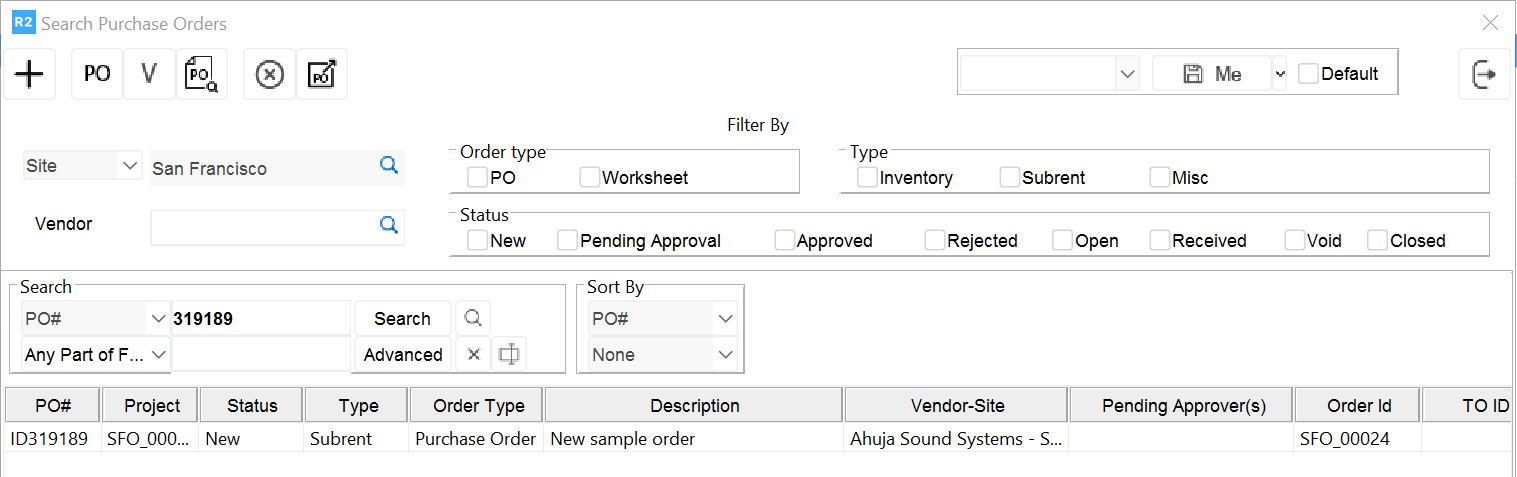
To filter purchase orders by a specific type, check the box to the left of the desired type. Enter the wild character symbol “%” in the blank field and click the Search button. All existing POs of related type will be displayed.
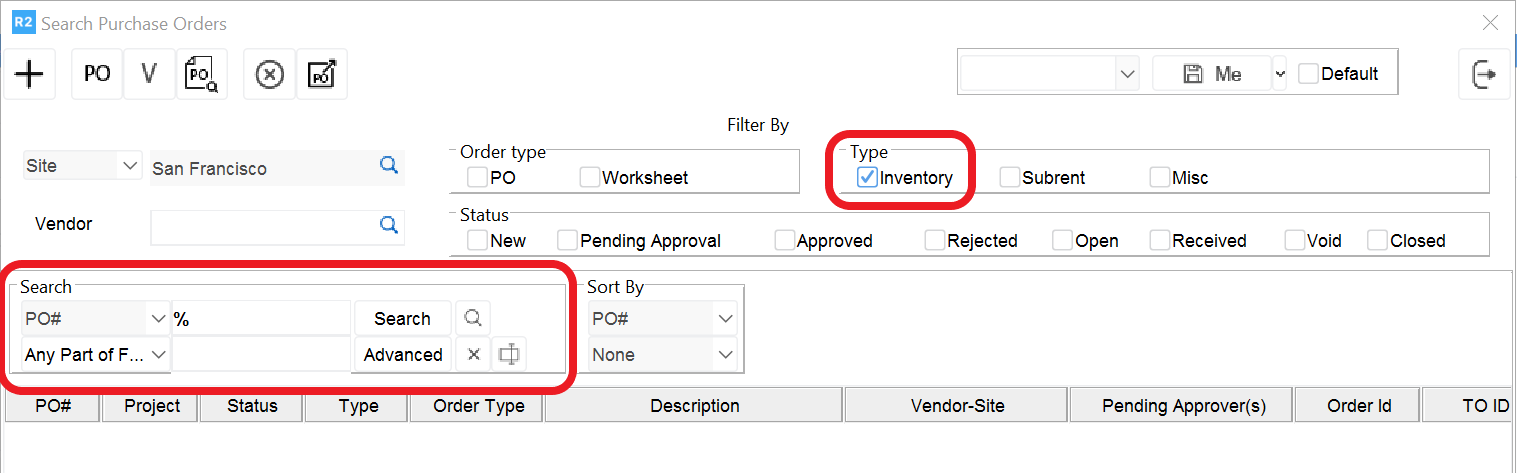
To filter by status, check the box to the left of the desired status. Enter the wild character symbol “%” in the blank field and click the Search button. All existing POs with the status selected will be displayed.
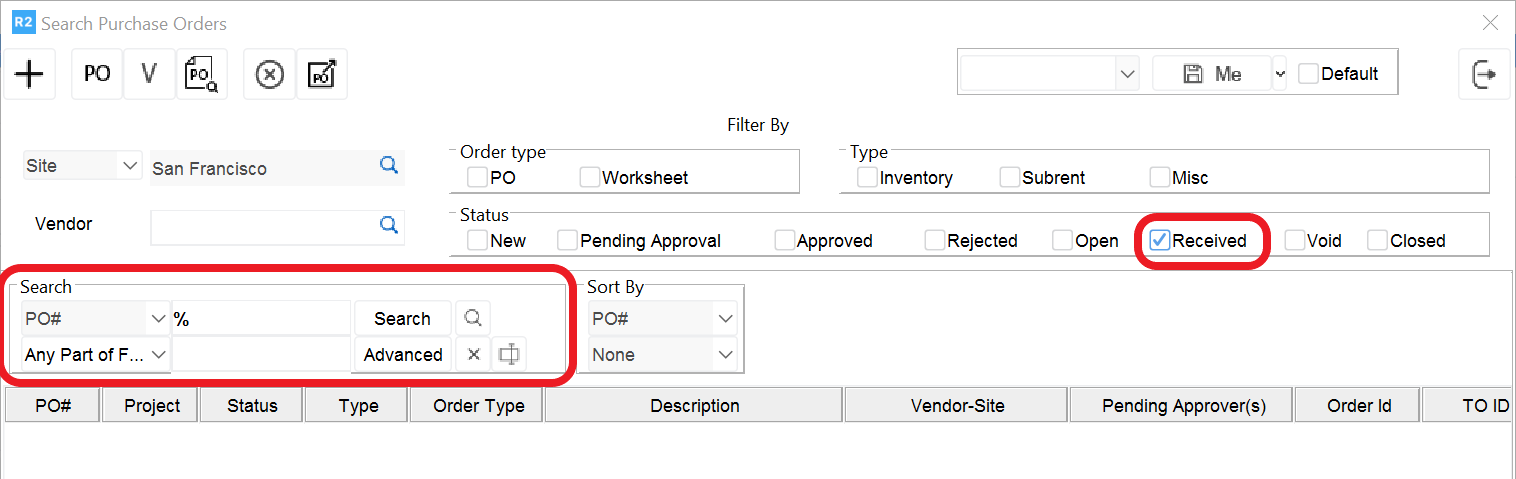
Filters can be mixed and matched to narrow results.
To search by vendor, click the Find button 
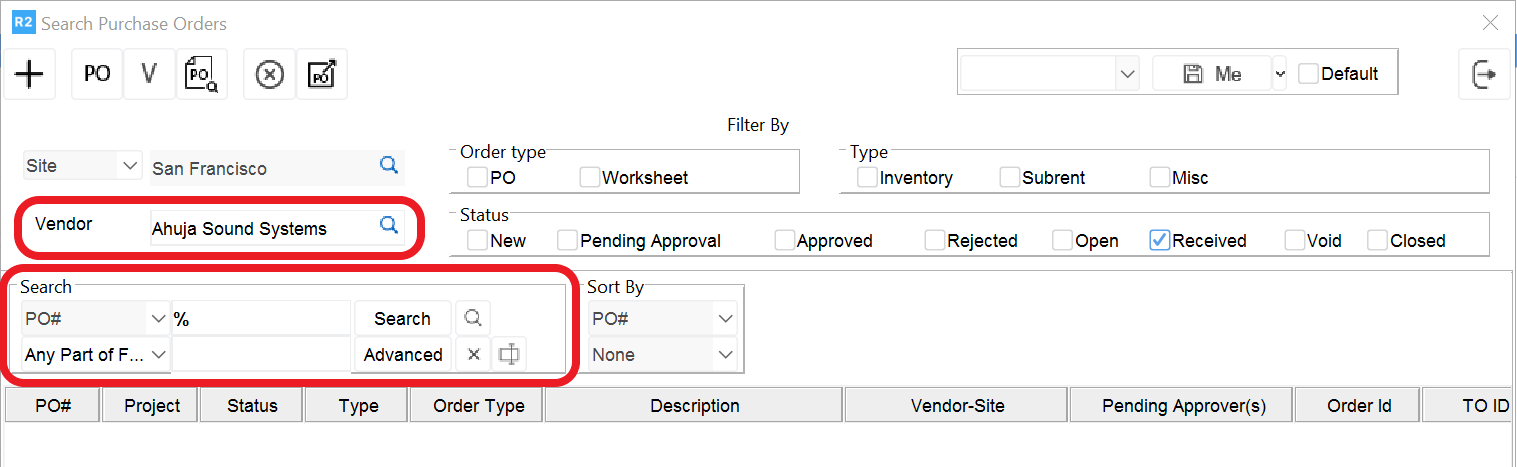
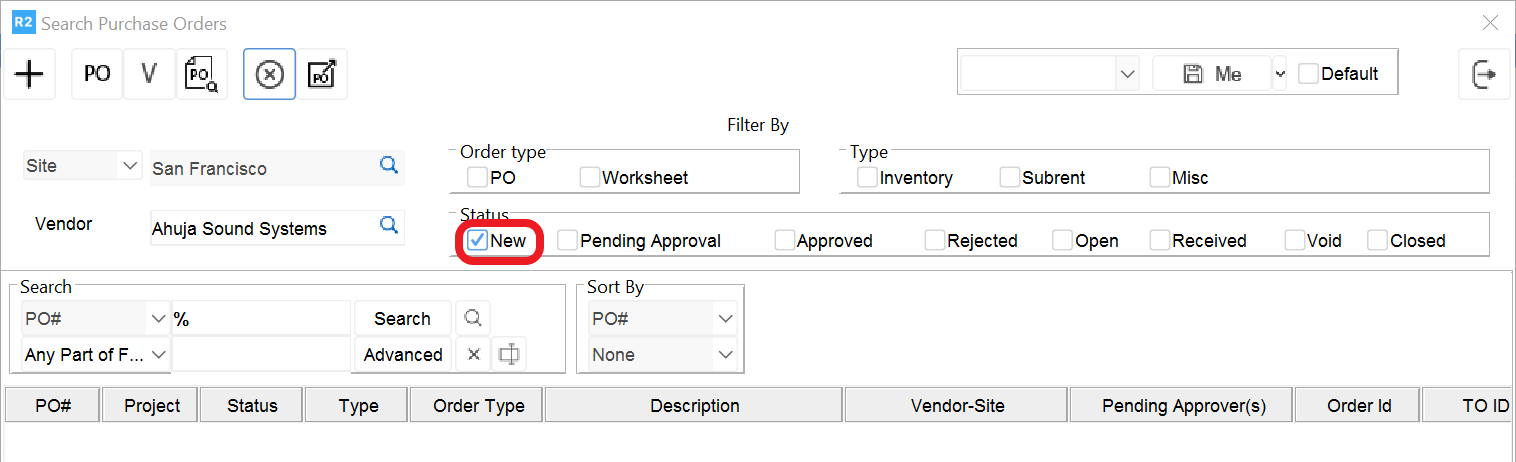
To search for by specific criteria click the dropdown list and select it from the list. Enter the corresponding value in the blank field and click the Search button to execute the search.
.png?cb=74b89e30a5a9fa733611da244bb1a19f)
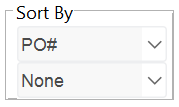
The search results can also be sorted by specific criteria. Select the desired sort preferences in the Sort By section.
To search by multiple criteria use the “Advanced” search function. Use the add button 


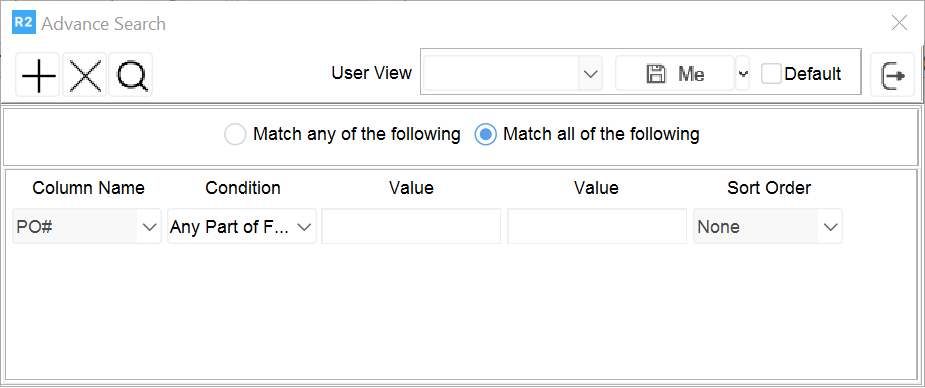
The results will display based on the criteria defined.