
Click on the Search Inventory 
Non serial kits will not display stock or availability. The stock or availability is displayed for each component visible upon expanding kit.
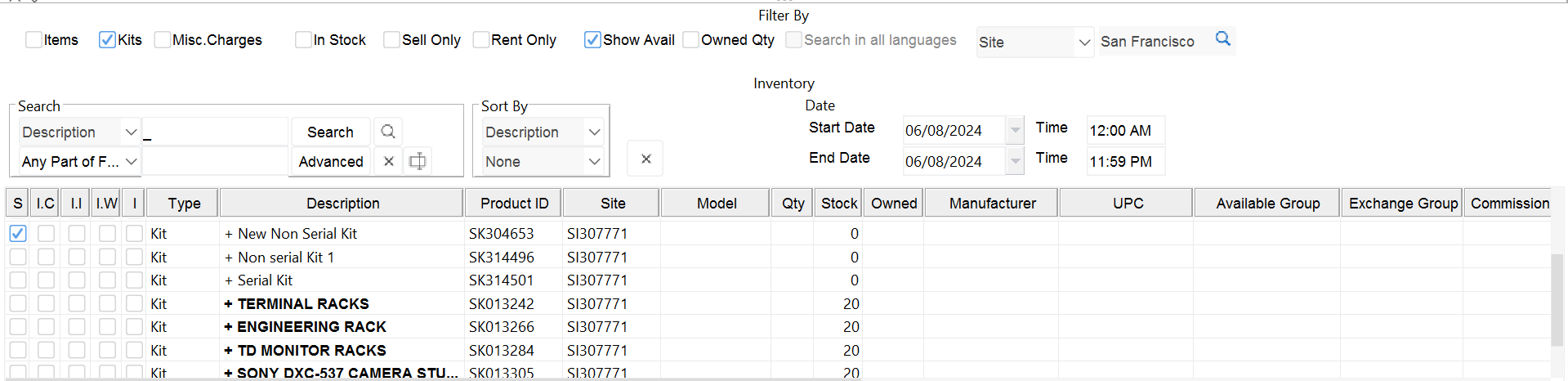
Expanding the kits will show the stock or availability of each piece of equipment.
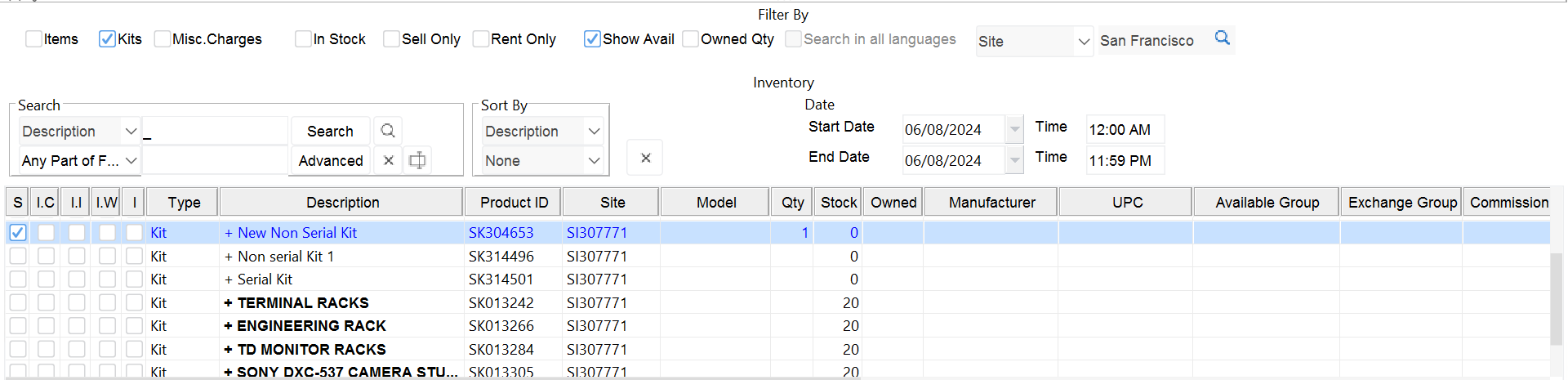
In the case of a serial kit, the availability will be shown at the header level (without expanding)
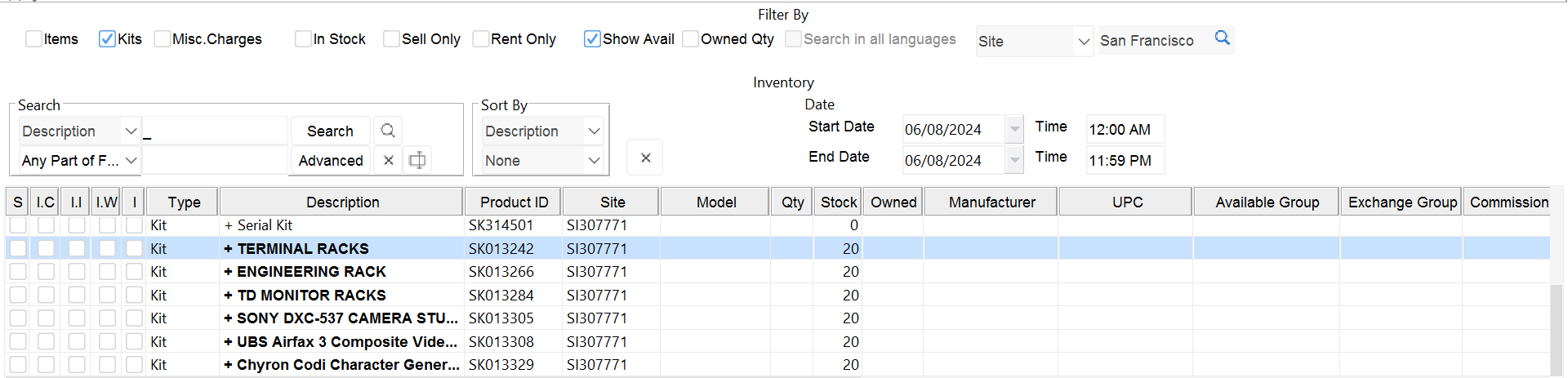
Continue searching or click on the Select 
Searching for Misc. Charges work similarly, however, you will click in the checkbox for Misc. Charges instead of Kits prior to searching.
NOTE: About Kit functionality, when kits are added to an order, the components will not be listed by default. There will be a single line describing the kit with a + symbol next to it, indicating it can be expanded.

Right click on the kit header and select Expand/Collapse. All items in italic font are components of the kit.
