
Table of Contents
After posting the invoices, Admin will print each invoice and send them to the customers via regular mail or e-mail. Invoices can be printed from the Search Invoice screen or from within the batch.
Invoices to be e-mailed will be printed individually and the e-mail option will be selected. Invoices to be sent via regular mail will be printed as a batch. This process will save a copy of each invoice in the pre-defined directory. All invoices can then be printed at once from the directory.
E-mailing Invoices
To e-mail an invoice follow the next steps:
-
Click on the Search Invoices

-
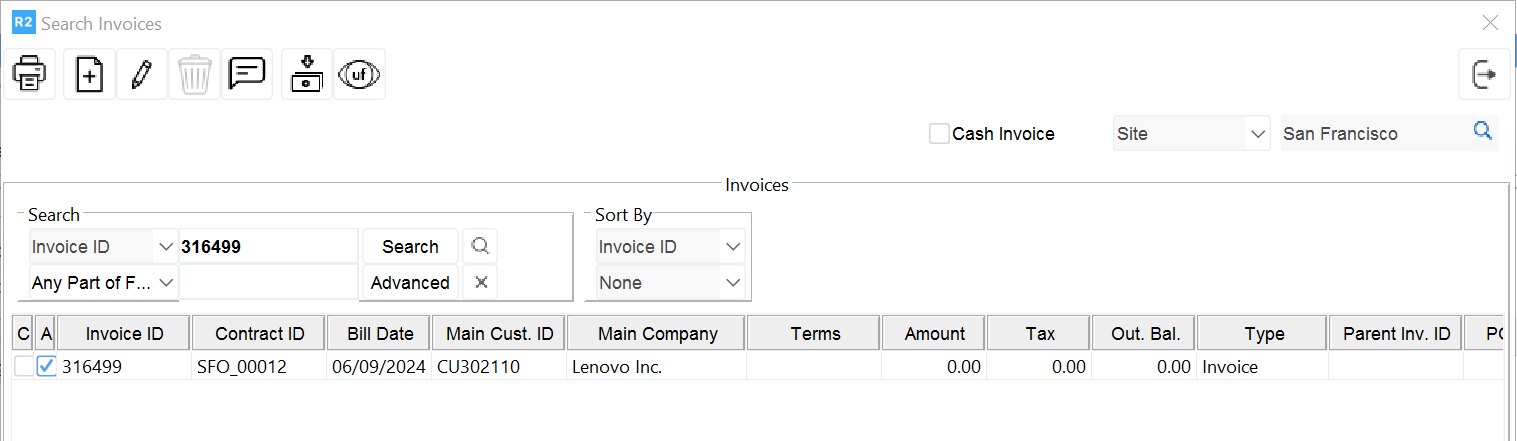
The Search Invoice screen will be displayed.
-
Enter the Invoice ID of the invoice you want to e-mail in the search field.
-
Click the Search button to display the results.
-
Highlight the invoice and click on the Print

-
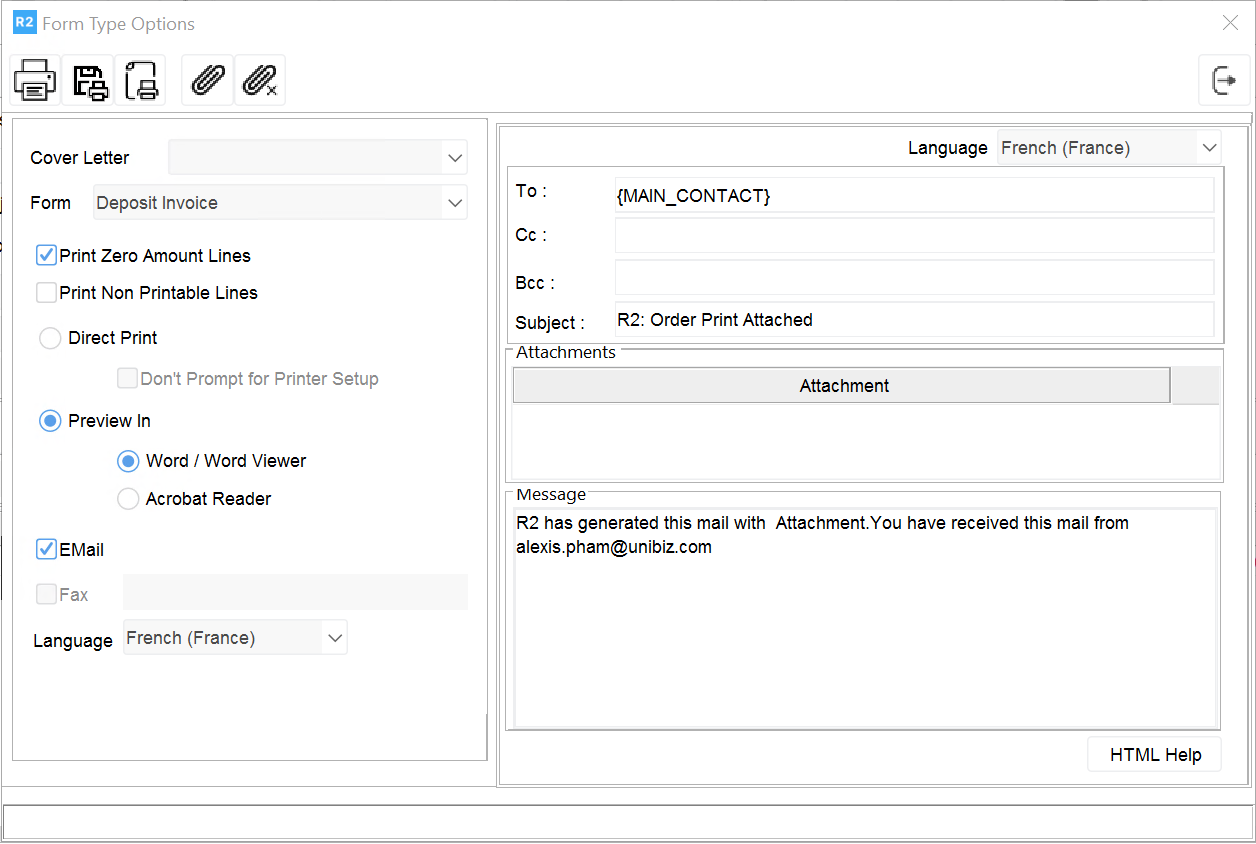
The Form Type Options dialog window will be displayed.
-
Check the E-mail option.
-
The “To:” field will display {MAIN_CONTACT} which means the invoice will be sent using the e-mail address of the order’s main contact.
-
You can type in an e-mail address if the invoice is to be e-mailed to a different address.
-
Use the “Cc:” fields to e-mail a copy to another contact.
-
Use the “Bcc:” field if you want to e-mail a copy to yourself or another private contact.

Mailing Invoices
To mail invoices via regular mail, print them as a batch. Copies of the invoices will be saved in the predefined location. Select all invoices to print them all at the same time.
-
Find the invoice batch in the Invoicing module.
-
Highlight the batch displayed in the search results.
-
Click the Print Batch

-
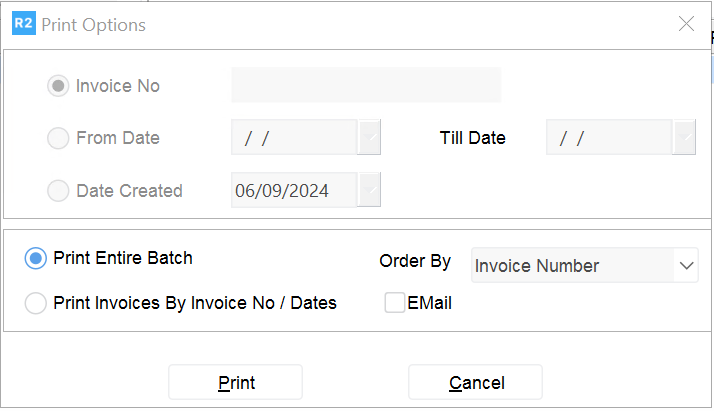
The Print Options dialog window will be displayed.
-
Select the Print Entire Batch option.
-
Click the Print button.
-
The Print To dialog window will be prompted.
-
Define the Save In location if not already displayed.
-
Keep the file name given.
-
Click the Save button.
.png?cb=efec6f3f416d11939640a2045675aed2)
-
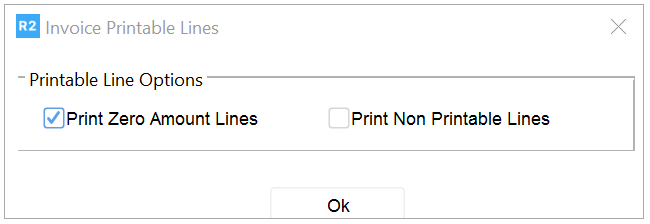
The Invoice Printable Lines prompt will be displayed.
-
Keep the default options or modify them accordingly.
-
Click OK to print the batch.
-
The invoices will be saved in the defined location.
-
After printing, go to the location where the batch saved and open it.
-
Press the CTL + A keys in the keyboard to select all the files.
-
Press the CTL + P keys in the keyboard to print all selected files.