
View Invoices
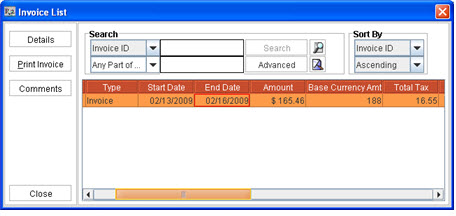
When an order is invoiced, R2 will display the invoice amount in Base Currency, Site Currency and Transaction Currency. On viewing the invoice for an order, the Invoice List will be displayed as shown below.
|
Multi-Currency Field |
Description |
|
Amount |
Displays total invoice amount based on the Transaction currency selected. |
|
Site Currency Amt |
Displays total invoice amount based on the Site currency selected. |
|
Base Currency Amt |
Displays total invoice amount based on the Base currency selected. |
|
Total Tax |
Displays total tax amount based on the Transaction currency selected. |
|
Site Curr Total Tax |
Displays total tax amount based on the Site currency selected. |
|
Base Curr Total Tax |
Displays total tax amount based on the Base currency selected. |
|
Outstanding Bal |
Displays Outstanding Balance amount based on the Transaction Currency. |
Invoice Details
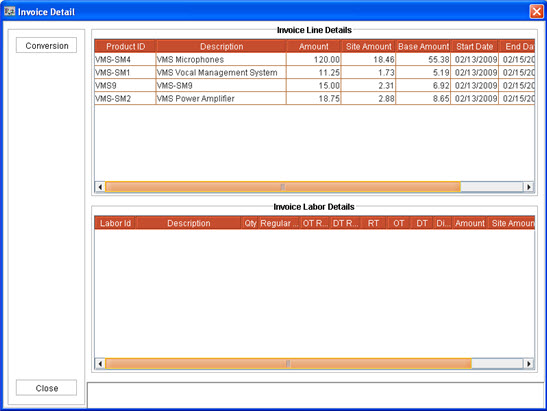
Click on the Details button to display Invoice Detail window wherein you can view the item/labor details for the invoice generated.
-
The Invoice Detail window will display the items details of the order which is invoiced in Base Amount, Site Amount and Transaction Amount.
-
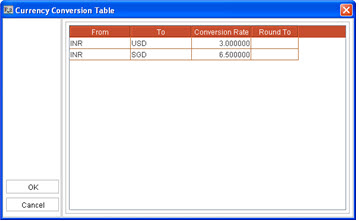
The User can also update the Site Amount and Base Amount based on the Conversion rates from the Currency Conversion Table displayed which can be invoked by clicking on the Conversion button. The Currency Conversion Table will display the conversion rate defined for the invoiced order. (rate present when invoiced.)
-
On modifying the conversion rates applicable for calculation of Site Amount of the invoice , the Base Amount and Site Amount will be re-calculated based on the updated conversion rates.
-
On modifying the conversion rates applicable for the calculation of Base Amount of the invoice the base amount will be re-calculated based on the updated conversion rates.
Posting Invoices
While posting an invoices, the invoices will be always posted based on the Transaction Currency.
-
On posting invoices in Great Plains format with multi-currency feature enabled, a new column will be added in the export file (R2RM.TXT) which will display the Transaction Currency Code.

Printing Invoices
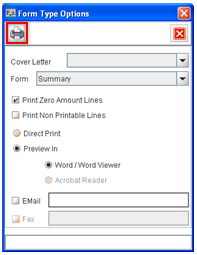
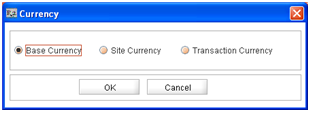
While printing invoices the user can select a currency ,based on which the invoice will be printed. On clicking on the Print icon in the Form Type options, while printing invoices R2 will display currency dialog box (as shown below) wherein the user can select the desired currency from the available options Base Currency, Site Currency or Transaction Currency. On clicking on OK the invoice will be printed based on the currency selected.
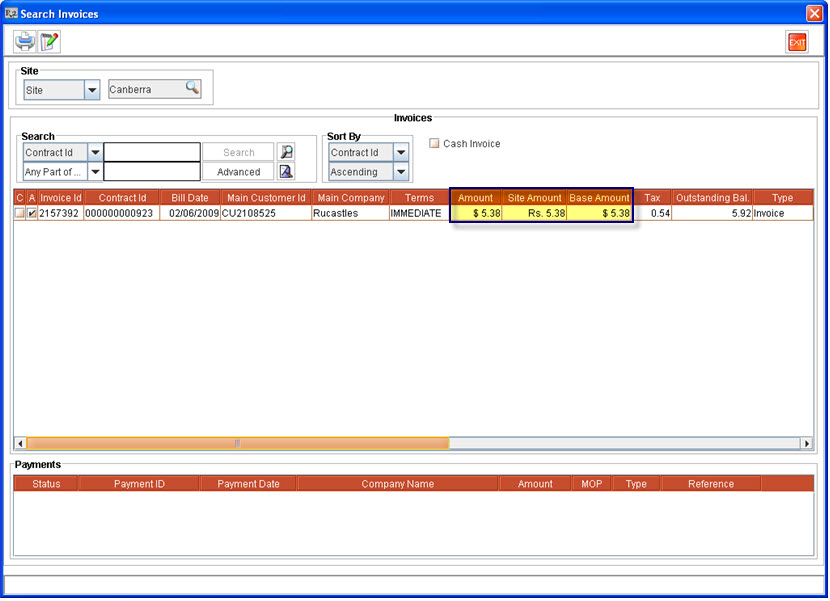
Multi-Currency in Invoice Search Window
In Invoice search window, the invoice amount will be displayed base currency (Base Amount), Site Currency (Site Amount ) and Transaction Currency (Amount) with the respective currency symbol.
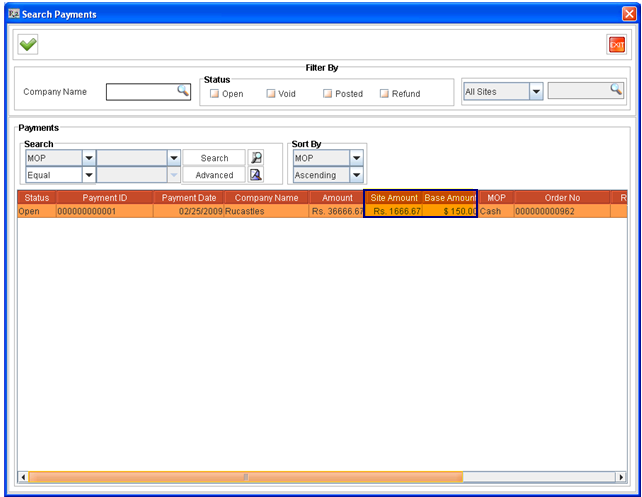
Multi Currency in Search Payment Windows
In Search Payments window the user can view the Site currency based amount and Base Currency based amount in columns Site Amount and Base amount respectively (as shown below)
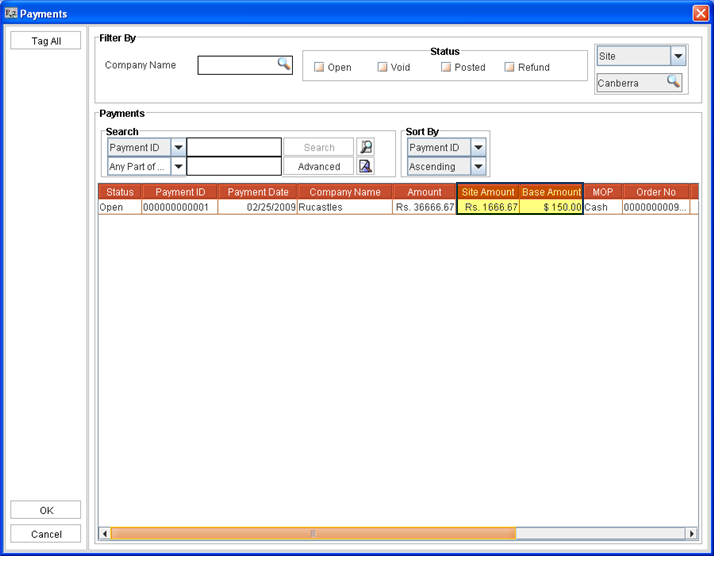
Payments Window (Accessed From Accounts > Search Payments and Invoicing > Payments > Search Payments
Payments Window (Accessed From Invoicing > Payment Batch > Add Payments
For more details on Multi-Currency feature in R2 click here.