

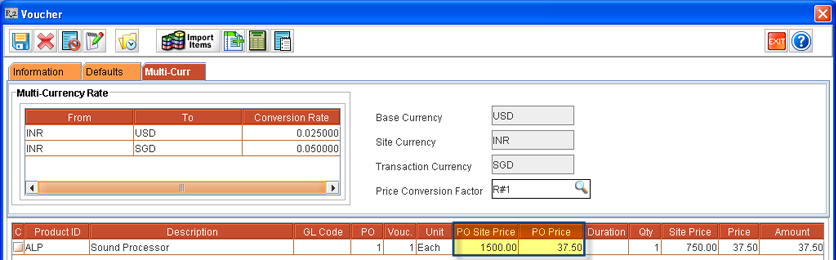
In Vouchers, the currency information will be displayed in the Multi-Currency tab . By default the Base Currency selected will be displayed as the Site Currency and Transaction Currency for the Vouchers. On selecting a vendor for the voucher, the Transaction Currency will be changed/updated with the vendor customer currency and On selecting a purchase order in the defaults tab, the Site Currency defined for the Purchase Order site will be displayed as the Site Currency for the Voucher.
While importing a Purchase Order into a voucher, the Purchase Order Site price for the item will be displayed in the PO site Price field and the Item Unit price calculated based on Currency conversion (Transaction Currency based price) will be displayed in the PO price column (as shown below).
-
Editing Transaction Price will calculate the Site Price, similar to the functionality explained in Purchase Orders.
Importing Site Currency and Transaction Currency in Vouchers
-
Whenever a new Voucher is created in a site, the currency importable buttons will be enabled in both Site and Transaction currency field of Multi-Currency Tab of Vouchers. However, if at least one item line is added to the Voucher then user will not be able to change the Site and Transaction currency.
-
When a Purchase Order is imported to a Voucher through the PO # field of the Defaults tab, system will consider the Site and Transaction Currency of the Purchase Order and default the same to the Site and Transaction Currency field in the Multi-Currency tab of the Voucher .
-
When Importing a Purchase Order to a Voucher , system will display only the Purchase Orders which has the same Site and Transaction currency as the Voucher.
Multi-Currency in Voucher Search Window
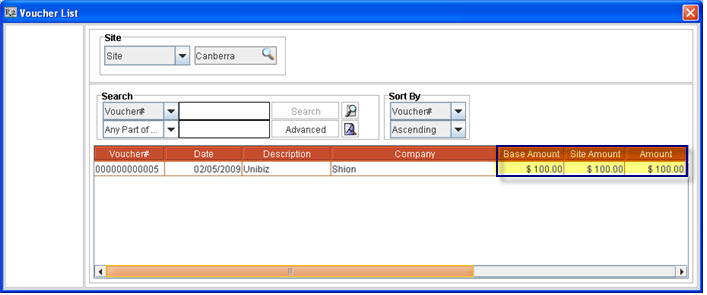
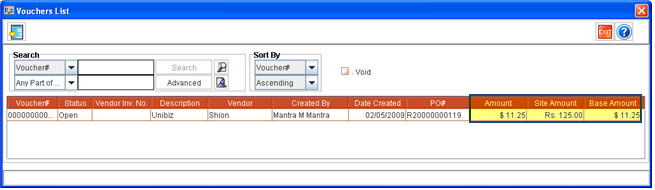
In Voucher search window, the voucher amount will be displayed based on Base currency (Base Amount), Site Currency (Site Amount ) and Transaction Currency (Amount) with the respective currency symbol.
Voucher Search Window Accessed from Invoicing Module (Voucher Batch > Add Vouchers)
Voucher Search Window Accessed from Account Module (Search Purchase Order > Voucher List)
For more details on Multi-Currency feature in R2 click here.