
While defining pricing for items, the user can define pricing for vendor based on Site currency which will be defaulted to the purchase order for item whenever the corresponding currency code is selected. The currency selected for the vendor will be considered as the Transaction currency while creating Orders.
Defining Site Currency Vendor Pricing
-
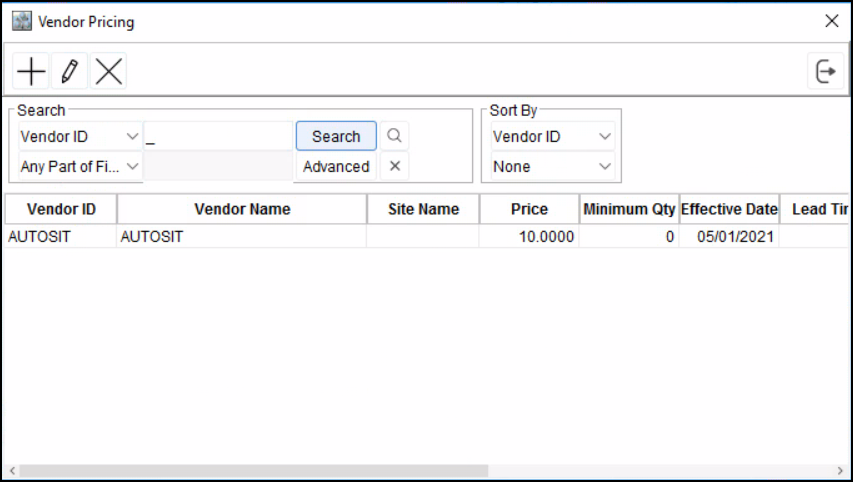
Access Vendor Pricing Dialog box .
-
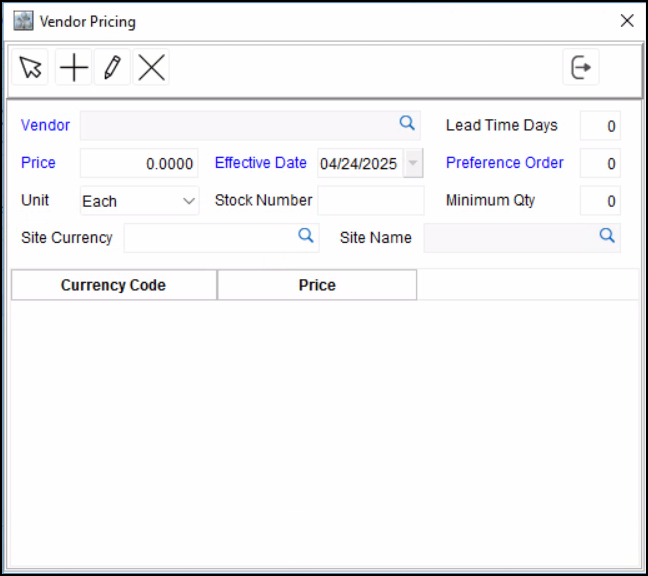
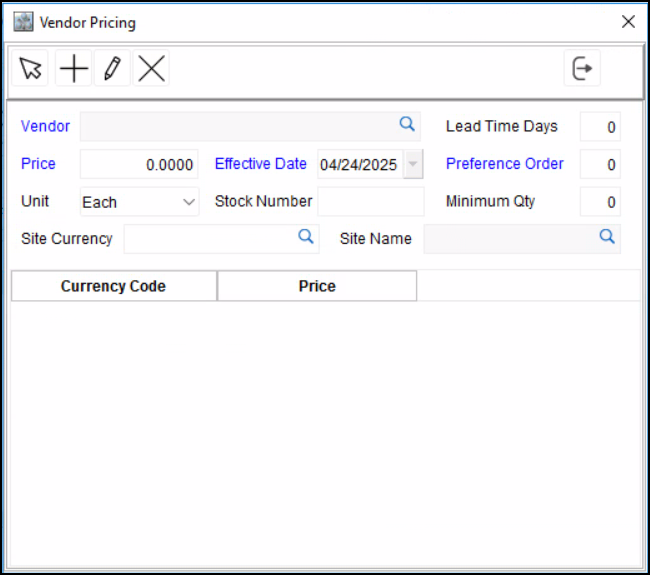
Click Add to display Vendor Pricing definition dialog box wherein you can add vendor pricing for the item.
-
Click on the importable button available in the Vendor field to select a Vendor.
-
Click on the importable button available in the Site Currency field to select a site currency.
If Site Currency is not selected, while adding the item into an purchase order, the defined vendor price will be considered as the Site Price for the item irrespective of the Site Currency selected in the purchase order.
-
Define the Price (price entered will be defaulted to the purchase order while selecting the site currency selected).
-
Select the Effective Date from which the pricing has to be implemented.
-
Set the Preference Order value.
-
Click Accept icon
-
The newly added price definition will be displayed in the Vendor Pricing Dialog box.
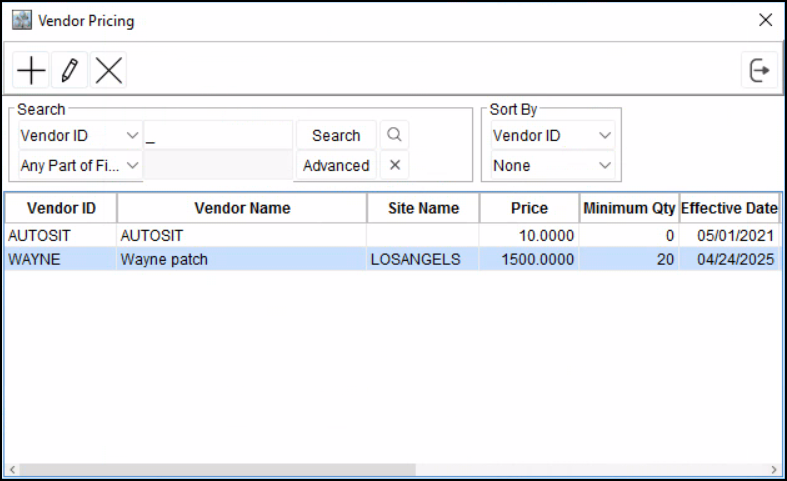
The user can also define the Item Pricing based on different currency conversion rates. For example , if the price defined for the item is in USD, the user can define pricing for item in any other currency rates by converting the price defined in USD to the respective currency. The conversion will be done based on the currency conversion defined in the configuration module.
Defining Transaction Currency Vendor Pricing
-
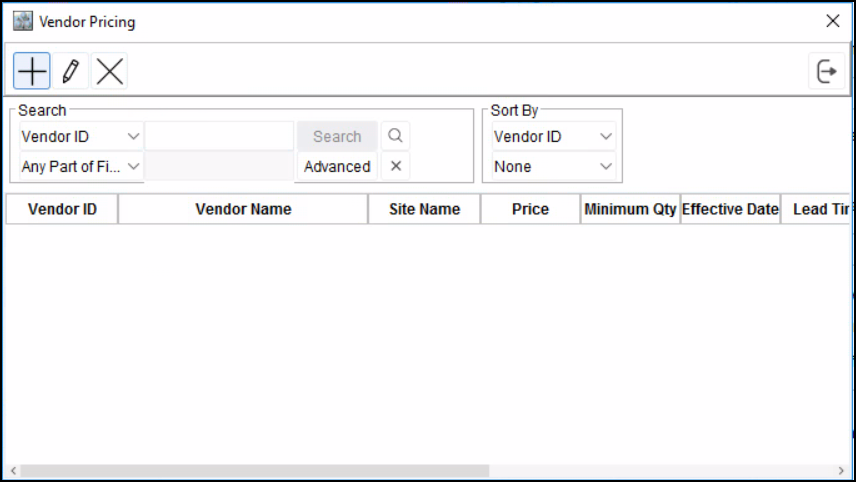
Access Vendor Pricing Dialog box.
-
Click Add to display Vendor Pricing definition dialog box wherein you can add vendor pricing for the item.
-
Click on the importable button available in the Vendor field to select a Vendor.
-
Click on the importable button available in the Site Currency field to select a site currency.
-
Define the Price (price entered will be defaulted to the purchase order while selecting the site currency selected).
-
Select the Effective Date from which the pricing has to be implemented.
-
Set the Preference Order value.
-
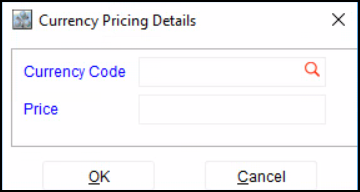
Click on Add icon to display Currency Pricing Details Dialog box.
-
Click on the importable button available in the Currency Code field for selecting a currency code.
R2 will automatically calculate and display the price by converting the site currency price to the Currency code selected. If no conversion rate is defined for the Site Currency to the Currency Code selected, the Price field will be displayed as blank.
-
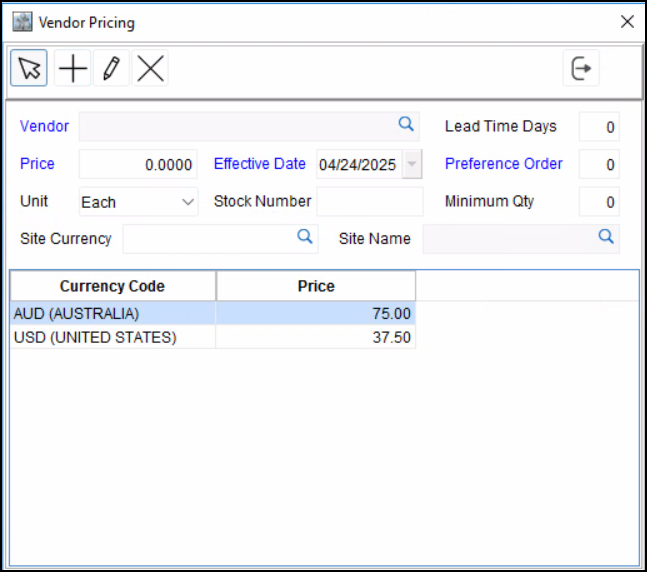
Click OK . The Currency Code with the Converted value will be displayed in the Vendor Pricing definition dialog box.
-
Click

For more details on Multi-Currency feature in R2 click here.