
Content was last updated in 06.01.17-00
Revision History
Version No.
|
Reference No.
|
Changes
|
|
06.01.17-00 |
R2-17740 and R2-17895 |
Change in Design how PAT Testing is executed. |
|
NA |
NA |
Content ported from previous release pertaining to same topic. |
Support has been given to automate the process of re-coding a positive PAT Test from the PAT Test Results Table to the R2 system.
An equipment moves in and out of the Warehouse frequently, with clients present. Thus, the automation of positive PAT Test results needs to be synchronized with R2 as frequently as possible. There is a PAT Test Results Table that records the following:
-
PREUF_ID (Primary Key)
-
ARTICLE_ID (SKU)
-
DEVICE_ID (Serial IID)
-
BARCODE (Serial ID)
-
CHECKDATE (Date/Time of PAT Test Entry)
-
VALIDATION (-1 = passed test / 0 = failed test)
-
TESTER_ID (testing machine ID)
-
PRUEFER (employee name, but not from R2 database)
Setting File R2PATIntegrate.ini
A file named R2PATIntegrate.ini is to be created in the R2's installation folder, Mantra. This file will be having the following parameters as displayed in the Table 5.0:
Table 5.0 Parameters in R2PATIntegrate.ini
|
Parameter Name |
Sample Parameter Value |
Remarks |
|
CreateQuickServiceTicketPath |
U:\PATTestResultsImporttoR2\PATQuickService.CSV |
This is the path of the file which is exported from PAT Test Database with details of the PAT Test results to be imported to R2. This parameter will be used by the R2 program to create Quick Service Ticket for all the passed PAT Tests. |
|
IntegrationEmployeeID |
Mantra |
This is the ID of the Employee who performs the PAT Testing to R2 integration. |
The sample R2PATIntegrate.ini file is displayed in the Figure 5.0.

CreatePATService for Passed PAT Tests in R2 Automatically
-
The program CreatePATService can be executed either from the Command Prompt or a Batch file. It can be scheduled to be run at regular intervals using Windows Task Scheduler.
-
The integration gets performed by Employee mentioned in the IntegrationEmployeeID parameter. If this is not mentioned in the R2PATIntegrate.ini file, the integration is performed by the default Employee named Mantra M Mantra.
Format of the R2PATIntegrate.ini file to be imported to R2
-
CSV-Format with separator as Semicolon (;).
-
In text fields the semicolon needs be replaced with a Comma (,).
-
The last field of any row should be completed with a Semicolon (;).
Executing CreatePATService Program
The CreatePATService program can be used to create Quick Service Tickets for passed PAT Tests in R2.
There are two ways in which the CreatePATService program can be performed. They are as following:
-
Executing from Command Prompt
-
Scheduling the program using the Windows Task Scheduler
Executing from Command Prompt
Access the command prompt and direct it to the directory to where R2 is installed. Then type in the following command:
“<path where Java is installed>\bin\java.exe” CreatePATService
The program can be executed in one of the following ways:
-
"C:\Program Files\Java\jre7\bin\java.exe" Mantra.PMain.PIntegrations.SAPF2.CreatePATService
The system creates the Quick Service Ticket for passed PAT results in R2 by fetching the integration file from the path set for CreateQuickServiceTicketPath parameter (which is the default parameter for this program) in R2PATIntegrate.ini file. This is, as shown in the Figure 5.1.
Figure 5.1 Sample execution of program CreatePATService from Command Prompt – By passing no parameters

The Pat Service Import Success message is displayed in the Command Prompt as displayed in the Figure 5.2.1.
Figure 5.1.1 Success Message Displayed After Execution

-
"C:\Program Files\Java\jre7\bin\java.exe" Mantra.PMain.PIntegrations.SAPF2.CreatePATService "D:\2017\PAT\data.csv"
The system creates the Quick Service Ticket for passed PAT results in R2 by fetching the integration file from the path provided. This is, as shown in the Figure 5.2.
Figure 5.2 Sample execution of program CreatePATService from Command Prompt – By passing integration file path

The Pat Service Import Success message is displayed in the Command Prompt as displayed in the Figure 5.2.1.
Figure 5.2.1 Success Message

Scheduling the program using the Windows Task Scheduler
The steps for scheduling the periodic execution of the CreatePATServiceprogram using Windows Task Scheduler are:
-
Create a Batch file with the program CreatePATService and provide appropriate parameters. The various ways of providing the program within the Batch file are:
-
“C:\Program Files\Java\jre7\bin\java.exe” CreatePATService
The system creates the Quick Service Ticket for passed PAT results in R2 by fetching the integration file from the path set for CreatePATService parameter (which is the default parameter for this program) in R2PATIntegrate.ini file. This is as shown in the Figure 5.3.
Figure 5.3 Sample Execution of the Program CreatePATService from Command Prompt – By Passing No Parameters

-
“C:\Program Files\Java\jre7\bin\java.exe” CreatePATService “U:\PATTestResultsImporttoR2\PATQuickService.CSV”
The system creates the Quick Service Ticket for passed PAT results in R2 by fetching the integration file from the path provided. This is, as shown in the Figure 5.4.
Figure 5.4 Sample Execution of Program CreatePATService from Command Prompt – by Passing Integration File Path

-
Using the Windows Task Scheduler setup a Windows Task. Set the interval to run the task as once every 2 minutes. That is, it will execute the CreatePATService program. The system accesses the integration file from the path provided and creates the Quick Service Ticket for passed PAT results in R2 once every 2 minutes.
Sample Workflow
-
Create a serial Item [CRANE#1] and [CRANE#2].
-
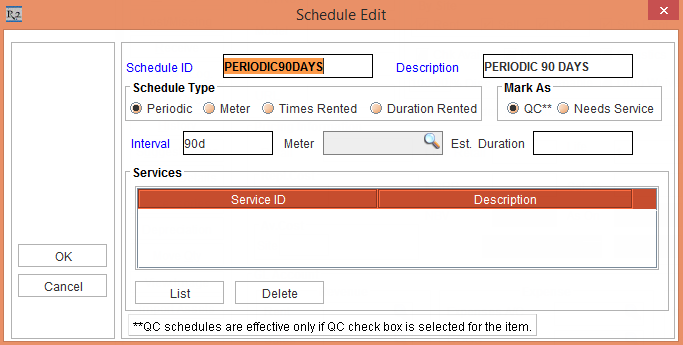
Create Maintenance Group [PERIODIC90DAYS] with Maintenance Schedule Periodic90Days.
-
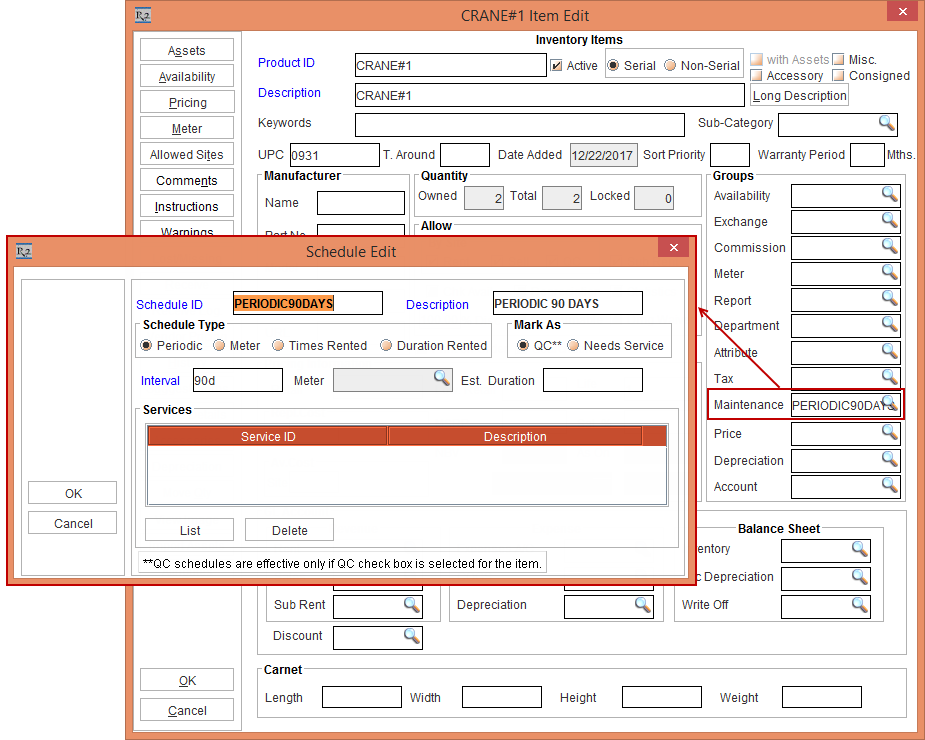
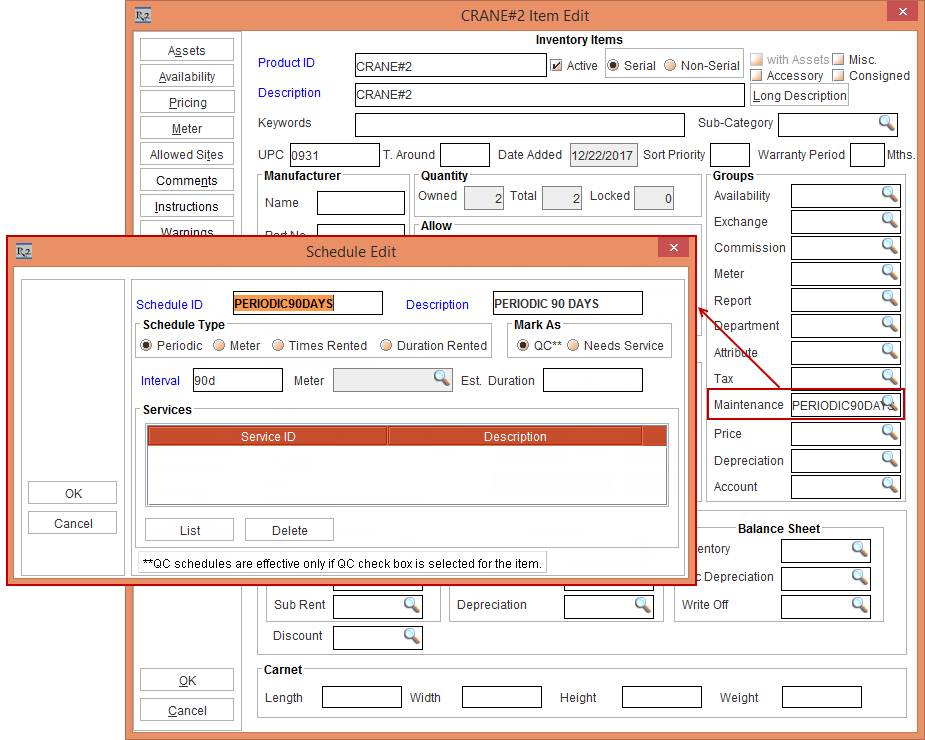
Tag the Maintenance Group [PERIODIC90DAYS] to the Items [CRANE#1] and [CRANE#2]. This is, as shown in the Figure 5.6 and Figure 5.7.
-
Receive the Assets [CRANE#1-1] and [CRANE#1-2] for the Item [CRANE#1] on 01 - March - 2017 in Site [SITE#1] > receive Assets [CRANE#2-1] and [CRANE#2-2] for [CRANE#2] on 10 - March - 2017 in Site [SITE#1]. Based on Maintenance setup the assets [CRANE#1-1] and [CRANE#1-2] will be on QC on 29 - May - 2017. The Assets [CRANE#2-1] and [CRANE#2-2] for [CRANE#2] will be on QC on 08 - June - 2017.
-
On the 30 - May - 2017, select the Service module > Generate Needs Service. The Assets [CRANE#1-1] and [CRANE#1-2]'s Status will be flagged as QC based on Maintenance settings.
-
On 31 - May - 2017, perform the PAT Test for the Assets [CRANE#1-1], [CRANE#1-2] and [CRANE#2-1] on PAT Testing apparatus. The results are recorded as below in the PAT Test Results Table of PAT Tester database.
Table 5.1 PAT Test Results Table
|
PREUF_ID
|
ARTICLE_ID
|
DEVICE_ID
|
BARCODE
|
CHECKDATE
|
VALIDATION
|
TESTER_ID
|
PRUEFER
|
|
145287 |
CRANE#1 |
98955332 |
CRANE#1-1 |
03/27/2017 02:00 PM |
-1 |
PAT1001 |
George Niculescu |
|
145288 |
CRANE#1 |
98955333 |
CRANE#1-2 |
03/27/2017 02:30 PM |
0 |
PAT1001 |
George Niculescu |
|
145289 |
CRANE#2 |
98955334 |
CRANE#2-1 |
03/27/2017 03:00 PM |
-1 |
PAT1002 |
Gerrard Jenner |
-
Export this table data into the PATQuickService.CSV file (.csv) format with Semicolon (;) separator and place the file in the CreateQuickServiceTicketPath configured in R2PATIntegrate.ini file.
-
Execute the CreatePATService procedure to read the PATQuickService.CSV file content placed in CreateQuickServiceTicketPath and create Quick Service Ticket for the passed PAT tests. In this case, system will create Quick Service Ticket for [CRANE#1-1], [CRANE#2-1] as shown below and ignore the failed PAT test entry for [CRANE#1-2].
-
The Status of Asset [CRANE#1-1] will be marked as IN from QC. The system writes the expired Service Schedule ID - PERIODIC90DAYS to the Service History of the Asset [CRANE#1-1] and consider the service as done for the schedule for this period. For the Asset [CRANE#1-2], since there are no expired Service Schedule, it would create the Quick Service Ticket but no Service Schedule will be affected.
Field Mapping - PAT Testing to R2
-
The field mapping of PAT to R2 is explained in the Table 5.2. Additional in Formation pertaining to this table is provided below.
-
The ASSETID will exist in R2.
-
The ASSETID will not be in Repair status.
-
The log file will be created if there are any errors and warnings while loading the PAT Testing results to R2. The PatTestTransaction table stores all the data which is processed and the PatTestTransHistory Table stores the errors that appear while processing the data.
-
The PAT Test Data provided to R2 through PAT Integration file will be recorded as PAT Integration History.
-
The R2 PAT Integration program will ignore the record with same Primary Key (PREUF_ID), if it has been processed by R2 once.
-
Since no in Formation about the Service Schedule ID of the Asset is provided in the .csv file, the R2 PAT Testing Integration program verifies if there are any Service Schedule expired while creating Quick Service Ticket and if there are any it considers those expired Service Schedules as done for the cycle.
-
The PAT Testing to R2 Field Mappings are listed in the following Table 5.2.
Table 5.2 PAT Testing to R2 Field Mappings
|
|
From ARRI
|
|
Corresponding R2 Field that will be mapped for an Individual Customer |
|
|
PAT Field
|
PAT Data Type
|
Description |
||
|
1 |
PREUF_ID |
NUMBER |
Primary Key |
Not mapped to any field of R2, but stored as PAT Testing Integration History in R2 Database. |
|
2 |
ARTICLE_ID |
VARCHAR2(16) |
SKU |
R2 Product ID to which ASSETID belongs to and for which PAT Testing is performed. |
|
3 |
DEVICE_ID |
NUMBER |
Serial IID |
Mapped to R2's Serial IID |
|
4 |
BARCODE |
VARCHAR2(20) |
Serial ID |
R2 ASSET ID for which PAT Testing is performed and for which Quick Service Ticket has to be created in R2 through PAT Testing integration program. If multiple barcodes are on the physical asset, R2 evaluates both Primary Asset ID and Additional Asset ID for the Serial IID to ensure the record can be written to the Asset within R2 |
|
5 |
CHECKDATE |
DATE |
Date/Time of PAT Test Entry |
Date/Time of PAT Test performed on PAT apparatus for ASSET ID. This is mapped to Service Ticket Created Date/Time in R2, Service Ticket Completed Date/Time. |
|
6 |
VALIDATION |
VARCHAR2(20) |
-1 = passed test /
|
Quick Service Ticket will be created in R2 corresponding to that.
|
|
7 |
TESTER_ID |
VARCHAR2(20) |
testing machine ID |
Not mapped to any field of R2, but stored as PAT Testing Integration History in R2 Database. |
|
8 |
PRUEFER |
VARCHAR2(35) |
employee name,
|
Not mapped to any field of R2, but stored as PAT Testing Integration History in R2 Database. |