
Table of Contents
In the Criteria tab of Report Assistant Configuration window, you can create the Search criteria based on which the custom Report will be filtered and generated. This criteria will be displayed in the Reports module, based on which you can search the results for the report.
To Add Criteria
-
In the Report Assistant Configuration window, click on the Criteria Tab.
-
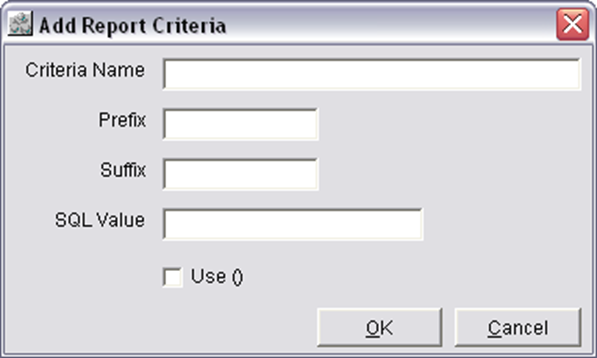
Click on the Add button to open the ‘Add Report Criteria’ dialog, in the Criteria Tab.
-
Define a name for the Criteria in the Criteria Name field.
-
Define Prefix, Suffix and SQL Value for the criteria.
-
Select 'OK' to save else 'Cancel' to cancel the defined criteria.
To Edit Criteria
-
In the Report Assistant Configuration window, click on the Criteria Tab.
-
Select a Criteria in the grid which has to be edited.
-
Click on the Edit button to open the Edit Report Criteria dialog.
-
The Edit Report Criteria dialog will be displayed with the selected Criteria.
-
Define a new Criteria name and the new prefix, suffix and SQL value.
-
Select 'OK' to save the newly defined Criteria Name, Prefix, Suffix and SQL Value else 'Cancel' to retain the earlier Criteria Name, Prefix, Suffix and SQL Value.
Field Information of Criteria Tab
Criteria Name
Displays the name of Criteria.
Prefix
Displays the prefix defined for the selected Criteria.
Suffix
Displays the Suffix defined for the selected Criteria.
SQL Value
Displays the SQL Value defined for the selected Criteria.
Button Information of Criteria tab
Add
On Clicking on the Add button, system displays the Add Report Criteria dialog, where you can add a criteria for the Report.
Edit
On Clicking on the Edit button, system displays the Edit Report Criteria dialog, where you can edit a criteria for the Report.
Delete
On selecting a criteria in the Criteria grid and then on clicking on the delete button will delete the criteria from the Criteria list.
Refresh
On clicking on the Refresh button, system will refresh the window with the currently made changes.
Close
On clicking on the close button will close the whole Report Assistant Configuration window