
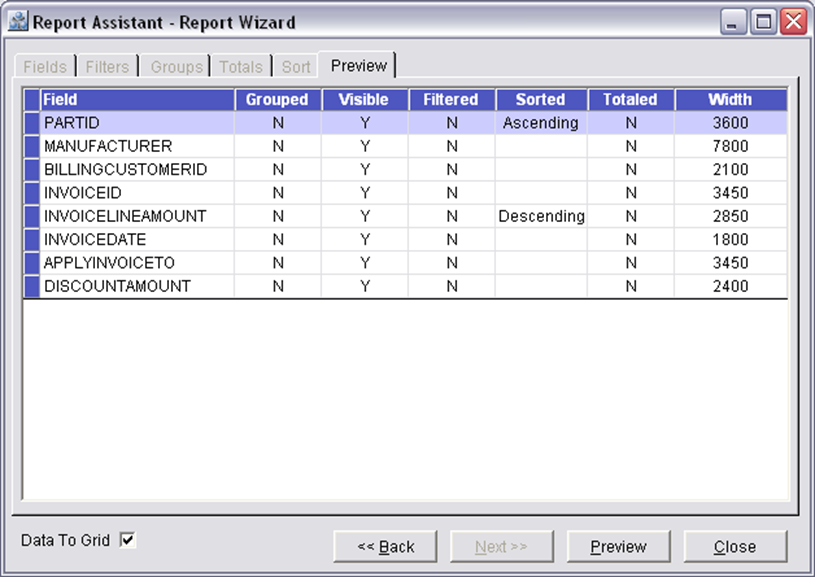
The Preview Tab gives on overview of how the report definition, it will list the Fields, the filter options, you can see the design (i.e. the width and height values of the columns), how each field in the report is sorted.
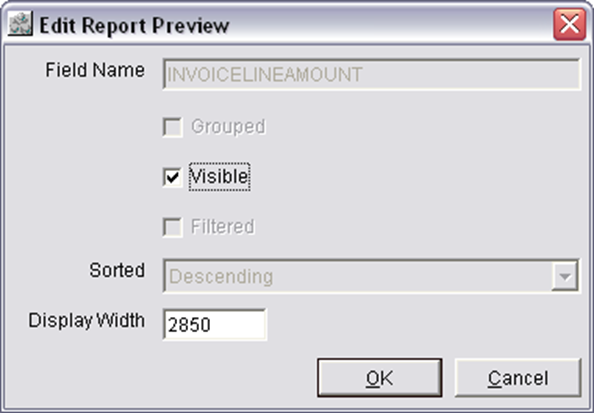
On double clicking any field in the grid of the Preview Tab, system will display Edit Report Preview dialog, wherein you will be able to edit the Visible check Box and the display width field for the selected field.
Column Information of the Preview Tab
Field
Displays the fields that will be displayed in the Report.
Group
Displays 'Y' or 'N'. (When the field is grouped in the Groups Tab, system will display 'Y' and if the field is not grouped in the Groups Tab then system will display 'N'.)
Visible
Displays 'Y' or 'N'.(When 'Y' is displayed in the Visible column, the field will be displayed in the report and when 'N' is displayed in the Visible column then the field will not be displayed in the report)
Filtered
Displays 'Y' or 'N'.( When the field is selected as filter option in the Filters Tab, then system will display 'Y' and if the field is not selected as filter option in the Filters Tab, then system will display 'N' in the Filtered Column.
Sorted
Displays 'Ascending', 'Descending' or blank based on how the field is sorted in the Sort Tab.
Totalled
Displays 'Y' or 'N'.(When the Total field check box is selected for the field in the Edit Report Total dialog of the Totals Tab, system displays 'Y' and if not selected displays 'N'.
Width
Displays the width of the field in the report.
Button Information of the Preview Tab
Data To Grid
On selecting the Data To Grid checkbox, system will display the report in grid and on de- selecting the Data To Grid (Fig.1) checkbox, system will display the report in Word (Fig.2).
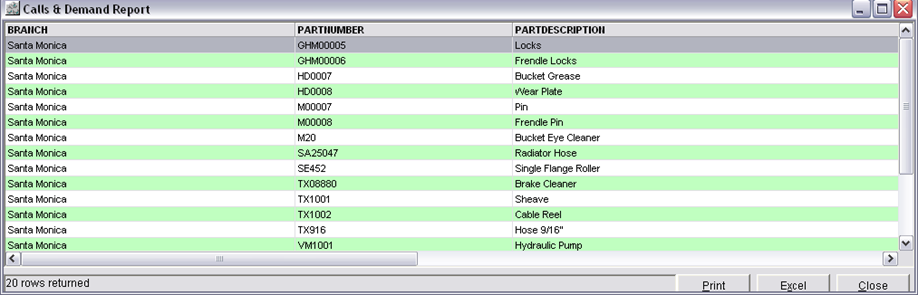
Fig.1 Data to Grid
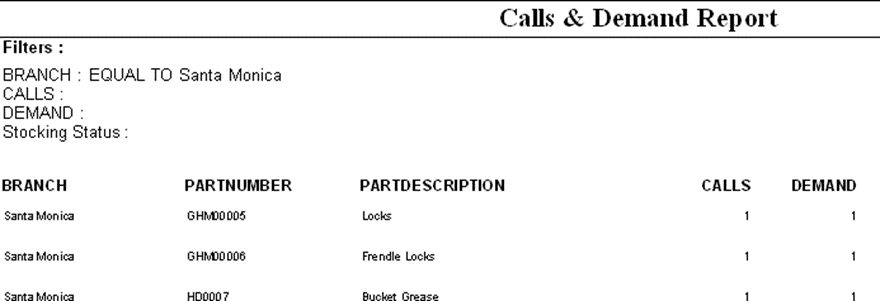
Fig.2 Data to Word
Back
On clicking the Back button the Sort Tab of the Reports Report Wizard window will be displayed
Preview
On clicking on the Preview button a filter layout will be displayed with the filter option selected in the Filters Tab. The label of the dialog will be the Report name defined in the Enter Report Name dialog which is displayed while clicking on the New button of the Report Assistant window. On setting the Filter and clicking on the 'OK' button the report will be generated.
Close
Clicking on the Close button will close the Reports Report -Wizard window.