
Table of Contents
In the Fields tab you can select the fields from the Available Fields pane, the value of which you want to view in the Report. The fields tab lets you decided the content and the data your report definition should fetch on generating it.
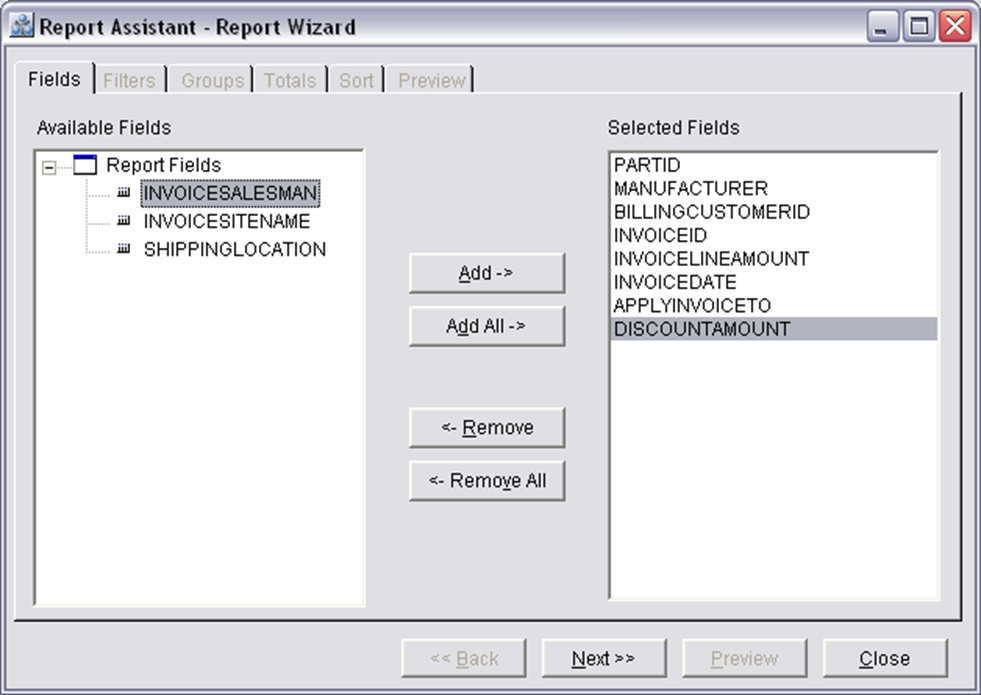
Button Information of the Fields Tab
Add
To add fields to the report, the required fields in the Available fields section has to be selected and then on clicking on the Add button the selected field will move from the Available Fields section to the Selected Fields section.
Add All
To add all the fields in View Fields section, you have to click Add All button by which all the fields in View Fields section will be listed in Selected Fields section, and View Fields section will be blank.
Remove
To remove a field from the selected Fields section, you have to select the required field in Selected Fields section and on clicking the Remove button the selected Field will move from the Selected Fields section to the Available Fields section.
Remove All
To remove all the fields from the definition, you have to click Remove All button. Then all the fields in Selected Fields section will be listed in View Fields and Selected Fields section will be blank.
Next
On clicking the Next button the Filters Tab of the R2Reports Report Wizard window will be displayed.
Close
On clicking on the Close button will close the R2Reports Report Wizard window.
NOTE: to change column sequence (the order in which these columns will appear in the report), highlight one of the fields in the “Selected Fields” column, hold the CTRL key down and use the UP or DOWN arrow to move the field into position. This can only be done from the Fields tab.