
Table of Contents
The first step in setting up and generating custom reports is the configuration accessible thru the Configuration Module.
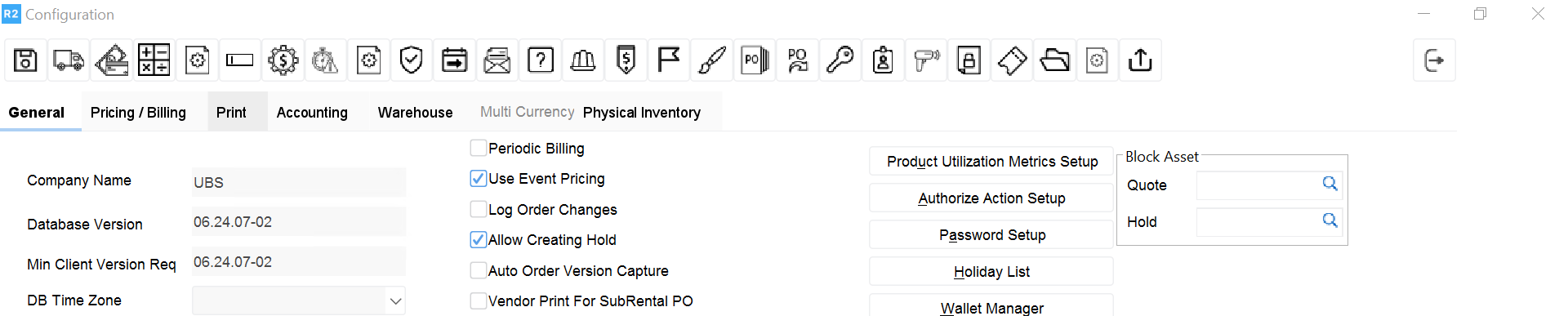
To access the Report assistant Configuration window
-
From the Launch Pad, click on the Configuration button to open the Configuration module.
-
Click on Configure Reports icon

-
The Report Assistant Configuration window will be displayed.
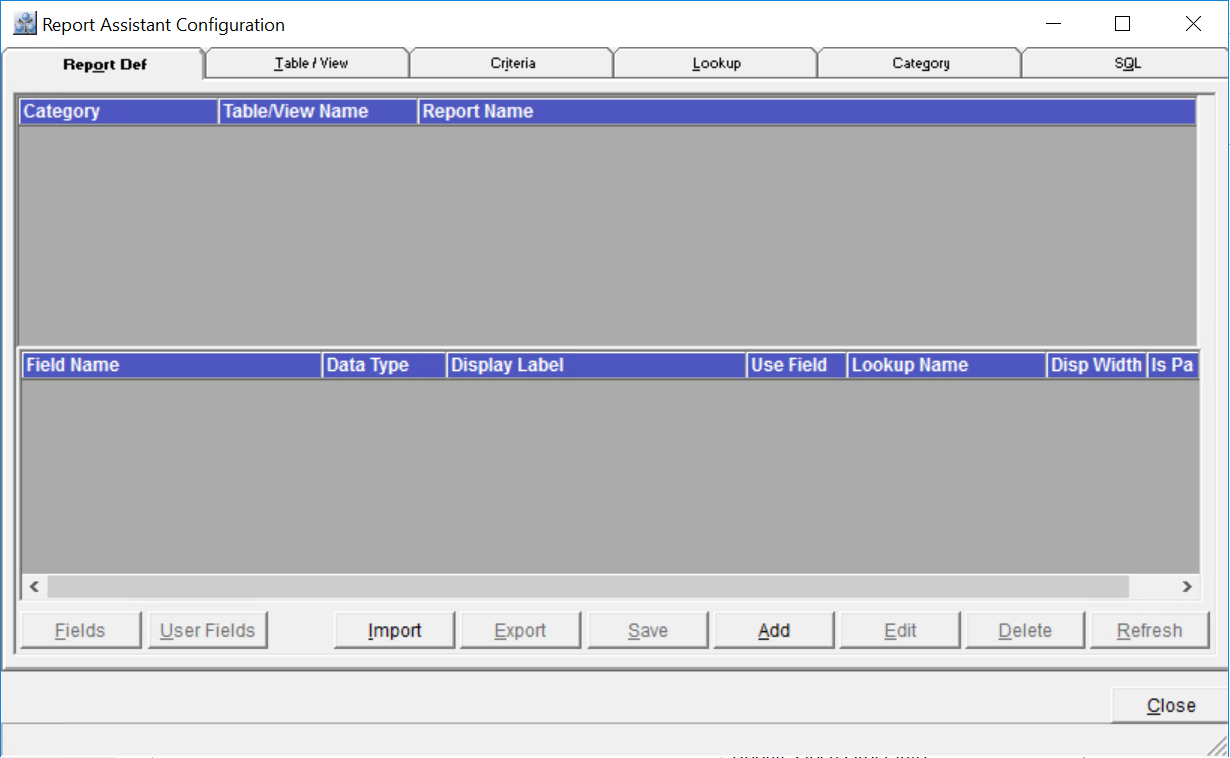
Tab Information of Report Assistant Configuration window
In the Report Assistant Configuration window, the user will be able to create categories, link tables and views, custom look-ups and run ad hoc SQL. This area lays the foundation for easily generating and creating reports thru the Custom Report Wizard.
Category Tab
In the Category Tab, you can create different categories for the report based on the purpose of the reports. The Category created in the Category tab of the R2 Reports Configuration window will be displayed in 'Select a Category' scroll down list of the Report Assistant window in the Reports module.
Table/ View Tab
In the Table/ View tab, you can add a Display name for a view with selected fields, which you will be able to view while generating the report from the reports module.
Report Def Tab
In the Report Def tab, you can add, edit, Import, Export definition for Report , edit the fields of Report Definition and will be able to create User Fields for the Report Definition.
Criteria Tab
In the Criteria tab, you can create a criteria, which will be displayed in the reports module while generating the reports.
Lookup Tab
In the lookup Tab, you can create a lookup for a selected Table/ View and Field.
SQL Tab
In the SQL Tab, you can execute any SQL statement and can view the results based on the statement in the below grid of the SQL tab. This includes a Microsoft Excel output facility.
QUERY TIMEOUT
-
Open Control Panel → Administrative Tools → Data Sources (ODBC) → click on System DSN tab.
-
Click on R2SERVICE then on the Configure button.
-
Deselect the checkbox next to Enable Query Timeout.