Table of Contents
Licensing Employees
Employee Login Access
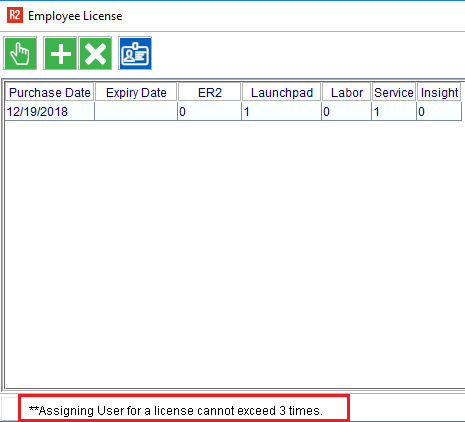
Once an employee is setup in R2, they will need to be assigned a license if they are to login. Some areas of R2 require separate licensing, and so employees can be licensed for some areas, but not others, as desired.
To access Employee Licensing, begin by clicking on the Config button from the Launch Pad:
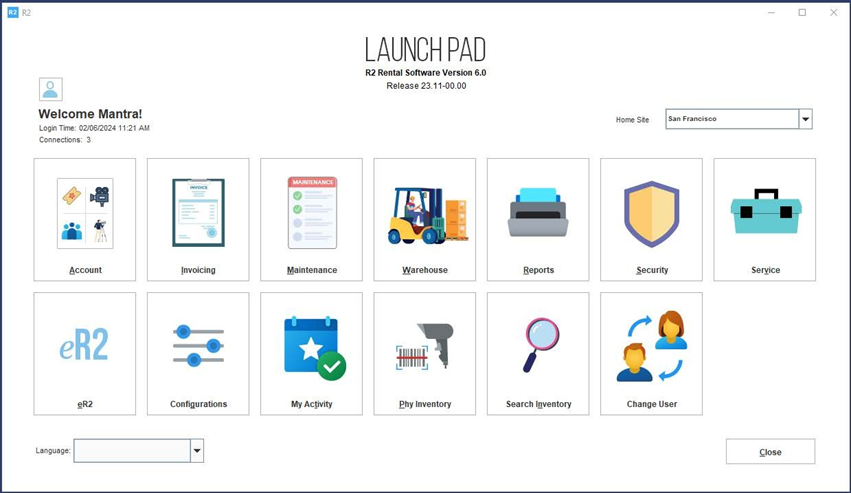
Click on the Employee License icon:

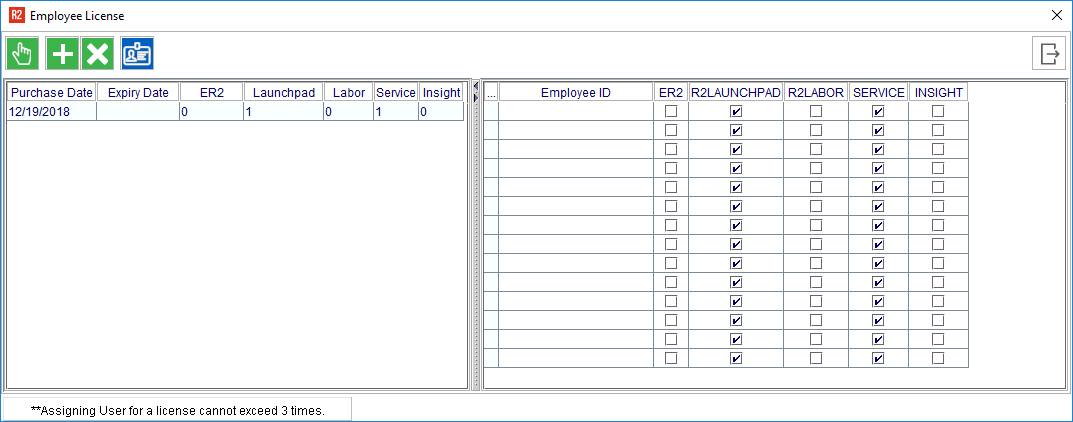
The left-hand window pane shows how many licenses remain of each product that has been licensed. As licenses are assigned to employees, the license count in each respective section is reduced.
See below for a comprehensive description of each field on the Employee License screen.
|
Field |
What it does |
|---|---|
|
Add |
Adds a new line to the right-hand grid. |
|
Delete |
Deletes a highlighted license row from the right-hand grid. Do not use this feature unless you mean to delete the license permanently. |
|
Select/OK |
Click this button when you are finished editing licenses. |
|
Import Employee |
Import Employee is used to import many employees at once.
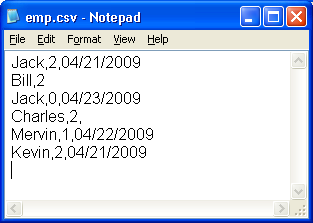
The import file should be a .csv file extension. Each line in the file is considered an Employee record and it should have the following information:
British: DD-MM-YYYY American: MM/DD/YYYY Therefore, 21st of April 2009 will be displayed as 21-04-2009 in British format and 04/21/2009 in American format. Sample CSV File in British format
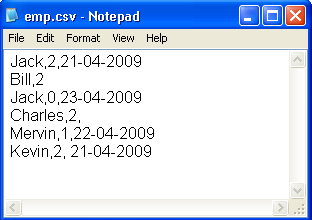
Sample CSV File in American format
|
|
Employee ID |
Click in the field and type the Employee ID, or click on the … button to select the employee from a list. |
|
R2 Launch Pad |
Check this box to grant the employee access to log into R2. |
|
R2 Labor |
Check this box if the employee is a labor planner and should access the R2 Labor program. |
|
Service |
Check this box if the employee should be able to access the Service & Repair module. Note: this requires license access to the R2 Launch Pad. |


Reassigning Licenses
As mentioned above, it is not advised that you use the Delete button to reassign a license.
To reassign a license, simply click into the Employee ID field and click on the … button that appears. This will take you to the employee search list to select the replacement employee.
Note: an employee can only be reassigned three times. If this occurs, please contact support@unibiz.com and ask them to reset the employee license assignment.