Reference No: 28992
Details
An option is provided to update the Transit Mode of the Transfer Order from the Transfer Detail window.
This is illustrated in the following workflow.
Sample Workflow
Steps
-
From the Maintenance module, create a Serial Item [DISCOLIGHTS] and receive some assets.
-
From the Warehouse module, click the Transfer Orders button. The Search Transfer Orders window is displayed.
-
Click the New icon to create a Transfer Order [TO-047]. The Transfer Order Information window is displayed.
-
Select the option for From Site as [SANFRANCISCO] and To Site as [LASVEGAS] > click the OK button.
-
Add the Item [DISCOLIGHTS] to the Transfer Order [TO-047] > save the Transfer Order [TO-047].
-
Click the Shipping tab > select the Transit Mode as [DHL].
-
Click the Detail View icon . The TO-047 Transfer Detail View window is displayed.
-
Select the Shipping tab > from the Transit Mode drop-down, select the option [FEDEX]. This is displayed in the Figure 1.0.
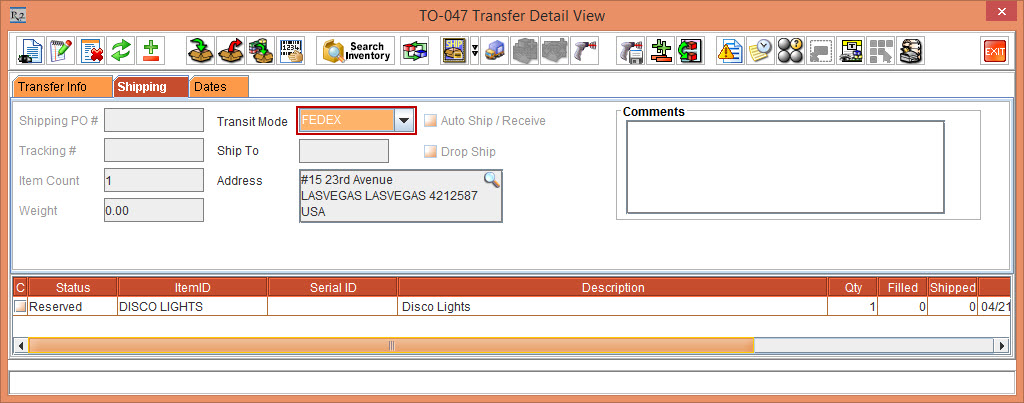
The Transit Mode is reflected in the Transfer Info tab of the TO-047 Transfer Detail View window as well.
-
Exit the TO-047 Transfer Detail View window.
-
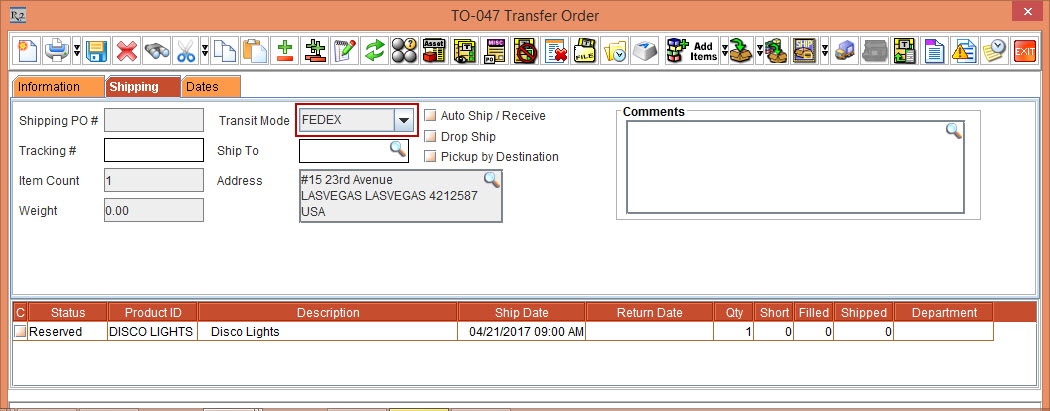
In the [TO-047] Transfer Order window, the Transit Mode drop-down displays the option [FEDEX] selected. That is, the system reflects the change done in the TO-047 Transfer Detail View window in the Transfer Order. Thus, the option to update Transit Mode of the Transfer Order is given in the Transfer Detail View window. The Transfer Order is displayed as shown in the following Figure 1.1.