
Content was last updated in 06.01.11-00
Revision History
Version No.
|
Reference No.
|
Changes
|
|
06.01.11-00 |
R2-16808 and R2-16834 |
Enhanced options in Image View Window |
Details
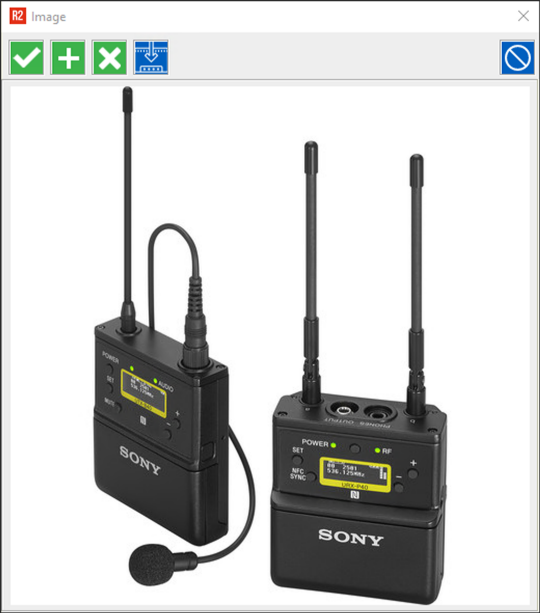
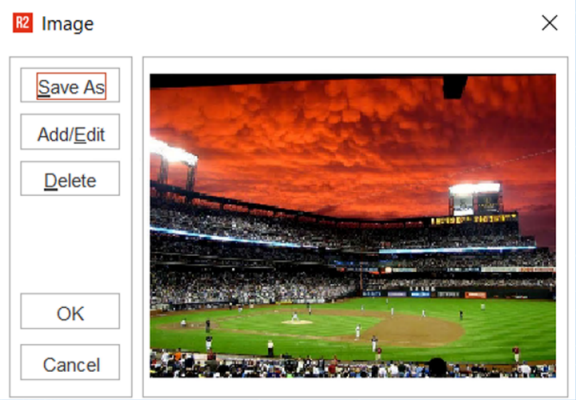
The Image View Window, under the Item Edit option, has been modified to support additional functionality such as — Image resizing on window drag, and image modification. Also the icons and buttons in the window have been changed for better user experience.
View Image option is also added to the Order Warehouse tasks > right click menu. This is applicable for warehouse tasks — Prep, Ship, Pickup, and/or Return. This option is available for all types of Orders like Rental/Sales etc. for which a tasks can be created.
Functional Changes
-
By moving the buttons on the side panel, to the top as Icons, Image viewing area has been made larger, so that image can be viewed in better size.
-
The hotkeys for the image buttons have also been provided.
-
-
Now, when the window is resized, the image view port also resizes itself accordingly.
-
The design changes mentioned above have been applied to View Image option for Items, Kits and Parts from all the access points of view image.
-
Item Edit > View Image
-
Search Items window > Right Click > View Image
-
Search Inventory window > Right Click > View Image
-
-
In Warehouse the Right click > View Image option is applicable for:
-
both Serial and Non-serial Items
-
Kits, including N-level kits
-
Change in design
Figure 1.0: New window UI design
|
Figure 2.0: Earlier window UI design
|
|
|