
Reference No: R2-3613
Version No: 06.00.04-00
Details
Support is provided to add blank lines with description in the Order and display it in the Warehouse [Prep Task], [Ship Task], [Pickup Task] and [Return Task] windows.
This enhancement is not supported for the Intelligent Returns window [Return / Receive Item window].
The details are explained in the sample workflow given below:
Prerequisites
-
Select the Maintenance module > Items tab > Items tab.
-
Create Serial Items [SONY CONSOLE], [SONY WIRELESS HP], [SONY MDR], [LG STAR], [LG WM], and [LG LSA] and receive 10 Qty each.
-
Create a Serial Kit [Sony DLSR Camera Kit].
-
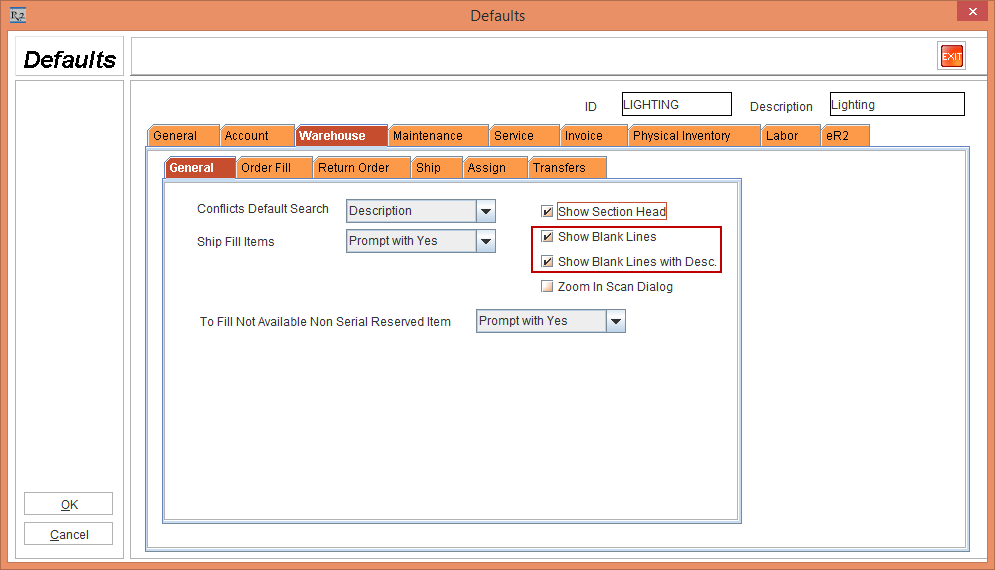
Select the Maintenance module > Employee tab > Mantra > Edit > Defaults Id importable button > System Defaults > Edit. The Defaults window is displayed.
-
Select the Warehouse tab > General tab.
-
Click the Show Blank Lines and Show Blank Lines with Desc. check boxes, as shown in Figure 1.0.
-
Click OK.
-
Save and Exit the Maintenance module.
Sample Workflow
-
Select the Account module. The Account window is displayed.
-
Tag a Company [EVERGREEN AV RENTALS].
-
Create a Rental Reservation Order [ORD-1249] for 2 days duration.
-
Select the Add menu > Section option. The Section Search option is displayed.
-
Search and Add the Section Header with the Section ID [LG#1].
-
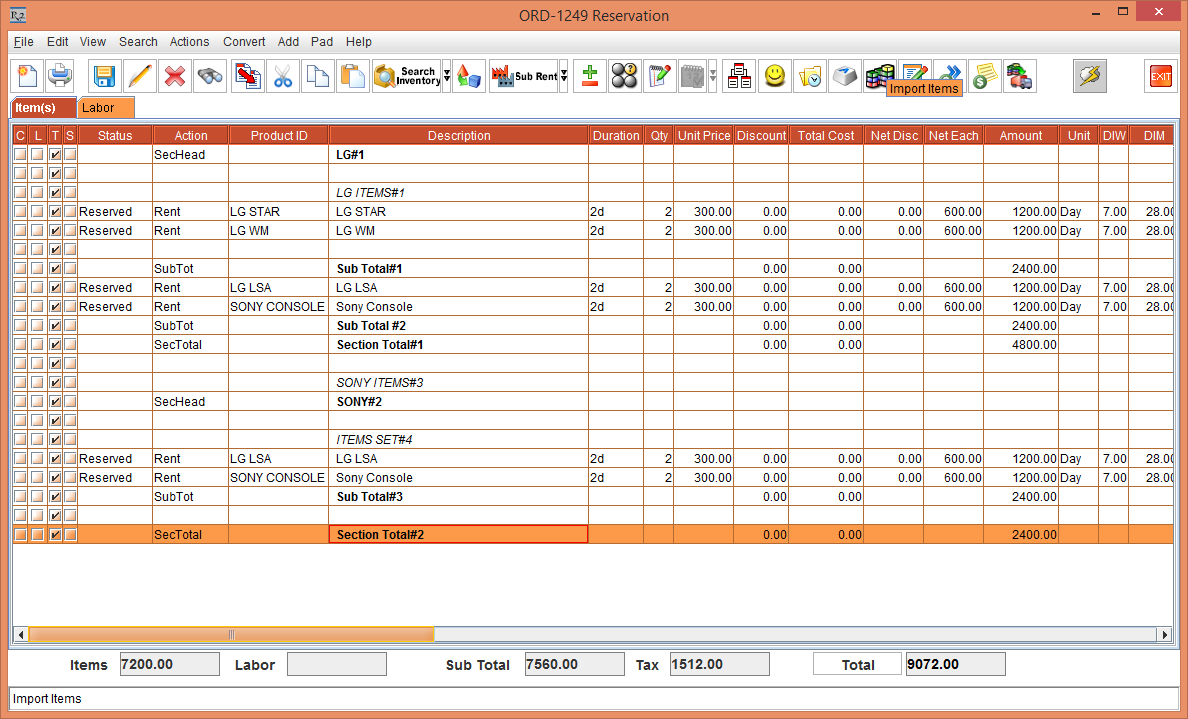
Add 2 blank lines. In the second blank line, enter the Description [LG ITEMS#1], as shown in Figure 2.0.
-
Below the line with the Description [LG ITEMS#1], add the Serial Items [LG STAR] and [LG WM] with the Qty as 2 and the Unit Price [300.00] respectively.
-
Add a blank line. Below the blank line add a Sub Total [Sub Total#1], as shown in Figure 2.0.
-
Below the Sub Total [Sub Total#1] add the Serial Items [LG LSA] and [SONY CONSOLE] with the Qty as 2 and the Unit Price [300.00] respectively.
-
Add a Sub Total [Sub Total#2], as shown in Figure 2.0.
-
Add a Section Total [Section Total#1], as shown in Figure 2.0.
-
Add 2 blank lines. In the second blank line, enter the Description [SONY ITEMS#3], as shown in Figure 2.0.
-
Add the Section Header with the Section ID [SONY#2].
-
Add 2 blank lines. In the second blank line, enter the Description [ITEMS SET#4], as shown in Figure 2.0.
-
Add the Serial Items [LG LSA] and [SONY CONSOLE] with the Qty as 2 and the Unit Price [300.00] respectively.
-
Add a Sub Total [Sub Total#3], as shown in Figure 2.0.
-
Add 2 blank lines. In the second blank line, enter the Description [Section Total#2], as shown in Figure 2.0.
-
Save and Exit the Order [ORD-1249].
-
Select the Warehouse module. The Warehouse window is displayed.
-
Search for the Order [ORD-1249]. The [Prep Task], [Ship Task], [Pickup Task] and [Return Task] for the Order [ORD-1249] is displayed.
-
Select and open the [Prep Task]. The Fill Order [ORD-1249 Order Fill] window is displayed.
-
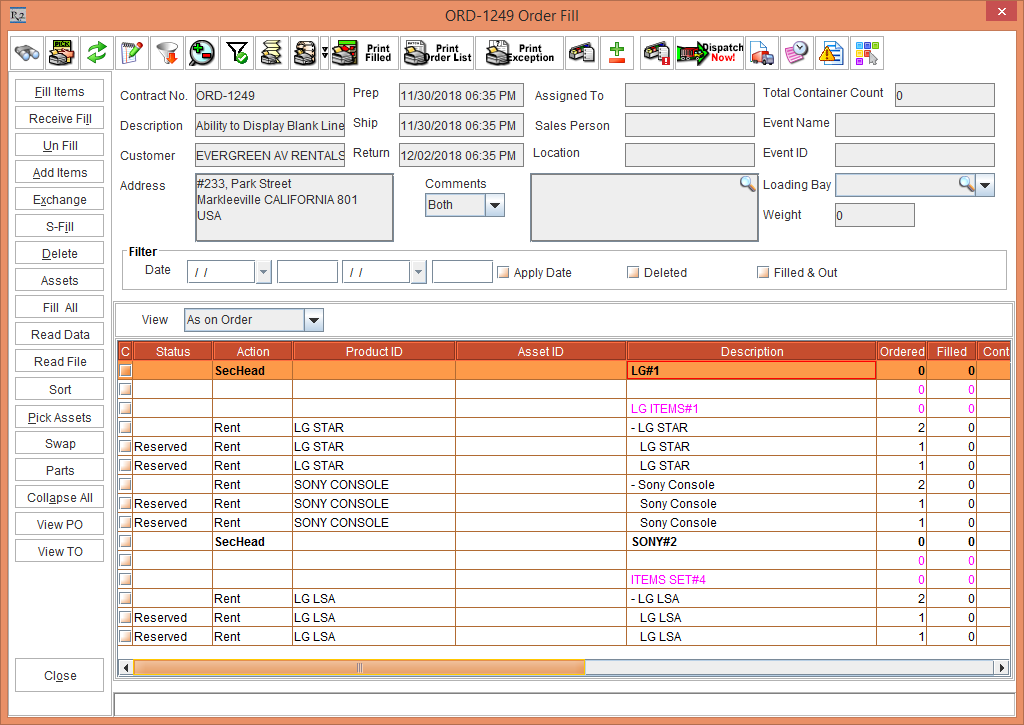
When an Item with blank lines / blank lines with Descriptions above the Item is displayed in an Order, then the Item along with blank lines / blank lines with Descriptions are also displayed in the Fill Order window.
If the blank lines/ blank lines with Descriptions are added above the Section Header / Section Total / Sub Total in the Order, then the blank lines / blank lines with Descriptions are not displayed in the Fill Order window.
If an Item is included between the blank lines / blank lines with Description and the Section Header / Section Total / Sub Total, then the blank lines / blank lines with descriptions along with the Item above the Section Header / Section Total / Sub Total is displayed in the Fill Order window.
-
Fill the below Serial Items for the Status of the Assets is modified to Filled.
-
Serial Item [LG WM] with the Assets [LG WM-04] and [LG WM-05]
-
Serial Item [LG LSA] with the Assets [LG LSA-04] and [LG LSA-05]
-
Serial Item [SONY CONSOLE] with the Assets [SONY CONSOLE ASSET017] and [SONY CONSOLE ASSET018]
-
Refresh the Fill Order [ORD-1249 Order Fill] window and click the Expand All button. The bank lines along with the blank lines with the Descriptions are displayed without the Assets in Filled Status, as shown in Figure 2.1.
-
Select the Filled & Out check box > Refresh button > click the Expand All button.
-
Click the Zoom In / Out button. The bank lines with the blank lines with Descriptions are displayed along with the Assets in Filled Status, as shown in Figure 2.2.

-
Close the Fill Order [ORD-1249 Order Fill] window.
-
Exit the Warehouse module.
The above workflow is applicable for the other Tasks in the Warehouse such as, Ship Task, Pickup Task and Return Task.