
Reference No: R2-14940
Version No: 06.01.04-00
Details
Support to print Product Volume in the Delivery Receipt/Return Receipt. This helps the user effectively utilize the space in the truck/container.
CID
|
Description
|
Print Form
|
|
916 |
Prints Product Volume |
Delivery/Return Receipt (Form UI 153800) |
Following are the Panel IDS that supported CID 916 and the item lines merging when there are same items.
Panel ID
|
Support CID#916
|
Merge lines
|
|
154200 |
Yes |
No |
|
154250 |
Yes |
No |
|
154260 |
Yes |
No |
|
154300 |
Yes |
No |
|
154850 |
Yes |
Yes |
|
154860 |
Yes |
Yes |
|
154251 |
Yes |
Yes |
|
153100 |
No |
NA |
Notes:
-
Since the item quantities are merging, system prints total volume of the merged lines.
-
CID 916 is enhanced to consider the volume division factor from UI property. To achieve this, a new property 'VOLUME_DIVISION_FACTOR' is introduced.
Note: The VOLUME_DIVISION_FACTOR is hard coded.
-
Total Volume of EDR line = Line Qty * (L W H) / (VOLUME_DIVISION_FACTOR).
-
'VOLUME_DIVISION_FACTOR' value must be provided in 39th column of the Form UI for CID 916.
-
If this property is provided, system considers VOLUME_DIVISION_FACTOR value to print the volume of the item.
Example: If " VOLUME_DIVISION_FACTOR=1000", then total volume = Line Qty * (L W H) / (1000).
-
If this property is not provided, system considers VOLUME_DIVISION_FACTOR as 1728 which is to convert cubic inches to cubic feet, assuming the values of Length, Width, and Height that are given in inches. (this is existing behavior of the CID 916)
-
If value of VOLUME_DIVISION_FACTOR is provided as 1, then system prints volume without any conversion.
Pre-requisites:
-
Do the Form setup in the Maintenance module.
Make sure Height, Length, and Width are entered in Item edit window .

Sample Workflow:
-
In Accounts module, create an order and add the items.
-
Fill, ship, and return some items in the order.

-
In the Warehouse module, search the order in the main window.
-
Click Print menu and then click the Equipment Delivery Receipt.

-
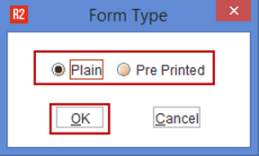
Select the form, click Print and then enable the Form Type.
-
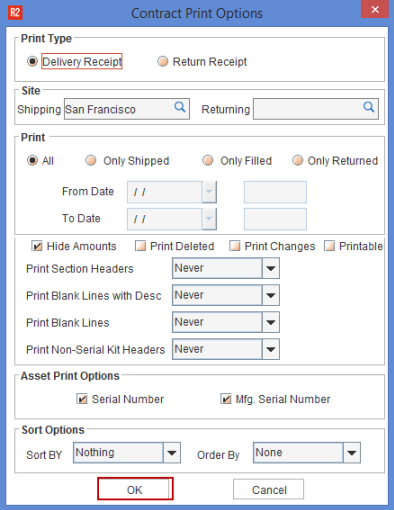
In Contract Print Options window, enable Print type (Delivery /Return Receipt) and then click OK.
-
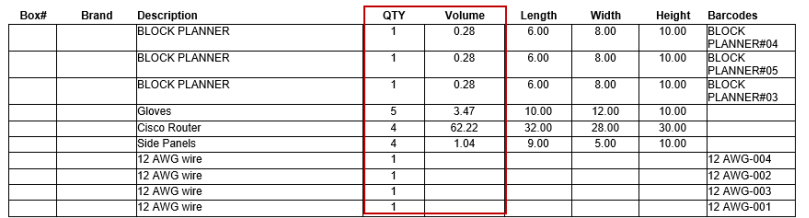
Click Print again in form type options screen and then system prints the enabled receipt.


Notes:
-
This CID is applicable for all types of items.
-
System prints only two decimal values.
-
For Kits / Packages, system prints respective lines volume.
-
For Serial-Kits, system prints the volume for header as well as children.
-
For Non-serial Kits, system prints for the header based on the selection in the EDR options dialog when chosen to print the headers and hence the volume CID also.
-
Among height/width/height, if any of the field is blank in product edit window, then system prints either blank or 0.00 based on True/False entered in 33rd column in the Form UI.
-
If it is TRUE in 33rd column, then system displays the volume as 0.00.
-
If it is FALSE in 33rd column, then system displays the volume as blank.