
Reference No: R2-3568
Version No: 06.00.04-00
Details
Support has been provided to move an Asset that is in IN Status from one Site to another Site from the Batch Returns window.
The functionality is explained with a Sample Work Flow:
Prerequisites
-
Login to the R2 application from the Site [SANFRANCISCO].
-
Select the Maintenance module > Items tab.
-
Select the Site [SANFRANCISCO].
-
Create a Serial Item [GOOGLEPIXEL] and receive an Asset [GOOGLEPIXEL-01].
-
Save and Exit the Maintenance module.
Sample Work Flow
-
Login to the R2 application from the Site [DALLAS].
-
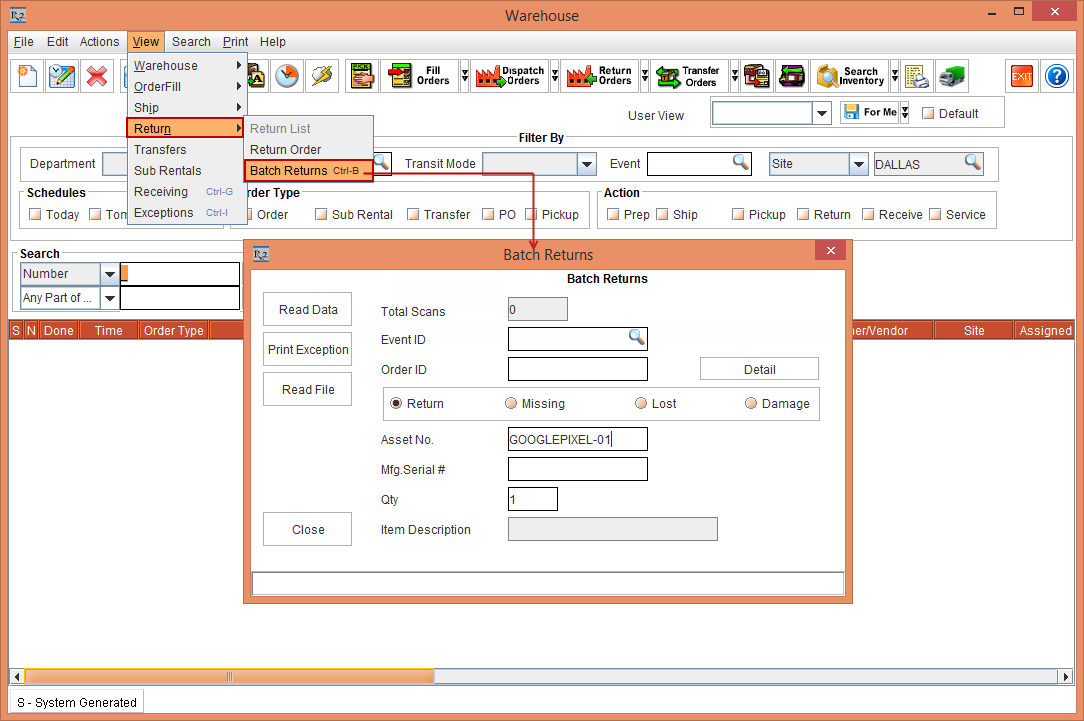
Select the Warehouse module > View menu > Return submenu > Batch Returns submenu. The Batch Returns window is displayed, as shown in Figure 1.0.
-
In the Asset No. field, enter the Asset [GOOGLEPIXEL-01], as shown in Figure 1.0.
-
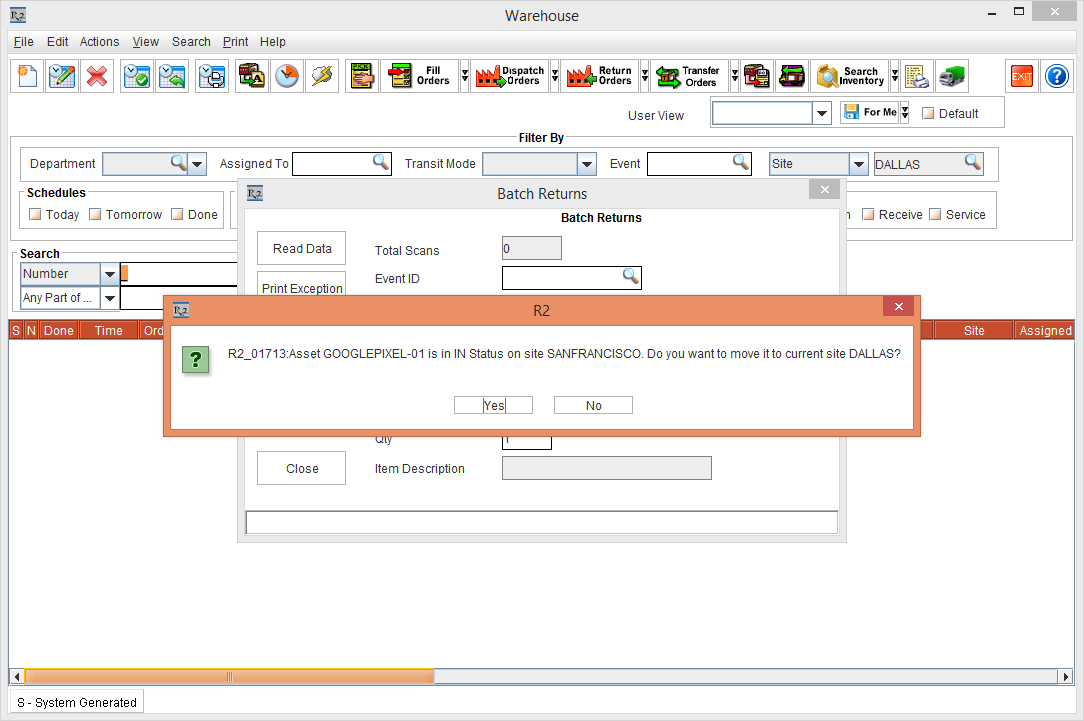
Press the Enter button from the Keyboard. The system displays a prompt with the message "Asset GOOGLE PIXEL-01 is in IN Status on site SANFRANCISCO. Do you want to move it to current site DALLAS?" with Yes and No buttons, as shown in Figure 1.1.
-
Click No, to retain the Asset [GOOGLEPIXEL-01] to Site [DALLAS].
-
Click Yes and close the Batch Returns window.
-
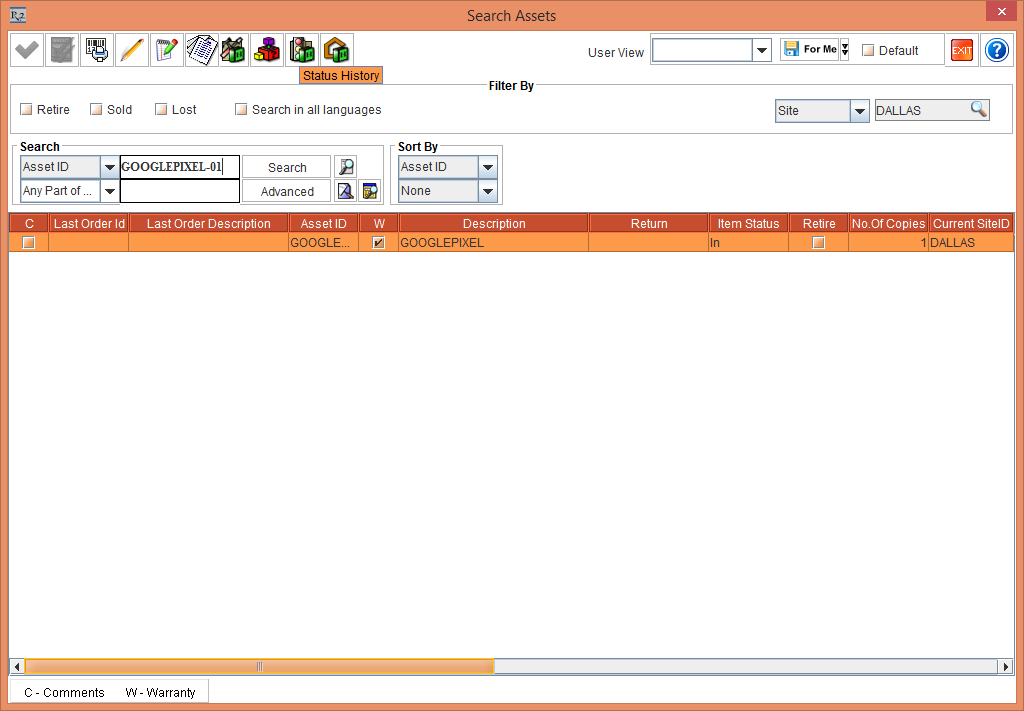
In the Warehouse window > select the Search menu > Assets option. The Search Assets window is displayed.
-
Search for the Asset [GOOGLEPIXEL-01].
-
Select the Asset [GOOGLEPIXEL-01] line and click the Status History window, as shown in Figure 1.2.
-
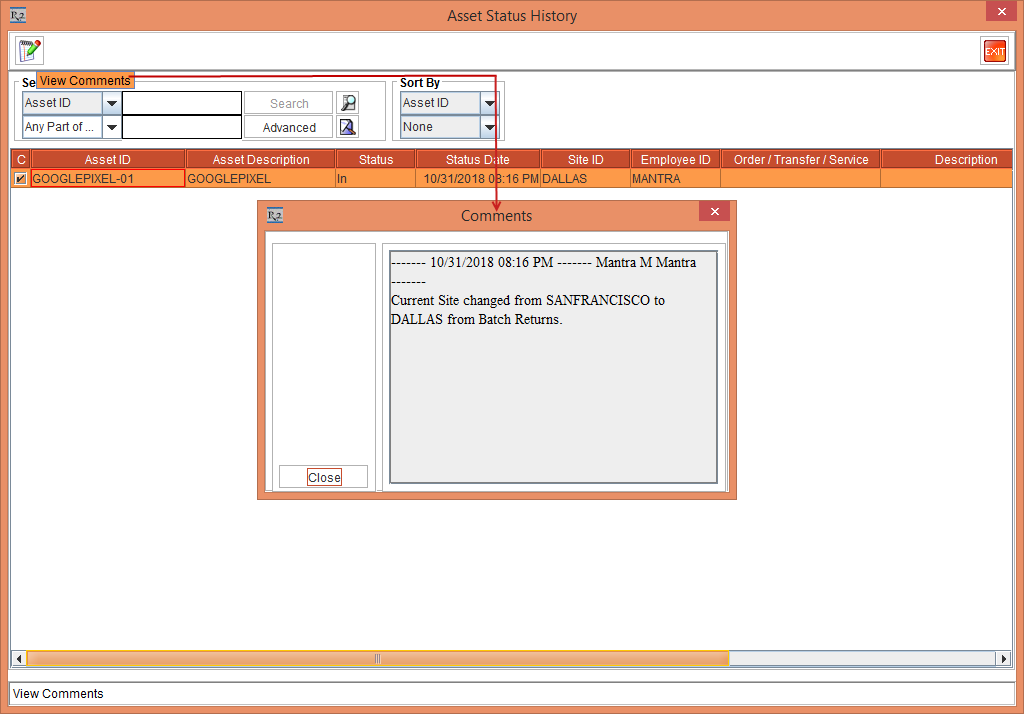
The Asset Status History window is displayed.
-
Select the Asset line and click the View Comments button. The Comments window is displayed displaying a message "Current Site changed from SANFRANCISCO to DALLAS from Batch Returns." as shown in Figure 1.3.
-
Close the Comments window.
-
Exit the Warehouse module.