Reference No: 29029
Details
Support for Burden Percentage is given in the Order and the details are explained in the sample workflow given below:
Sample Workflow
Prerequisites:
-
Select the Configuration module.
-
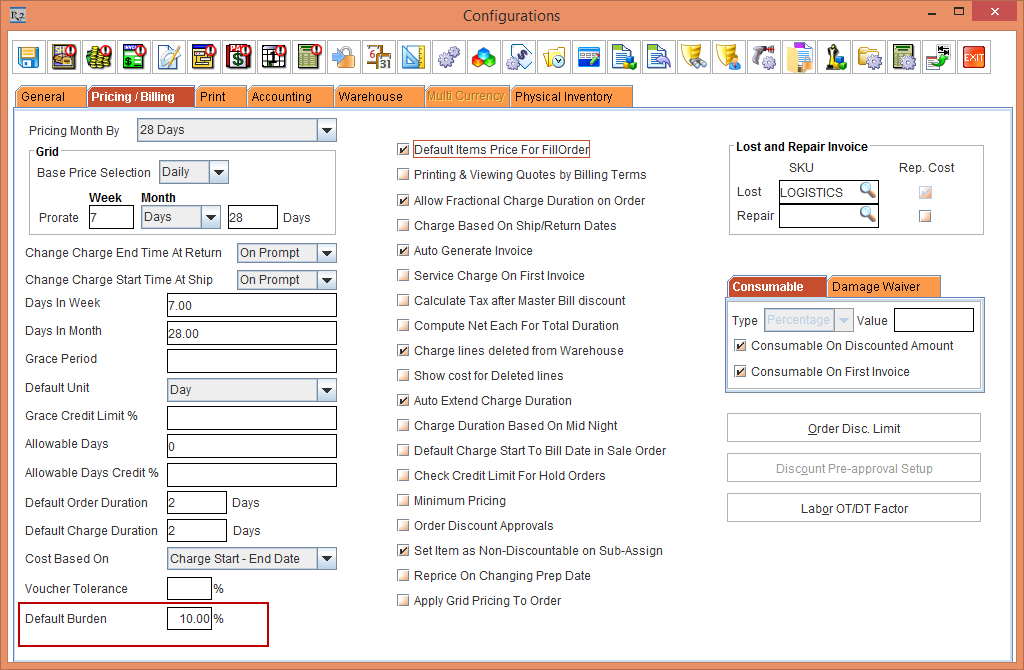
Select the Pricing / Billing tab > enter the Default Burden as 10 %, as shown in Figure 1.0.
-
Save and exit the Configuration module.
Scenario:
-
Select the Account module.
-
Create a Rental Reservation Order [ORD-1007].
-
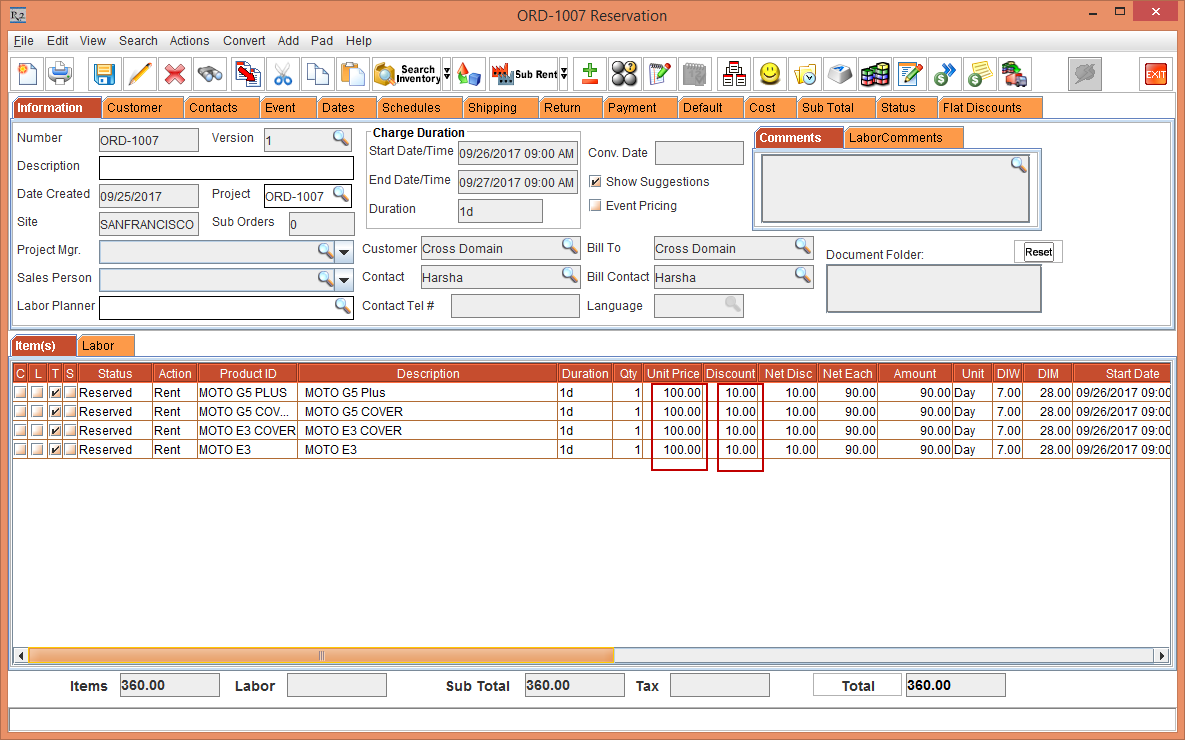
Add the Items [MOTO G5 Plus], [MOTO E3], [MOTO G5 COVER] and [MOTO E3 COVER] with Quantity as 1,Unit as Day, Day Price as 100 and Discount as 10.
-
Click the Total button. The following screen appears, as shown in Figure 1.1.
-
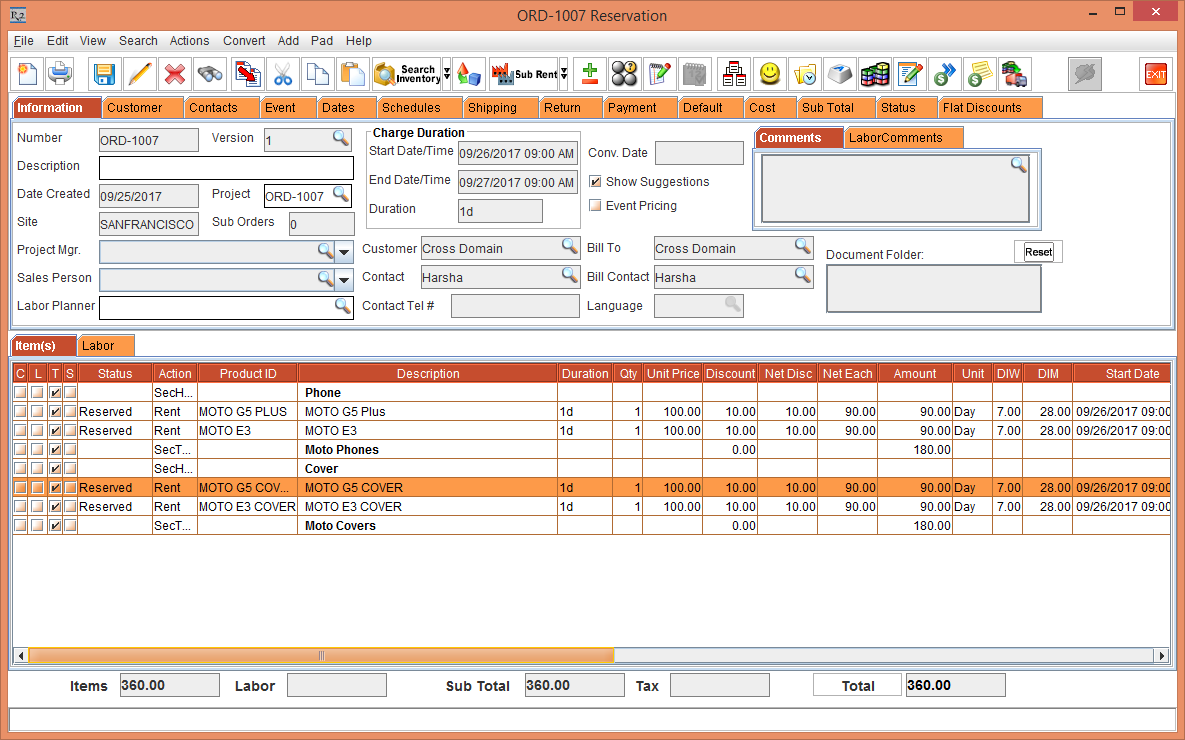
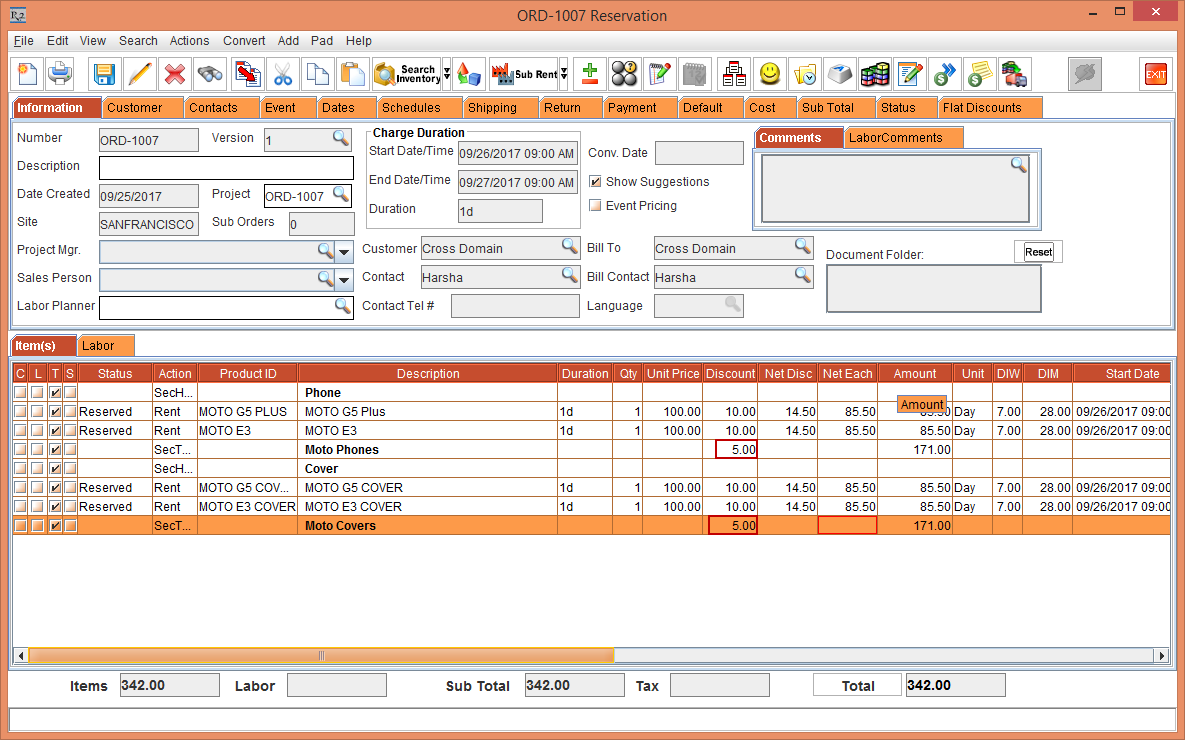
Add Section Headers [Phone] and [Cover] and the Section Total [MOTO Phones] and [MOTO Covers] , as shown in Figure 1.2.
-
Enter the Section Total Discount [MOTO Covers] and [MOTO Phones] as 5 percent.
-
Click the Total button for refreshing the Total amount, as shown in Figure 1.3.
-
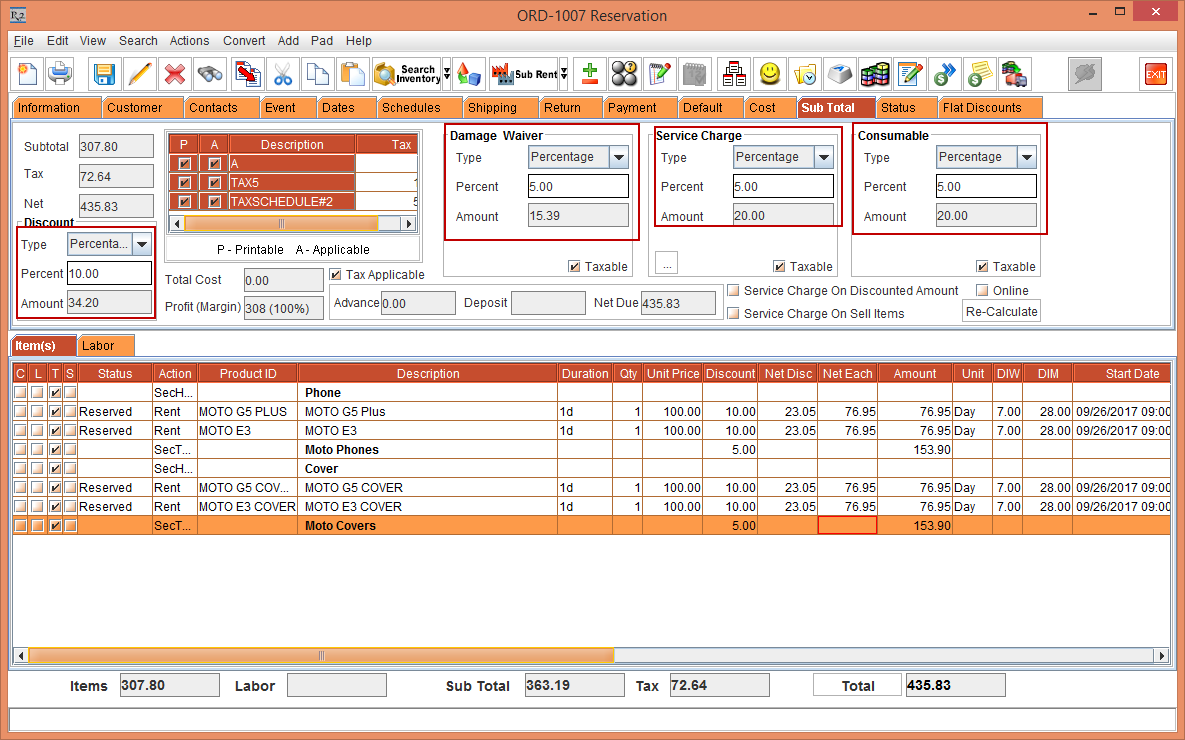
Select the Sub Total tab > select the Discount Type as Percentage > enter the Percent as 10.
-
Select the Damage Waiver Type as Percentage > enter the Percent as 5.
-
Select the Service Charge Type as Percentage > enter the Percent as 5.
-
Select the Consumable Type as Percentage > enter the Percent as 5.
-
Click the Total button for refreshing the Total amount, as shown in Figure 1.4.
-
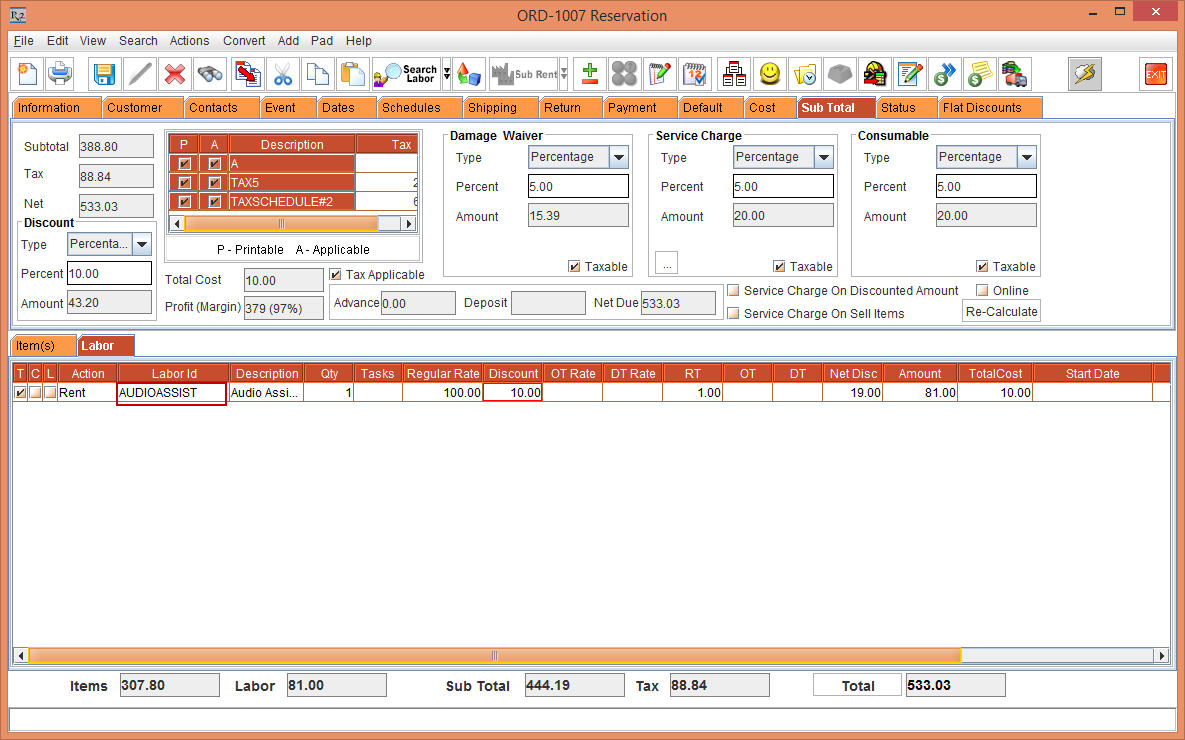
Add the Labor [AUDIOASSIST] to the Order with Price as 100 and Discount as 10, as shown in Figure 1.4
-
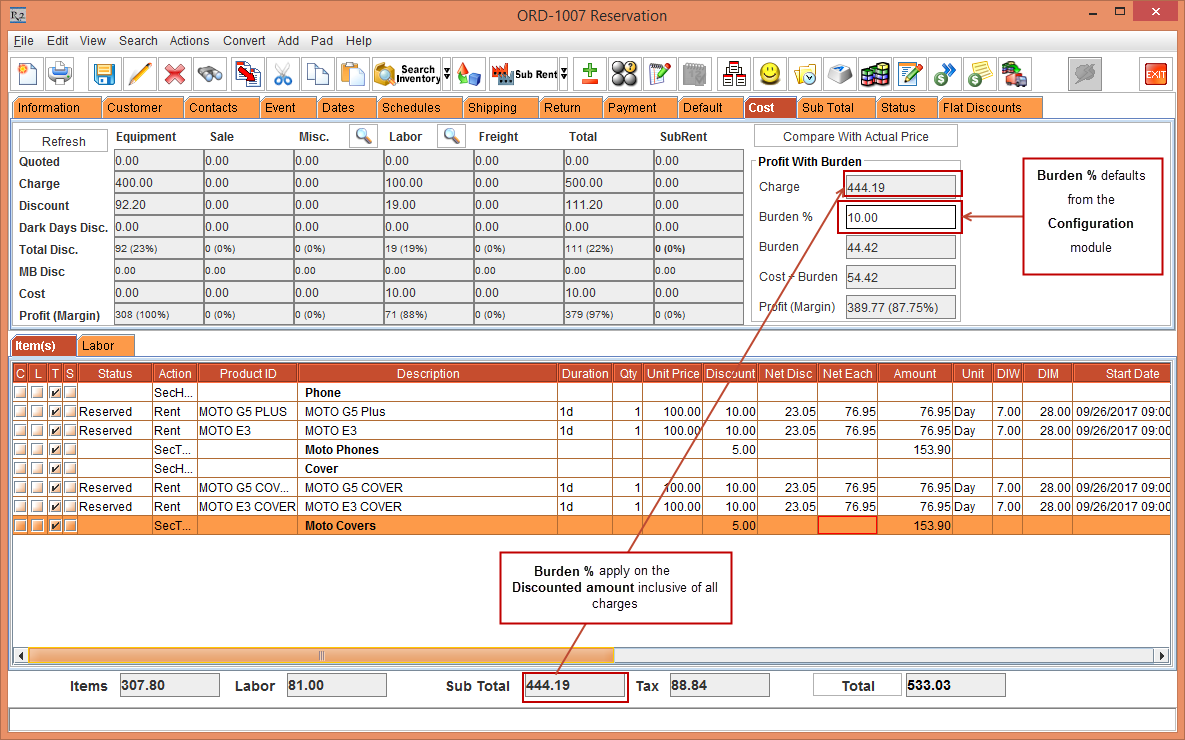
Select the Cost tab, as shown in Figure 1.5.