
The cost tab in the order window displays the rental, sell, misc., labor, freight, total, sub-rent amounts of the items added in the order.
Amount charged, discount applied on rent items, sell items, for labor, misc., and freight, will be displayed in the cost tab as shown below.
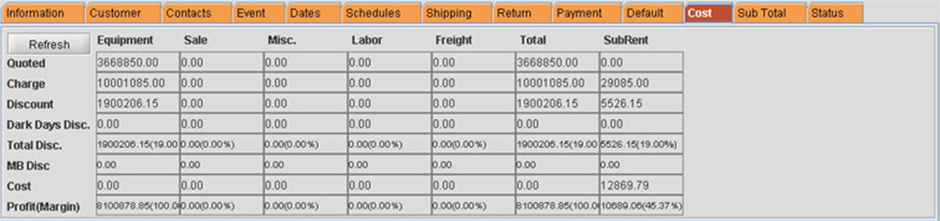
Rows in the Cost tab
· Quote: Displays the quoted amount for Equipment, Sales, Misc, Labor, Freight and Sub Rent.
· Charge: Displays un-discounted amount
· Discount: Displays discount amount on the order (considering line level discount, order discount, and discount groups)
· Dark Days Disc: Discount given on dark days
· Total Disc: Total discount amount on the orders and dark days discount excluding master billing discount
· MB Disc: Master billing discount amounts as defined for rental, sellable, and sub rented items
· Cost: Cost of the item
· Profit (Margin): (charge-cost)/charge
Columns in the Cost tab
· Equipment: Items with action rent, and sub rent will be considered
· Sale: Items with action sell will be considered
· Misc: Misc charges (for which Is Freight checkbox is not selected in the edit window at the time of adding it to the order)
· Labor: Labor amount on the order
· Freight: Freight charges (for which Is Freight checkbox is selected in the edit window at the time of adding it to the order)
· Total: Total for each row that is for charge, discount, and so on.
· Sub Rent: Sub rental amount for each row that is charge, discount and so on. Details of the rental and sub rented items will be listed in equipment column. Similarly, details about sale, misc., labor, freight, total and sub rent will be listed in respective columns.
Cost calculation for rental items
-
If no pricing is defined for a rental item in Item edit, the cost will be pulled from the Configuration settings.
In Configuration module the following settings can be made to define cost:
o Profit Forecasting option is selected, and Equipment Cost percentage defined is 10%.
Cost will be calculated as explained below:
Cost = % defined (Charge)
Example:
If charge is $1000, and percentage defined for Equipment Cost percentage is 10%. Then cost will be calculated as follows:
= (10/100) * 1000
Cost = $100
-
Profit Forecasting option is selected, and Equipment Cost percentage is not defined - Cost will be zero.
-
Default Forecasting option is selected, then cost defined for the item will be considered.
Cost will be calculated as explained below:
Cost and overhead cost of the unit defined for the item line will be considered.
Example:
For the item line, unit defined is daily. In the pricing dialog, cost and overhead cost defined will be considered for the cost of the item line.
If unit defined for item line is daily. Cost defined is $25, and overhead cost is $10.
Cost for the item line = Cost + Overhead Cost
= $25 + $10
= $35
Cost calculation for sell items
This behaves in the following manner irrespective of configuration setting.
An item with action sell is added to an order. Cost calculation will be as explained below:
-
By default, the pricing defined for Each unit will be reflected for the line. Cost and overhead cost defined for this unit will be considered for the cost.
-
If pricing for unit Each is not defined, then price for the item line will be zero and average cost in the edit window will be considered for cost.
-
If the item has any inventory purchase order created, then cost for the item line will be discounted amount from the purchase order.
-
If the item has inventory purchase order created, but amount for the item in PO is zero, then cost for the item will be zero.
Cost calculation for sub-rental items
In Configuration module, for sub-rent and S-assign items
-
Profit Forecasting option is selected, and Equipment Cost percentage defined is 10%
Cost displayed in Equipment column will be calculated as explained below:
Cost = % defined (price)
= (10 / 100) * 1000
Cost = $100
-
For sub-rent items, cost calculated as mentioned above will be displayed in cost in Equipment and Total columns. But cost in SubRent column will be zero.
-
For s-assign items, cost calculated as explained earlier will be displayed in cost in Equipment and Total columns. But cost in SubRent column is discounted amount in the purchase order.
-
If the price is not defined in purchase order, cost calculated as explained earlier will be displayed in cost in Equipment and Total columns. But cost in SubRent column will be zero.
-
Profit Forecasting option is selected, and Equipment Cost percentage is not defined
-
Cost will be zero in Equipment column.
-
Cost will be zero in SubRent column (not happening it is still displaying the cost taken from undiscounted amount in the purchase order)
-
-
Default Forecasting option is selected, then cost defined for the item will be considered
-
Cost will be calculated as explained below:
-
For sub-rent items, it will be zero.
-
For S-Assign items, discounted amount from the purchase order will be considered.
-
-
Cost calculation for transfer item
For T-assigned and T-reserved items, cost calculation done will be as explained for rent items with various configuration settings.
Cost calculation for rented item
The cost and overhead cost defined for the line level price unit for the rented item will be considered. Overhead cost will be applied only once in the rented duration from prep date to return date.
It is not dependent on Configuration setting Allow Fractional Charge Duration On Order option
Consider pricing defined for an item is as follows:
|
Quantity |
Price |
Cost |
Overhead Cost |
Unit |
|
1 |
$100 |
$250 |
$100 |
Daily |
This item is added for duration of 1 day with following date setup:
|
Prep Date |
Return Date |
Return Time |
|
March 6, 2006 |
March 7, 2006 |
10:00 AM |
Now details displayed in order window and cost section will be as follows:
Charge: $100
Cost: $350 ($250 +$100)
If quantity of the item is 2, then cost would be $350 *2 = $700
If the date set up is as follows:
|
Prep Date |
Prep Time |
Return Date |
Return Time |
|
March 6, 2006 |
5:00 PM |
March 7, 2006 |
10:00 AM |
Now details displayed in order window and cost section will be as follows:
Charge: $100
Cost: $277.08 ($177.08 +$100)
$177.08 arrived as follows:
(17 * 250)/24 = 177.08
Total number of hours from start date to end date is 17.
If quantity of the item is 2, then cost would be $277.08 *2 = $554.17
If item is rented for the following duration:2
If the date set up is as follows:
|
Prep Date |
Prep Time |
Return Date |
Return Time |
|
March 6, 2006 |
5:00 PM |
March 8, 2006 |
10:00 AM |
Now details displayed in order window and cost section will be as follows:
Charge: $200
Cost: Cost for the first day + Cost for the second day + Overhead cost
$250+$177.08 +$100
= $527.08
Cost is calculated for one full day, and for 17 hours on the next day.
Overhead cost is applied only once for an item in the order duration.
Profit margin = (charge-cost)/charge
= (200-527.08) / 200
= -327.08/200
= -163.54 %
Sub Rented Item
On sub renting an item line, charge displayed for the item line is the unit price defined. Cost reflected is the cost defined for the item line in the sub rental purchase order to the duration defined in the sub rental purchase order. It does not consider the duration in the order window.
For example: Consider a not-available item line has charge duration of 2 days in the order with price as $50.00. On creating sub rental purchase order, for this item line by default charge duration will be 2 days, and price will be $50.00. But charge duration, and price of this item line can be changed. Consider duration is changed to 5 and price to $100. Then amount calculated will be $500.00. This amount will be reflected, as cost in the order window in sub rent section. This will be considered while calculating the profit margin for the sub rented items.
Sell Item
Defining Cost while defining Pricing for the Item:
While defining price for various units, costs and overhead costs can be defined. The cost defined here is calculated based on return on investment that are arrived for that item.
Return on investment: This can be calculated based on various methods in Accounting
Dark Days for event pricing and non-event pricing orders:
To define profit margin for Misc Charges:
Profit margin can be defined for the misc charges added to the order. In the cost tab on clicking ellipses next to the Misc, Misc Cost Margin dialog appears as shown below.
On defining the margin for the cost, cost will be calculated appropriately to the cost. Defined margin will be displayed in Profit (Margin) field.
For example, consider total amount of the misc charges on the order is $45.00. In Misc Cost Margin dialog, 20% profit margin is defined. So cost calculated will be the difference of total amount and profit margin.
Cost = 45.00 - 9.00 (that is (20/100* 45))
= 36.00
Defining Labor
In Configuration module, margin percentages can be defined for labor types that are In House, Freelance and Union. For further details refer Cost Settings (create hyperlink)
Based on these settings, R2 will calculate the profit and cost for labor in the order window.
Consider margin percentages defined for labor types in Configuration module are as follows:
· In House: 60 %
· Freelance: 20 %
· Union: 20 %
Now when labor is added to an order, profit and cost will be calculated considering these configuration settings.
Consider total labor lines amount is 100.
In Cost tab on clicking ellipses next to Labor, Labor Types dialog appears as shown below. By default, the percentages defined in the configuration will be reflected. But these percentages can be changed.
Margins percentages for labor types are defined as 70, 15, and 15 respectively.
Price for In House, Freelance, and Union will be arrived considering the total labor amount with respect to these percentages.
Price calculation:
Example: 70 % of total labor amount = (70/100) * 100 = 70.00
15 % of labor amount = (15/100) * 100 = 15.00
Profit calculation
In House Profit: 60% of labor price = (60/100) * 70 = 42.00
Freelance Profit: 20% of labor price = (20/100) * 15= 3.00
Cost calculation
In House Cost: Price - Profit = 70.00-42.00 = 28.00
Freelance Cost: = 15.00-3.00 = 12.00
Total displays the total cost in the dialog = 28.00 + 12.00 + 12.00
= 52.00
Sub-Total Tab
Tax schedules under Sub Total tab of an Order will display the applicable schedules for the tagged Tax Region of particular Room Order. Each Room Order can have its own Tax Region defined and different tax schedules accordingly.
However, when subtotal tab is viewed in template mode, system will not display tax amount based on schedules and will display message "Tax Schedule amounts can be viewed only in Room orders"
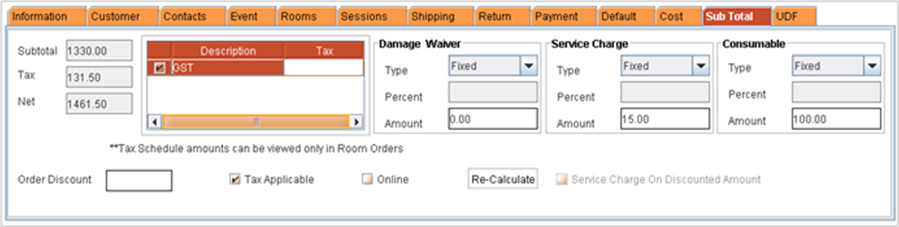
· Sub Total: Displays the total amount on the order after all the discounts are applied on the amount. This includes rent and sell items, labor, Misc Charges.
· Tax: Total tax amount on the order.
· Net: Displays the sum of Sub Total, Tax, Damage Waiver and Service Charge.
· Order Discount: You can enter a value here which will be the discount applied on the total discountable amount on the order.
· Damage Waiver: Type: You can decide whether you want the Damage Waiver to be a Percentage of the total order amount or a fixed amount.
o Percent: Percentage of Damage waiver. This field will be disabled if you choose Fixed as the Type.
o Amount: Amount of Damage Waiver. This field will be disabled if you choose Percentage as the Type.
o Taxable: If selected, Tax will be applied for Damage waiver.
Note : If the option Damage Waiver on First Invoice is selected in configuration module, then for a periodic billing order, the damage waiver amount (Calculation method selected as percentage )will be added to the first invoice of the order, If the option is cleared, then the damage waiver amount will be distributed in all the invoices by dividing the amount by the number of invoices generated.
· Service Charge
o Type: You can decide whether you want the Service Charge to be a Percentage of the total order amount or a fixed amount.
o Percent: Percentage of Service Charge. This field will be disabled if you choose Fixed as the Type.
o Amount: Amount of Service Charge. This field will be disabled if you choose Percentage as the Type.
o Taxable : If selected, Tax will be applied to service charge
Note : If the option Service Charge on First Invoice is selected in configuration module, then for a periodic billing order, the service charge amount (Calculation method selected as percentage )will be added to the first invoice of the order, If the option is cleared, then the service charge will be distributed in all the invoices by dividing the amount by the number of invoices generated.
· Service Charge on Discounted Amount: If you have set the Service Charge as percentage, you can select this checkbox to decide whether the Service Charge percentage needs to be applied on the discountable amount or the non-discountable amount on the order.
· Consumables
o Type: The type field allows you to select an option whether the Consumable has to be charged on a Percentage of the total order amount defined or by a Fixed Charge.
o Percent: Percentage of Consumable Charge. This field will be disabled if you choose Fixed as the Type.
o Amount: Displays consumable charge amount. This field will be disabled if you choose Percentage as the Type.
o Taxable: If selected, Tax will be applied for Consumables
· Tax Applicable: If this checkbox is selected, then the tax will be applied on the order. When not selected no tax will be applied on the order. If this option is cleared, then tax will not be applied for Service charge or Damage Waiver even if the Tax Applicable check box in respective features is selected.
· Online: To maintain relatively quick system speed when working with larger orders, R2 does not automatically recalculate totals. If you would prefer to view order total updates each time a change is made, you can activate the recalculate Online option by selecting the Online checkbox.
· Re-calculate: You can click on the Re-calculate button to automatically recalculate each time an addition or modification is made in the order.