
The payment tab will display the information defined in template view and will be displayed as read-only in Room order view.
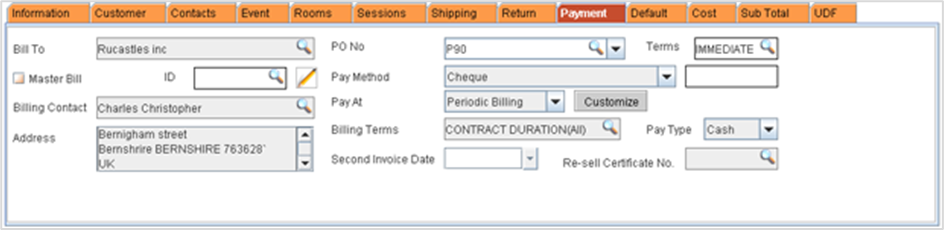
· Bill To: Bill To field displays the name of the company for which the bill has to be generated.
· Master Bill: On creating an order in the site that has a master-billing customer defined, then by default the master billing customer will be displayed in the Bill To field and Master Billing check box will be selected.
· ID: Master bill definition displayed in the ID field will be the master bill definition for the Master Bill Customer, but user can change the master bill definition. On clicking import button Master Bill window appears with listed definitions. User can select the required master bill definition to be applied to the order.
· Note: If Master Bill check box is not selected and master billing definition is selected in ID, R2 will consider billing mode as direct billing.
· Billing Contact: Billing contact displays the contact person designated to receive invoices. By default, Billing Contact displays the contact displayed in the Accounts window. You can also change the billing contact by clicking on the import button.
· Address: This field shows the customer's billing address, if any, as entered in the Address information area of the customer's Company record. if billing address has not been defined in the company records, R2 will display company Main Address in the address field.
· PO No: Use this field to track your customer's purchase order number, if applicable. This value appears on printed orders. If PO required option is selected for the customer, then the order cannot be saved without entering the PO number
· Pay Method: Use this field to set the payment method for the company. Click on the dropdown menu to select the Pay Method options available. Pay Method can be defined in configuration module.
· Pay At: This field determines when customer payment is expected for this order. The default setting for this field is determined by settings in the Default module or customer record. Click on the dropdown menu to select the Pay At options.
The methods available are:
· Rent
· Return
· Periodic Billing
· No Charge
Billing Terms: Use this field to view or select the periodic billing terms for the customer.
· Second Invoice Date: Use this field to select a specific date to issue the second invoice for the current order. This setting will override your Billing Terms for the initial invoice. Subsequent invoices will be billed based on your Billing Terms.
· View First Invoice: Select View First Invoice check box to view the first invoice amount that will be generated for the customer in periodic billing.
· Terms: Use this field to view or select the payment term options for the customer. Terms group definition allows you to define the due date of payment for the customer (Number of days after the invoice is generated); R2 will automatically prompt for payment dialog if payment is not done at due date.
· Pay Type: Use this field to set the Pay Type options for the customer. Click on the drop to select available options for the pay type. The available options are Bill (for payment against invoice generated) and Cash (for immediate payment).