
The information tab displays the basic information about the Meeting Order. In Information tab, you can modify description for the order, Select Project Manager and Salesperson, Change Customer and enter order comments.
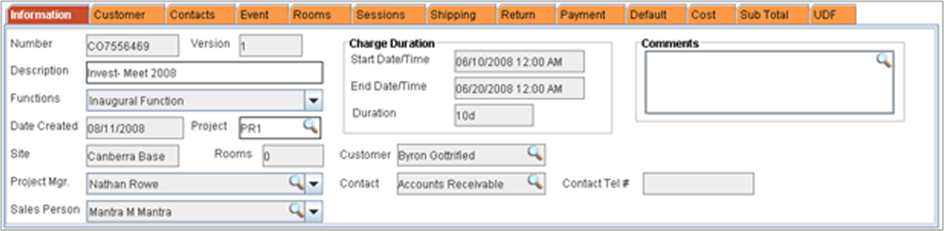
· Number: Displays the Meeting order / Room Order Id. On activating Template tab, the number field will display the Meeting Order ID and will display room order number on highlighting individual rooms.
· Version: Displays version no for an order.
· Description: Displays the description defined for an order.
· Functions: Displays the functions created for the event. Click on the drop list to display all the functions present for the event. The user can associate a function to an individual room by selecting a function from the list and saving the meeting order.
· Date Created: Displays the date on which the order was created.
· Project: Displays the project for which the order is created. Click on the import button to open the project search screen where in you can select alternate project for the order.
· Site: Displays the site in which the order is create. You can change the order site by opening the site dialog by clicking on the import button.
· Rooms: Displays total number of generated room orders.
· Project Manager Displays the name of the project managers associated with the current order. Click on the import button open the Employee dialog, where in you can select project manager (s).
· Salesperson: Displays the name of the Salesperson(s) associated with the current order. Click on the import button next to salesperson field to open the employee dialog where in you can select the Sales person(s) associated with the order
· Charge Duration: Displays the Charge Start date and Charge End date for the order
· Customer: Displays the name of the order customer. Click on the import button to open Company-Contact search screen where in you can select alternate customer for the order.
When the order customer is changed either from the information tab/Customer tab R2 prompts for changing billing customer when the Main customer is selected as the Billing Customer also. Click "Yes" to update the billing customer with the new customer selected, "No" to cancel.
· Contact: Displays the name of the contact associated with the order. Click on the import button to open the Contact Search dialog where you can select alternate contact for the order. If the new contact is selected from a different company, R2 will automatically change the company to the company of the newly selected contact.
· Contact Tel #: Displays the Telephone number of the contact person.