
The session feature allows you to distribute the resources based on the sessions for the Event. By Default, R2 will automatically create the session for the meeting orders based on the Event Duration. Each Day will be considered as a session, which can be changed later.
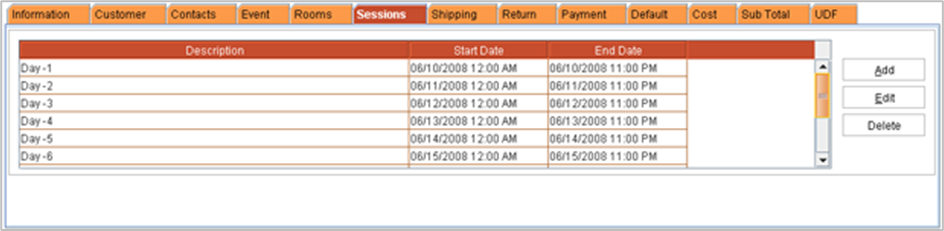
To Create a New a Session
-
Activate Session Tab by clicking on the tab name.
-
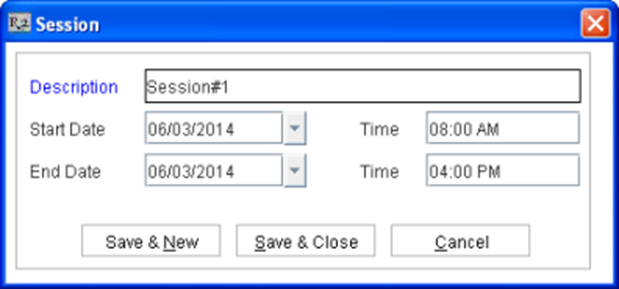
Click Add to display Sessions Dialog Box.
-
Enter the Description, Session start date and end dates.
-
The actions performed on selecting the options are:
· Clicking the Save & New button - Saves the new Session created/changed. SYstem also keeps the Session dialog box open by clearing the Description field and defaults the current system date in the Start Date and End Date fields for creating a new Session.
· Clicking the Save & Close button - System closes the Session dialog box after saving the new Session created/changes to existing session.
· Clicking the Cancel button - System closes the Session dialog box without saving the session.
The buttons in the Session dialog box can also be accessed by using the following hot keys:
-
Save & New - Alt + N
-
Save & Close - Alt + S
-
Cancel - Alt + C
To Edit Sessions
You can edit existing sessions by highlighting the sessions and clicking on the Edit button. The session information will be displayed in the Sessions Dialog Box wherein you can update the Session settings.
on opening a Room order and generating room orders, system will update the opened room order with the changes made to the sessions, if any.
Notes:
On opening any Room order and editing any session and then generating it will affect the opened room order.
· On changing only, the description of any session and then generating the room orders, system will update the session description for the opened room order and will retain session quantity present.
· On changing the date or time for a session and then generating the room order, system will reset the session quantity to 0 for the modified session.
· On opening a Room order and adding a new session and then generating the room order, system will add the new session to the opened room order with the session quantity as 0.
· On opening a Room order and deleting a session for the item line and then generating the opened room order, system will update the item line of the room order.
· The sessions which are edited / deleted will be updated only after re-generating the meeting order.