
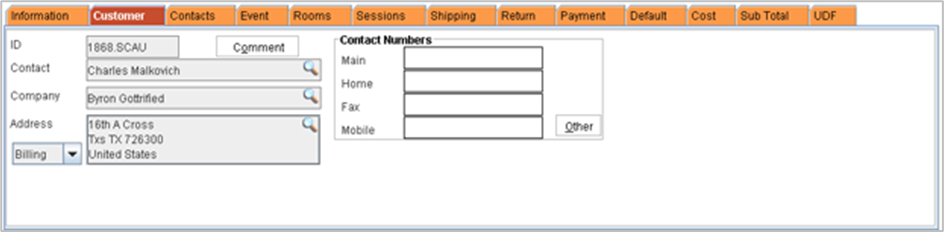
The customer tab displays the details of the customer to whom the meeting orders are created for.
To Change Company
-
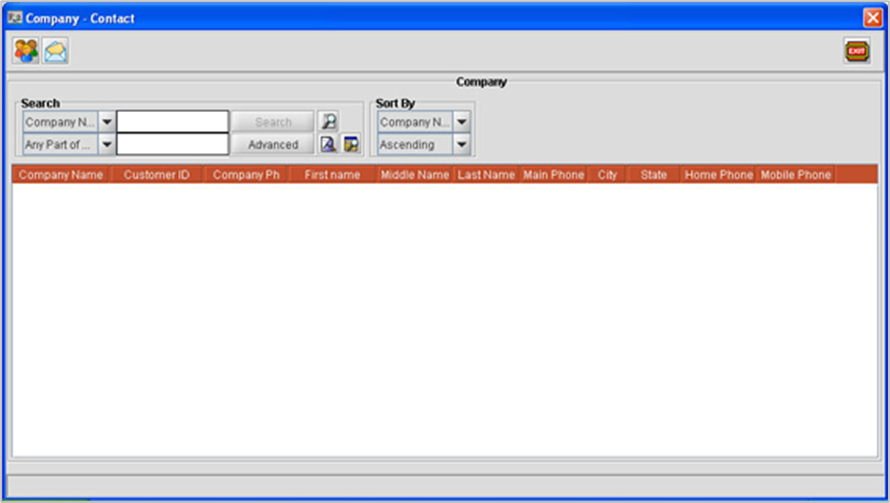
Click on the importable button next to Company. R2 displays Company -Contact window.
-
Search for the Company record you wish to assign for the order.
-
Double click on the Company record to assign it to the Order.
When the order customer is changed either from the information tab/Customer tab R2 prompts for changing billing customer when the Main customer is selected as the Billing Customer. Click "Yes" to update the billing customer with the new customer selected, "No" to restore the existing definition
You can also create New Company definition by clicking on the Add Company/Customer icon in the company-contact window.
Changing Company /Contact for an Order
-
Click on the importable button next to Contact. R2 displays Company -Contact window.
-
Search for the Customer record you wish to tag to the Company.
-
Double click on the Customer record to assign it to the Company.
-
Click Save Icon to save the changes.
To edit Contact Address
-
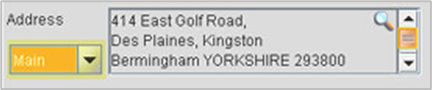
Select the address type from the drop down menu. Available options are Main, Billing and Shipping
-
Click on the import button in the address field.
-
Edit/Update the changes
-
Click OK
Click on the Comment button to view the comments defined for the customer