
Content was last updated in 06.23.05-00
Revision History
Version No.
|
Reference No.
|
Changes
|
|
06.23.05-00 |
R2-19658 |
Delegated person receives reminder E-mail |
|
06.22.09-00 |
R2-19575 |
Delegation setup on Employee profile |
In R2, an employee can identify and assign a co-worker as a delegate, who will be responsible to execute certain pre-identified tasks in their absence.
Further to this, while a delegate is assigned, a specific tenure (Start Date and End Date) can be mentioned during which the assignee is expected to preside over the tasks assigned.
Who can do a delegation setup
-
Administrators can do it though Employee Edit in Maintenance.
-
Individual Employees can do for their own profiles through Launch Pad.
How to do the delegation setup
-
In the Employee Search and Edit Screen, click the Delegation button. The Delegations List dialogbox is displayed.
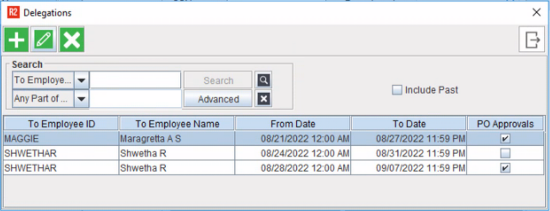
If there are any existing delegations configured, they will be listed in the screen, else the screen would be blank.
-
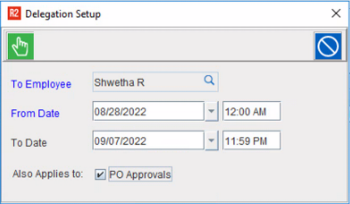
Click the New button. Delegations Setup dialogue box opens.
-
Select a delegate using the 'To employee' search field.
-
Select a 'From Date' and 'To Date' to define the delegation tenure.
-
To make the tenure as forever, keep the 'To Date' as blank.
-
In such case, when an E-mail is sent to the recipient, it mentions 'To Date' as Eternal.
-
Select 'Also Applies To PO Approvals' if you want the delegate to 'also be eligible' to approve Purchase Orders.
-
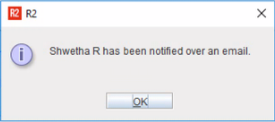
Click Ok. A confirmation dialogbox is displayed on the screen. Also, an automatic E-mail is triggered to the delegates added.
-
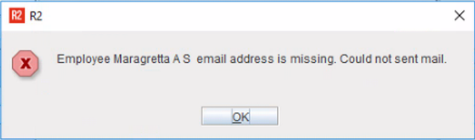
If the assigned employee does not have an E-mail mentioned in the profile, a different confirmation dialogue box is display
Editing/Deleting an existing delegation setup
Any existing delegation setup listed in the window, can be edited or modified.
Every time such a setup is modified, system displays a prompt on the screen accordingly and an automated E-mail is sent to the concerned recipients informing them about the modification.
Sample E-mails
Every time a fresh delegation setup is done, or an existing one is edited or deleted, an automated E-mail is sent, given below are the samples.
-
When a new delegation assignment is added, they receive the following E-mail.
-
When an existing delegation assignment is modified, they receive the following E-mail.
-
When an existing delegation assignment is deleted, they receive the following E-mail.
-
When an employee's delegation tenure begins, they receive the following E-mail.