Reference No: 28990
Details
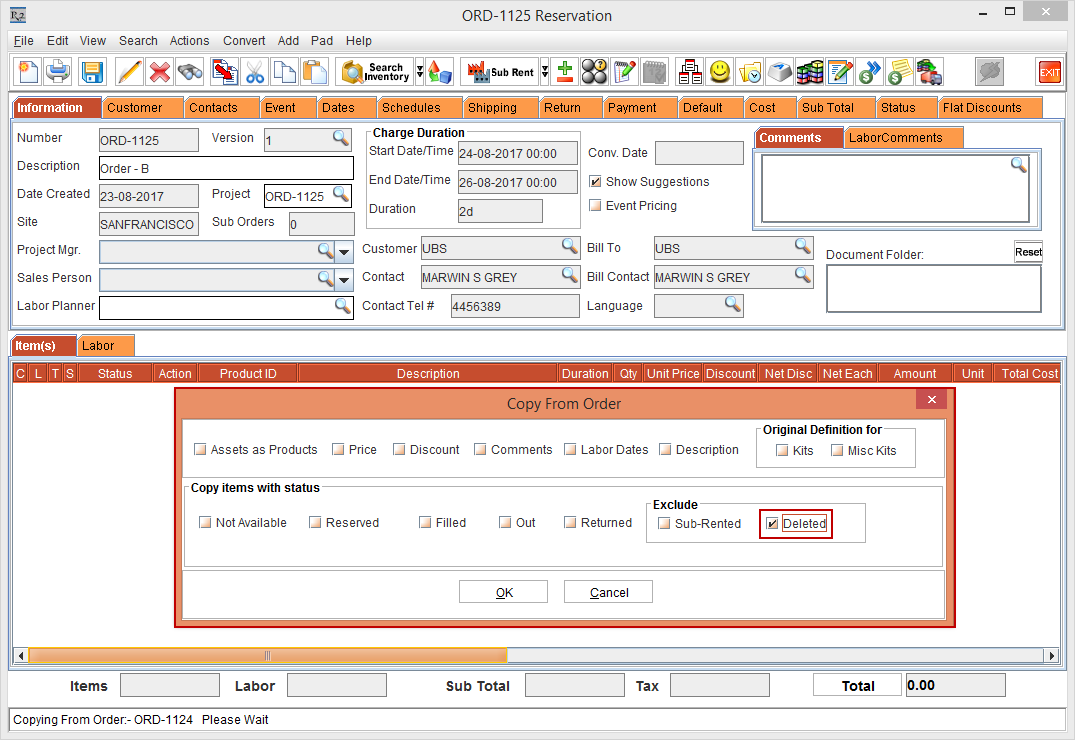
The Deleted check box is included in the Exclude section of the Copy From Order window that enables you to exclude the Item lines in Deleted Status while performing a Copy From Order. The details are explained in the sample workflow given below:
Sample Workflow
-
Select the Account module. The Account window is displayed.
-
Tag a Company [ADOBE].
-
Create a Rental Reservation Order [ORDER-1124] for 2 days duration.
-
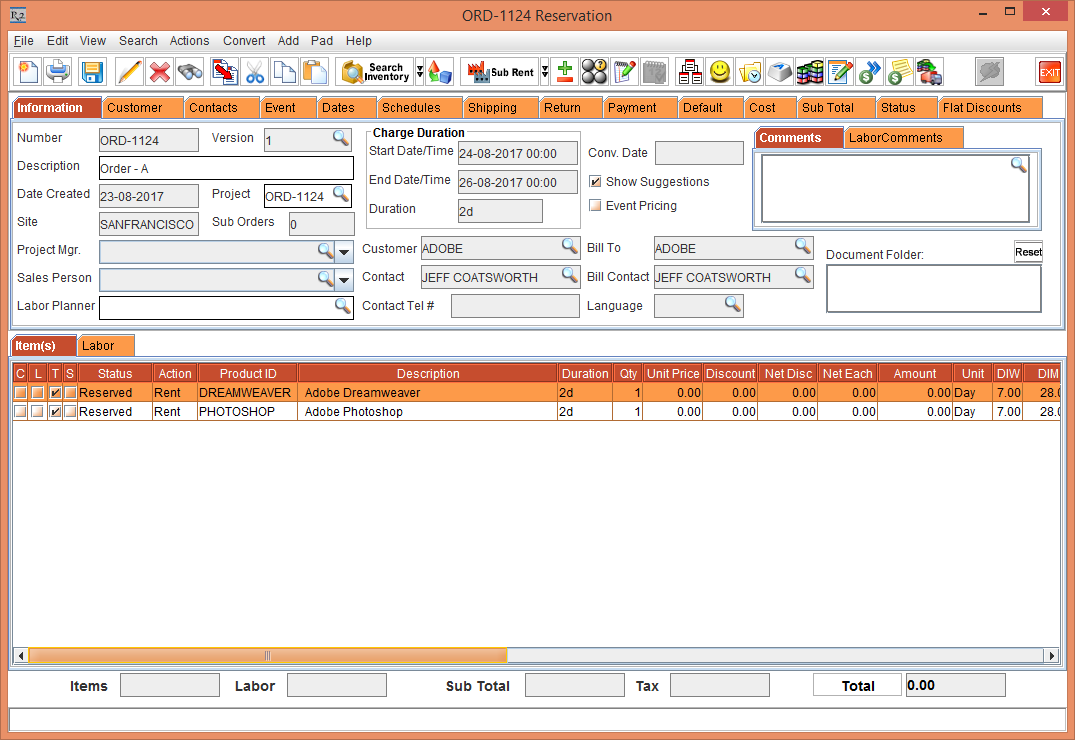
Add the Items [DREAMWEAVER] and [PHOTOSHOP] with Qty as 1 to the Rental Reservation Order [ORDER-1124], as shown in Figure 1.0.
-
Select the View menu > Fill Order option. The Order Fill [ORD-1124 Order Fill] window is displayed.
-
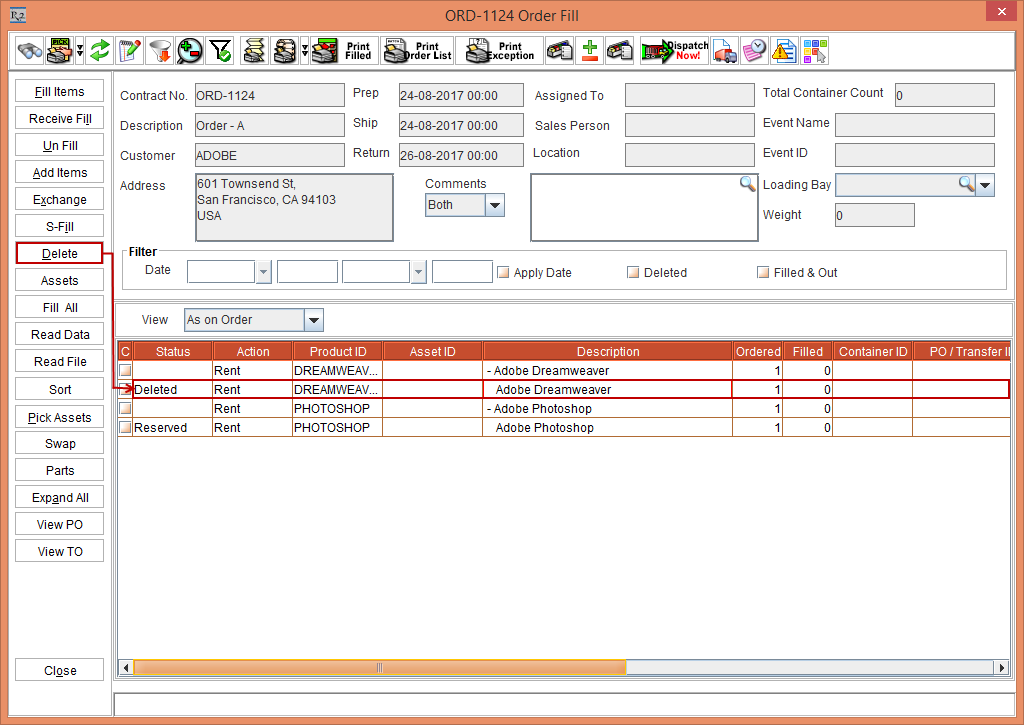
Select the Item [DREAMWEAVER] and select the Delete button. The Status of the Item [DREAMWEAVER] is now changed to Deleted, as shown in Figure 1.1.
-
Close the Order Fill [ORD-1124 Order Fill] window.
-
In the Rental Reservation Order [ORDER-1124], select the Item [PHOTOSHOP] > perform a right-click and select the Assign option. The Assign window is displayed.
-
Select the Sub-Rental radio button and click OK. The Assign Vendor dialog box is displayed.
-
Select the User Assign radio button and click OK. The Purchase Order dialog box is displayed.
-
Select Create New Purchase Order radio button. The Supplier window is displayed.
-
Select the Supplier [UBS] and click OK.
-
The Purchase Order [PO-102] is created and displayed. Exit the Purchase Order [PO-102] window.
-
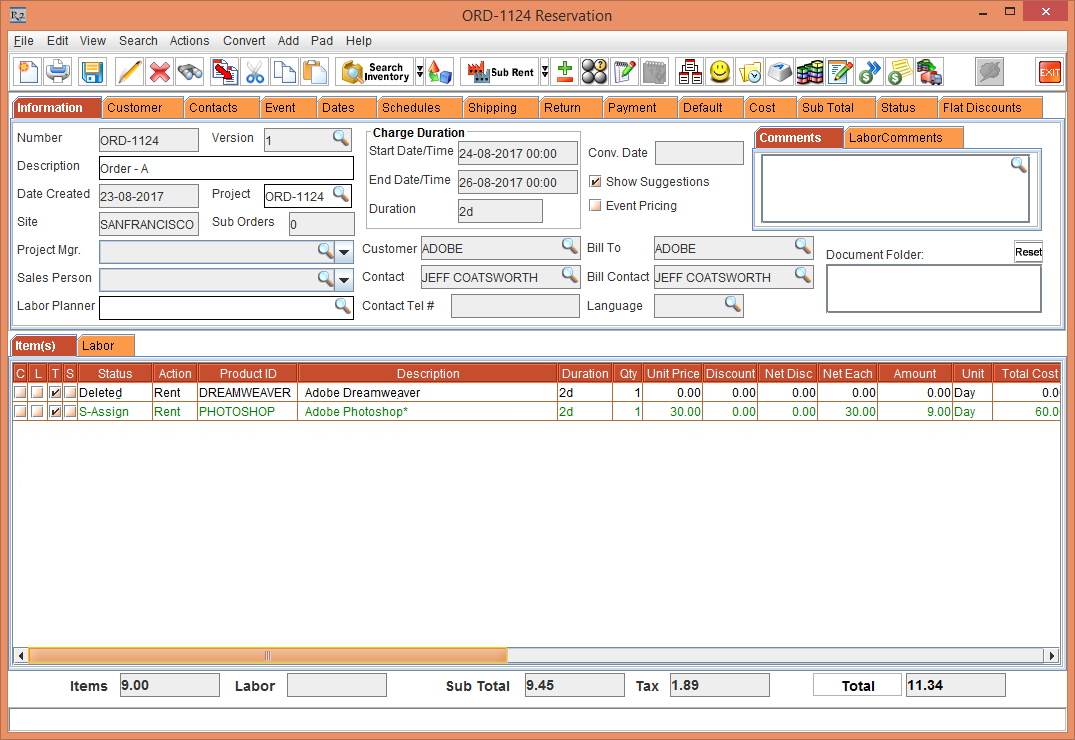
The Status of the Item [DREAMWEAVER] displays as Deleted and the Status of the Item [PHOTOSHOP] displays as S-Assign, as shown in Figure 1.2.
-
Exit the Rental Reservation Order [ORDER-1124].
-
Create another Rental Reservation Order [ORDER-1125] for 2 days duration.
-
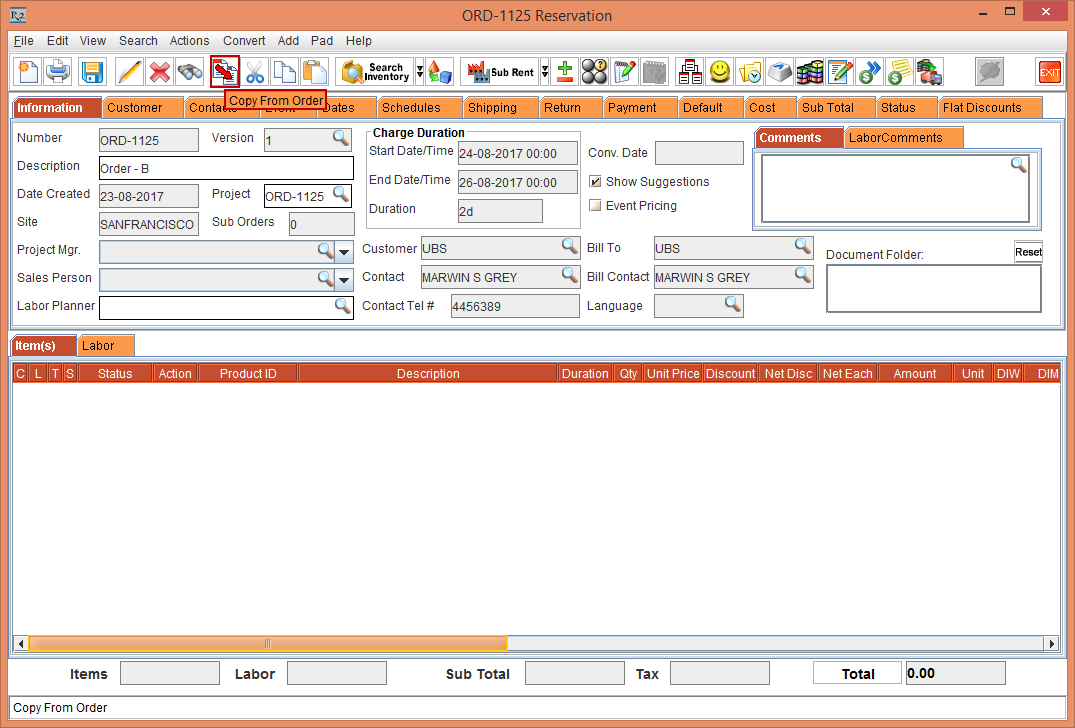
Click the Copy From Order icon, as shown in Figure 1.3.
-
The Search Orders window is displayed.
-
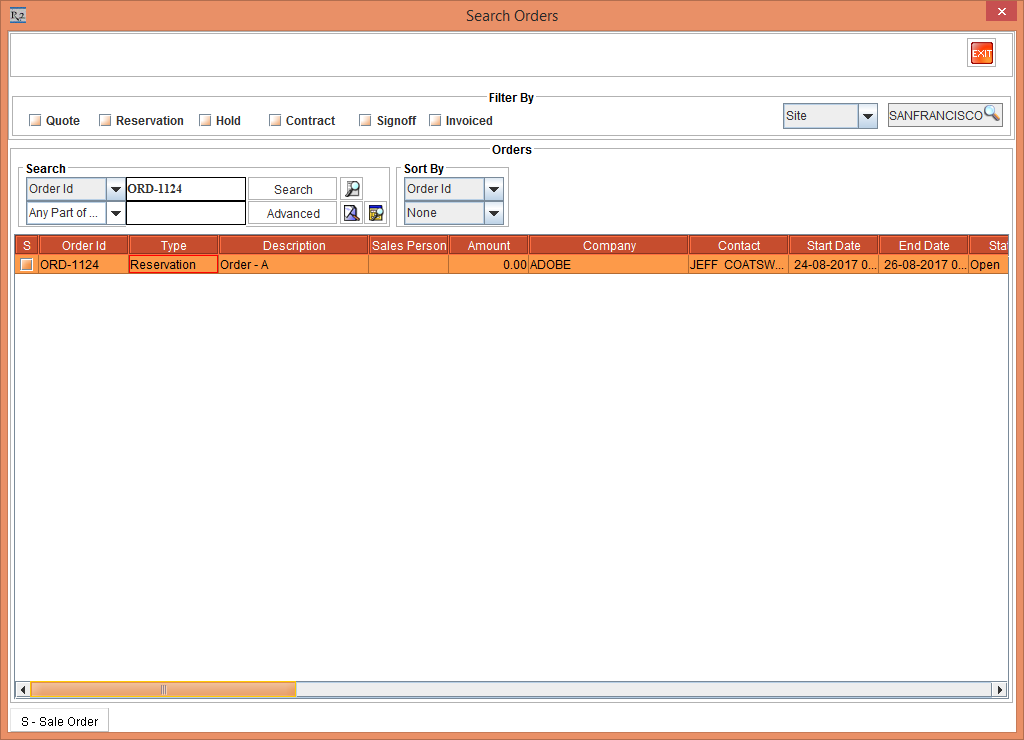
Select the Search drop-down as Order ID. Enter the Search as ORD-1124 and select the Search button. The Rental Reservation Order [ORDER-1124] is displayed, as shown in Figure 1.4.
-
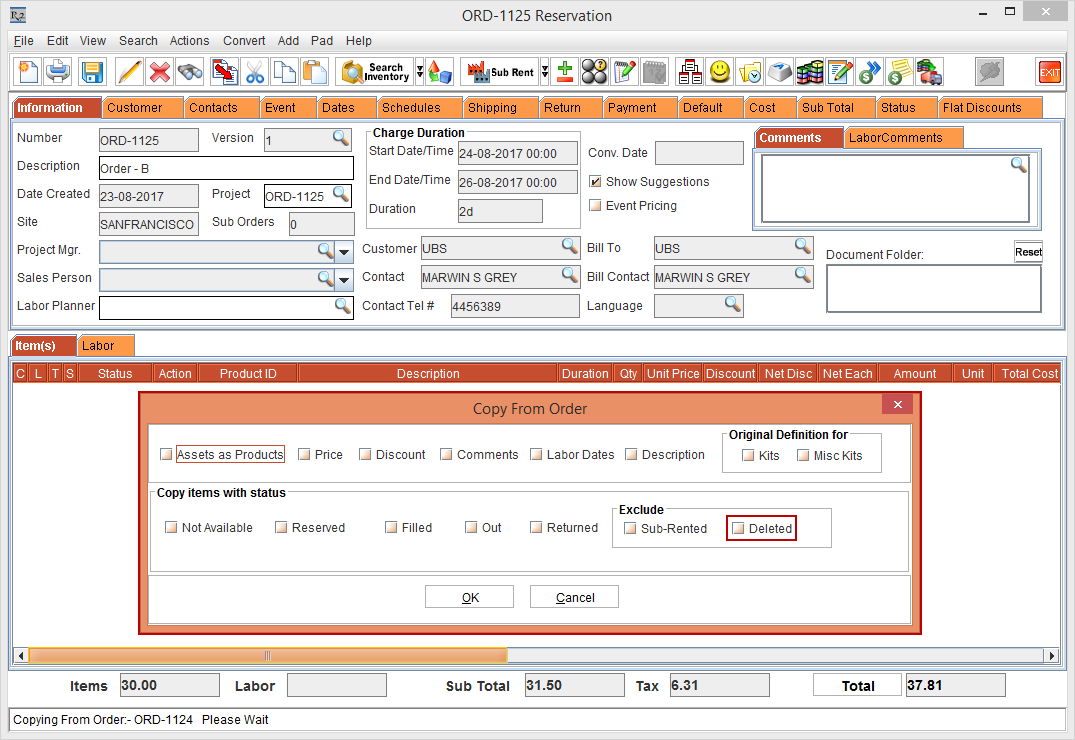
Double-click the Rental Reservation Order [ORDER-1124], the Copy From Order window is displayed. A new option Deleted check box is included in the Exclude section of the Copy From Order window, as shown in Figure 1.5.
Selecting the Deleted check box in the Exclude section of the Copy From Order window enables you to exclude the Item lines in Deleted Status being copied to the Order.
-
Do not select the Deleted check box in the Exclude section of the Copy From Order window.
-
Click OK.
-
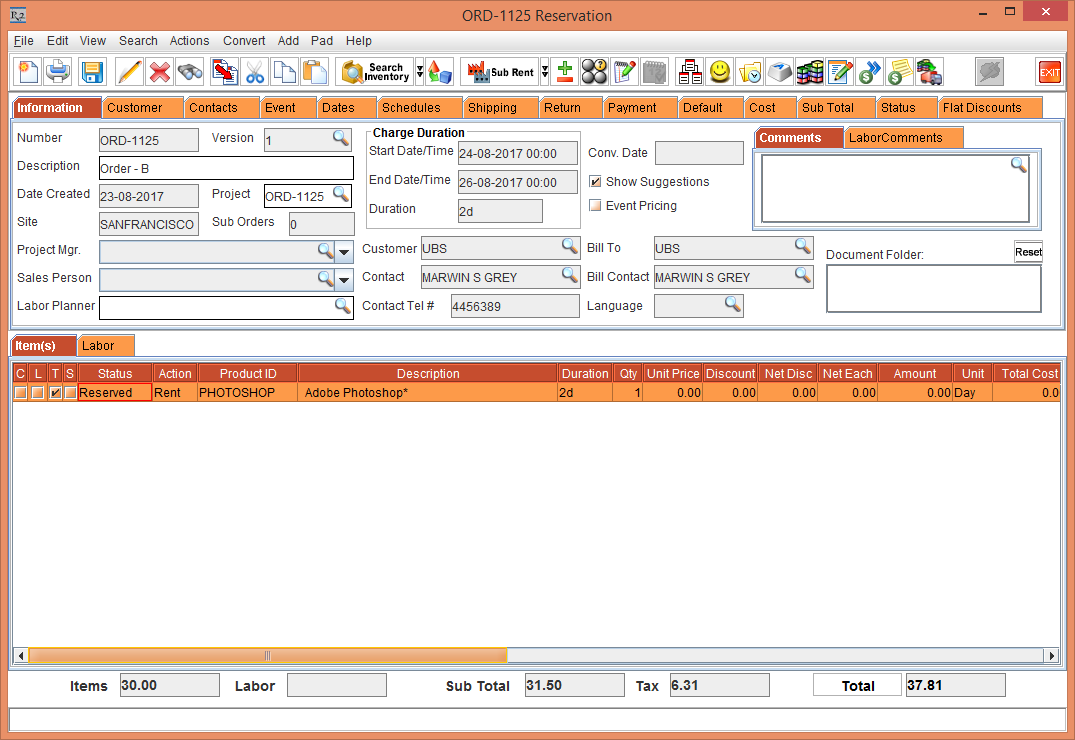
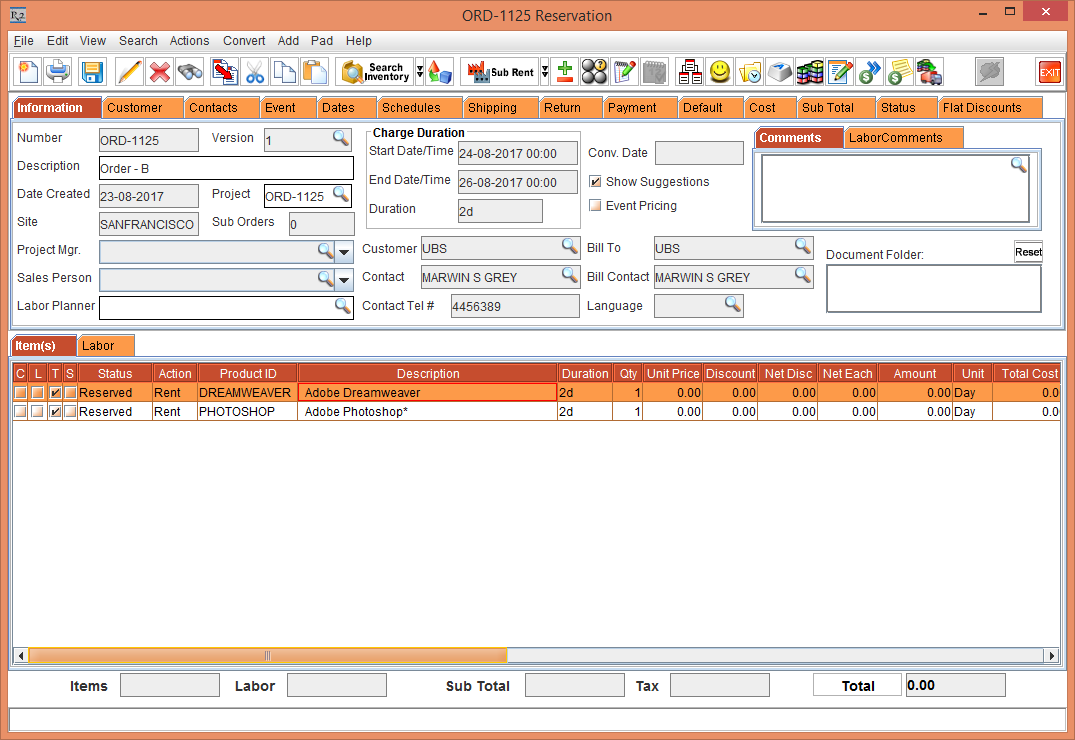
The Items [DREAMWEAVER] and [PHOTOSHOP] with Qty as 1 is copied from the Rental Reservation Order [ORDER-1124] to the Rental Reservation Order [ORDER-1125], as shown in Figure 1.6.
-
Select the Deleted check box in the Exclude section of the Copy From Order window, as shown in Figure 1.7.
-
Click OK.
-
Only the Item [PHOTOSHOP] with Qty as 1 is copied to the Rental Reservation Order [ORDER-1125]. The Item [DREAMWEAVER] is excluded from copying because the Status of the Item in Rental Reservation Order [ORDER-1124] is in Deleted status and you have selected the Deleted check box in the Copy From Order window, as shown in Figure 1.8.