
Reference No: 29385
Details
Support for adding an Item on Quote or Hold from the Configuration setting. It is done without having to create an Order.
This displayed in the following illustrated workflow:
Sample Workflow
Prerequisites
-
Create an Item [HP TOUCHSMART 600] and receive some Assets.
-
From the Account module, create a Quote [ORD-1070] > save and exit.
-
Create a Hold [ORD-1071] > save and exit.
Steps
-
Select the Configuration module.
-
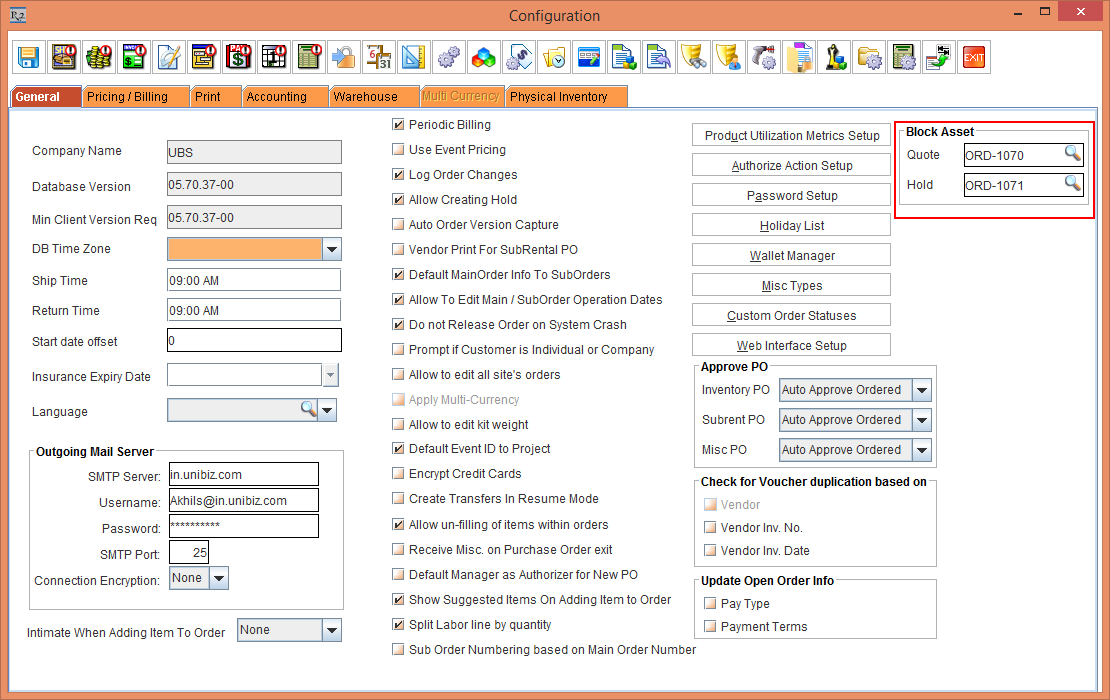
In the Block Asset section, select the importable button > the Search Orders window is displayed. Tag the Quote [ORD-1070] in the Quote field and the Hold [ORD-1071] in the Hold field, as shown in the Figure 1.0.
While searching the Quote and Hold using the importable button, the system only lists the Quote and Hold having Amount as 0 within them.
-
Save and exit the Configuration module.
-
Select the Account module > Search Inventory > search the Item [HP TOUCHSMART 600] > double click the Item line and click the Asset Usage View button . The Asset Usage View window is displayed.
-
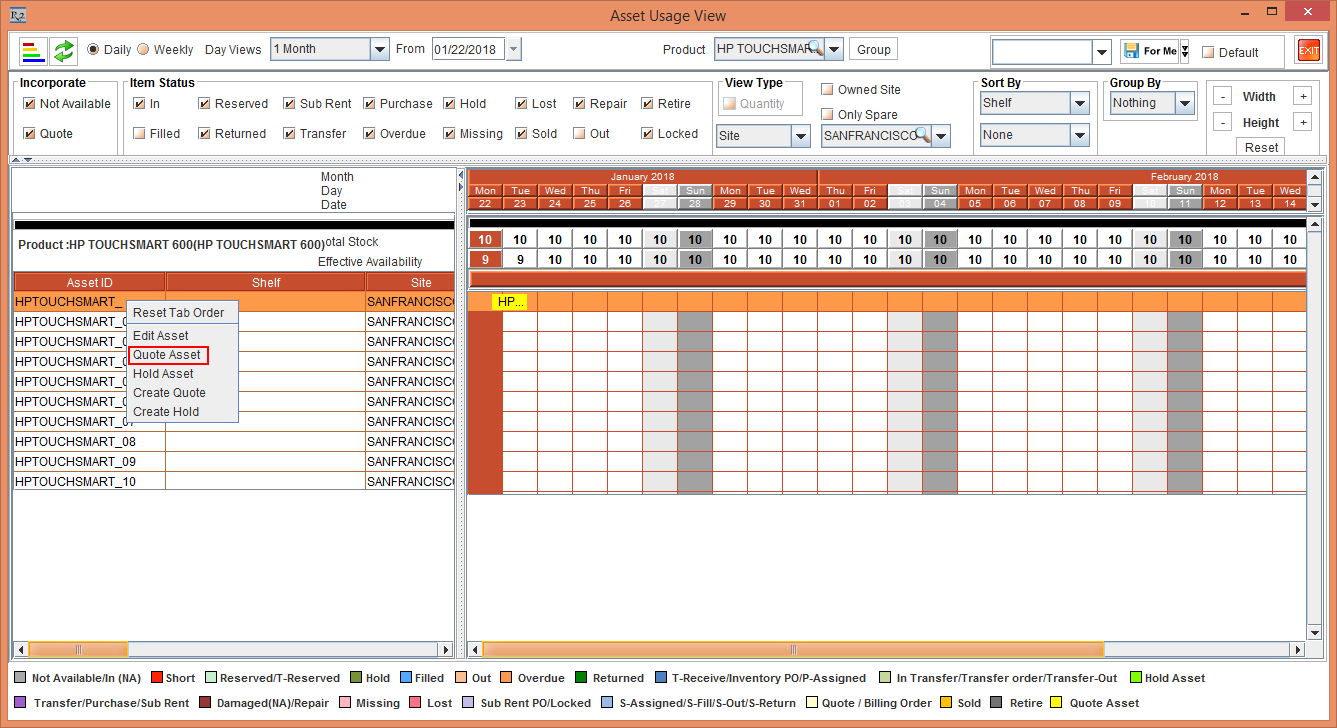
Select the Asset [HPTOUCHSMART_] and right-click the Asset line, as shown in the Figure 1.1.
-
Select the Quote Asset option, as shown in the above Figure 1.1. The Quote Asset dialog is displayed with the default Description, Start Date and End Date. This is, as shown in the Figure 1.2.
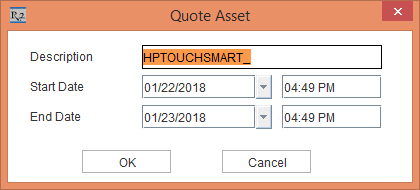
Click the OK button.
-
Click the Refresh button. The Asset Usage View is updated reflecting the details in the yellow colour bars, as shown in the Figure 1.3. Adjust the Width and Height to see the details on the bars.
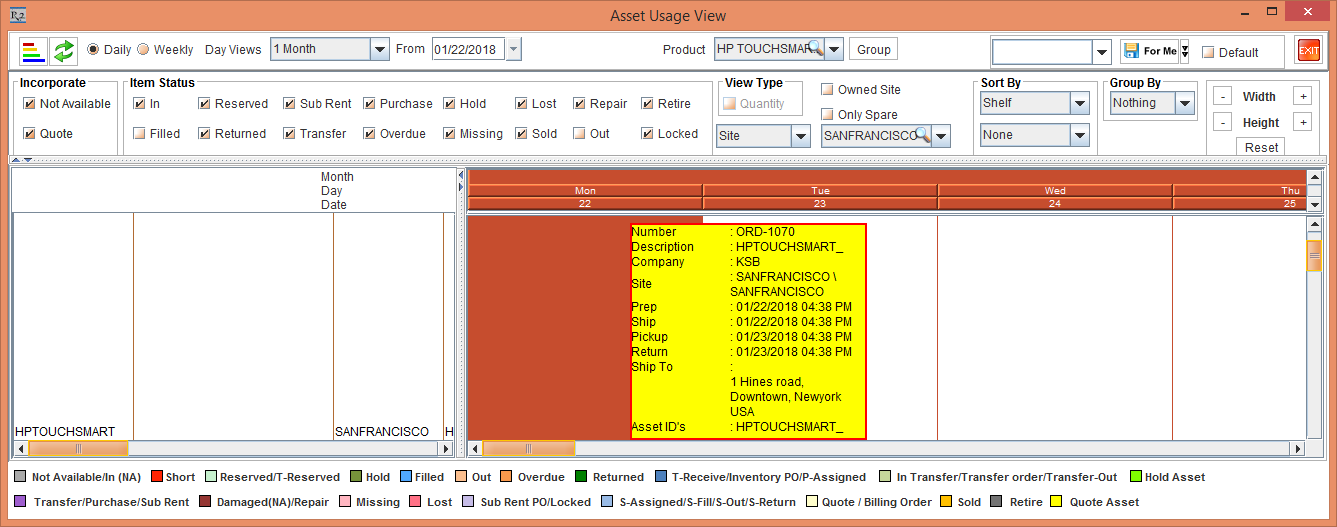
The Asset [HPTOUCHSMART_] is placed in the Quote [ORD-1070].
-
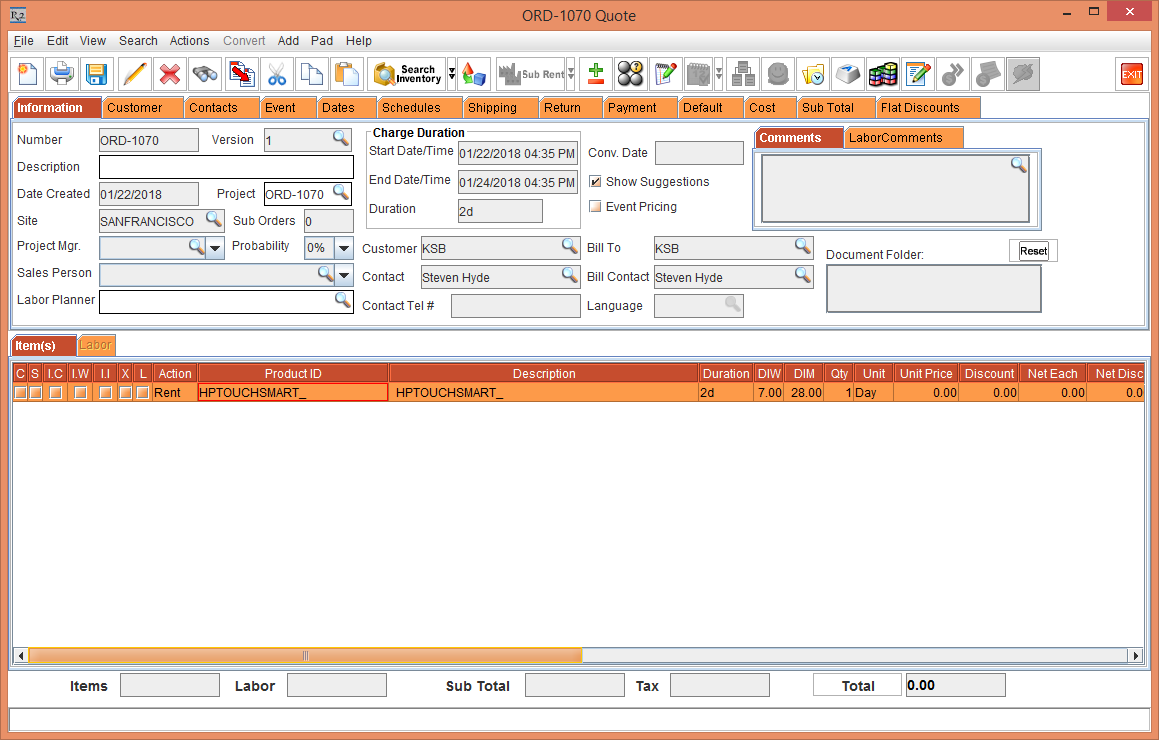
From the Account module, select Search Orders > Open the Quote [ORD-1070]. The Asset [HPTOUCHSMART_] is placed in the Quote [ORD-1070], as shown in the Figure 1.4.
Exit the Quote [ORD-1070].
-
From the Asset Usage View, select the Asset [HPTOUCHSMART_02] > right-click the Asset line and select Hold Asset option. The Hold Asset dialog is displayed, as shown in the Figure 1.5.
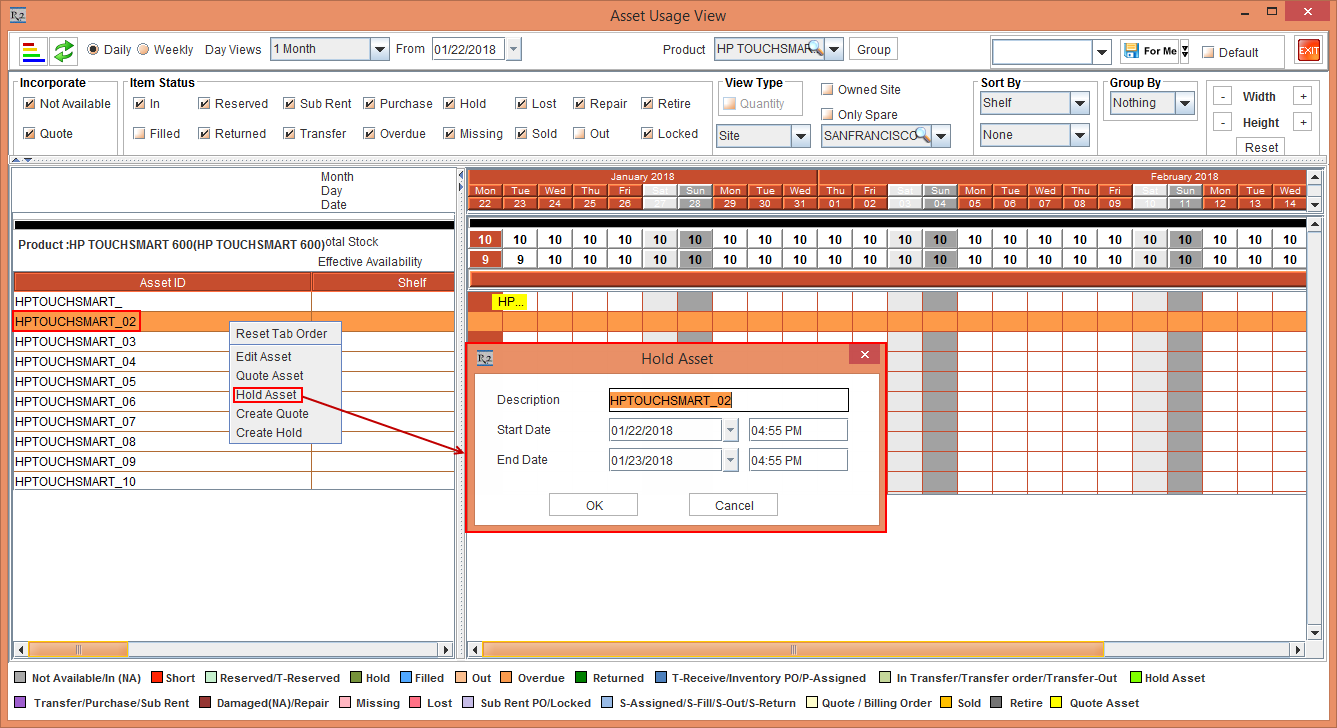
By default, the Hold Asset dialog displays Description, Start Date and End Date. Click the OK button.
-
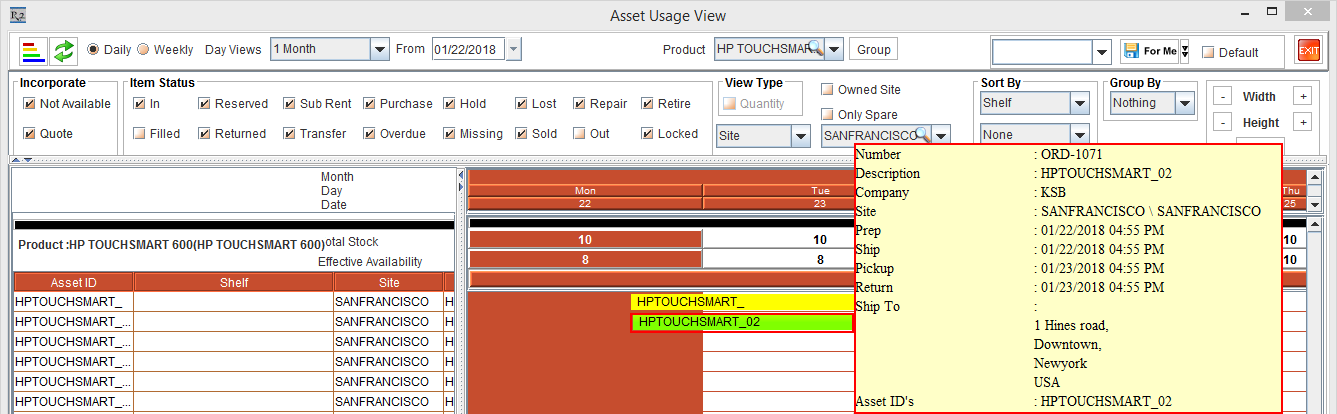
Click the Refresh button. The Asset Usage View is updated reflecting the Hold details in the green color bars, as shown in the Figure 1.6. Adjust the Width and Height to see the details on the bars.
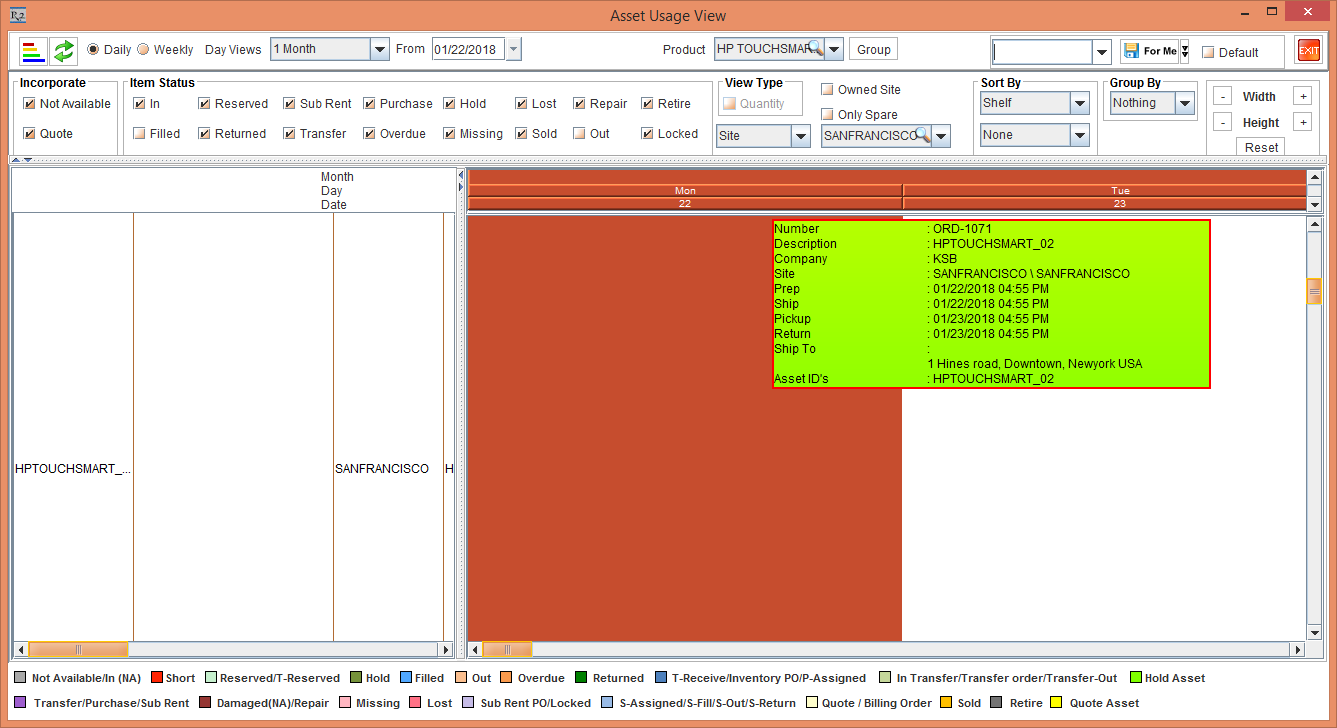
The Asset [HPTOUCHSMART_02] is placed in the Hold [ORD-1071].
-
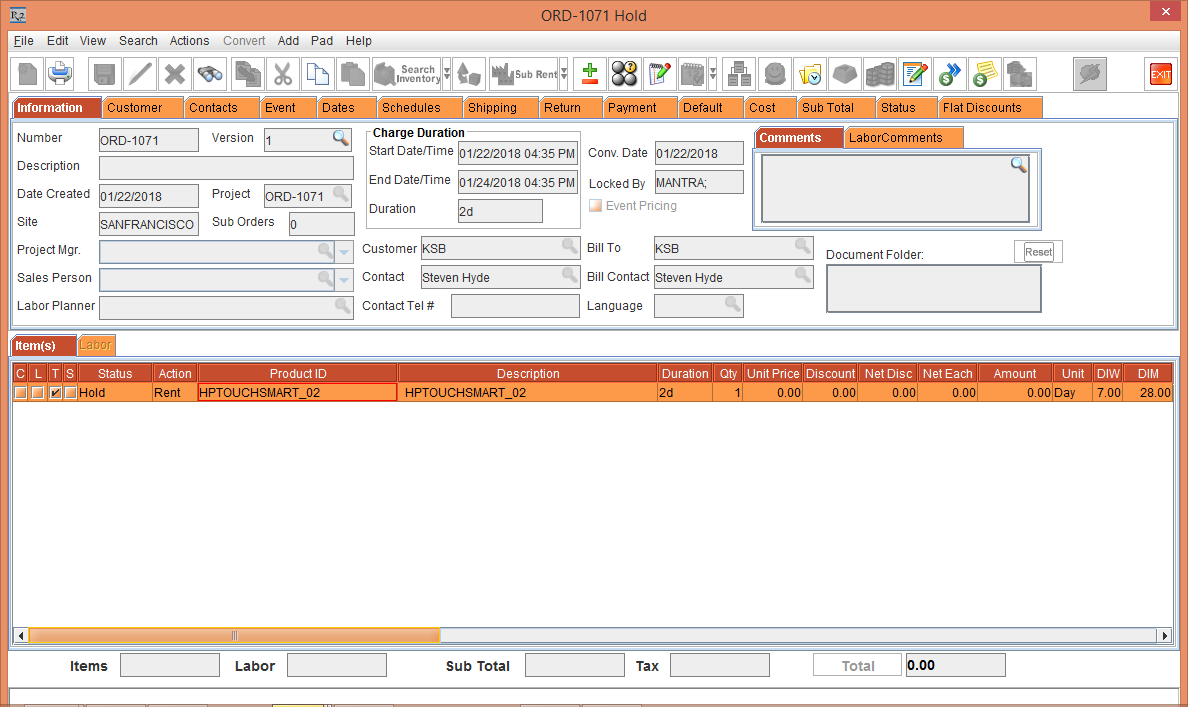
From Account > Search Orders > Open the Hold [ORD-1071]. The Asset [HPTOUCHSMART_02] is placed in the Hold [ORD-1071], as shown in the Figure 1.7.
If you click the bar, tool tip is displayed having all the details. This is, as shown in the Figure 1.8.
-
Exit the Hold [ORD-1071].
When the availability of the Item is checked in the Availability window, the system blocks the Asset for Hold but does not block the Asset for Quote.