Reference No: 29386
Details
Support for Custom Job Status in the orders.
The details are explained in the sample workflow given below:
Sample Workflow
-
Select the Configuration module.
-
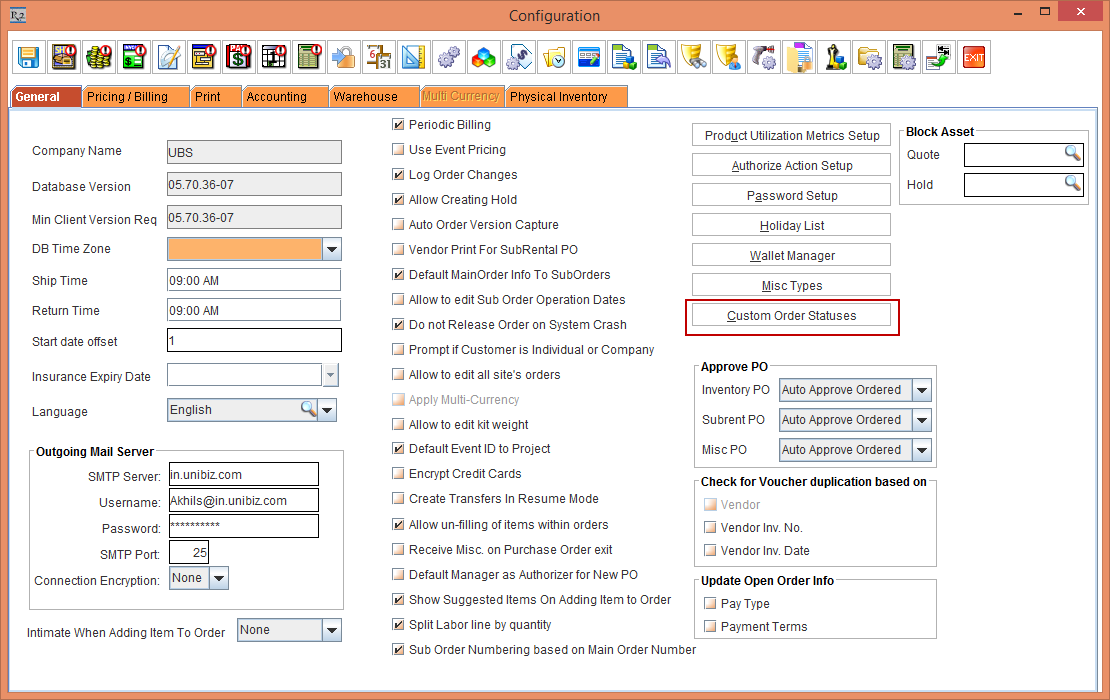
Click the Custom Order Statuses button , as shown in Figure 1.0.
-
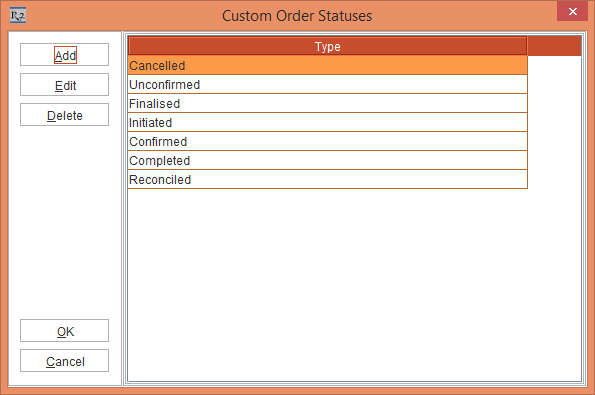
In the Custom Order Statuses window, click the Add button and add the status, as shown in Figure 1.1.
-
Click the OK button.
-
Save and exit the Configuration module.
-
Select the Account module.
-
Create an Order [ORD-3411].
-
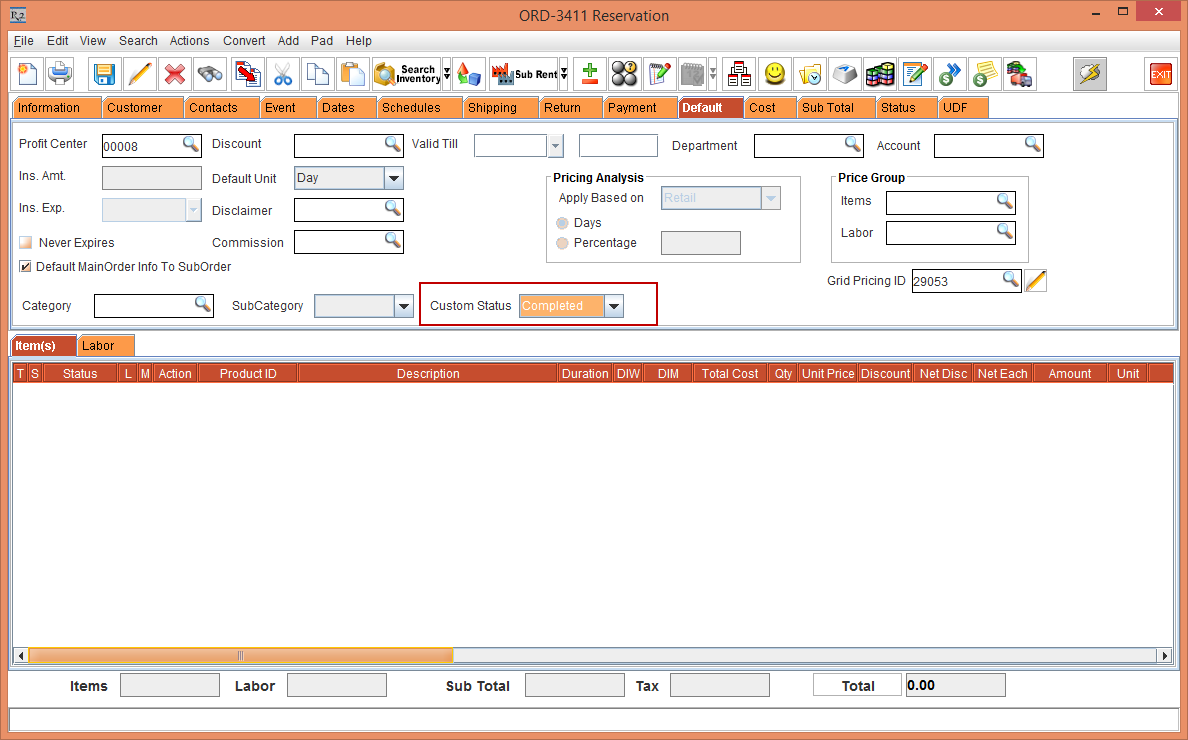
Select the Default tab.
-
The Custom Status drop-down will display status as Cancelled.
It will always display the first status from Configuration module, as shown in Figure 1.1.
-
Select the Custom Status drop-down as Completed, as shown in Figure 1.2.
-
Save and exit the Order.
-
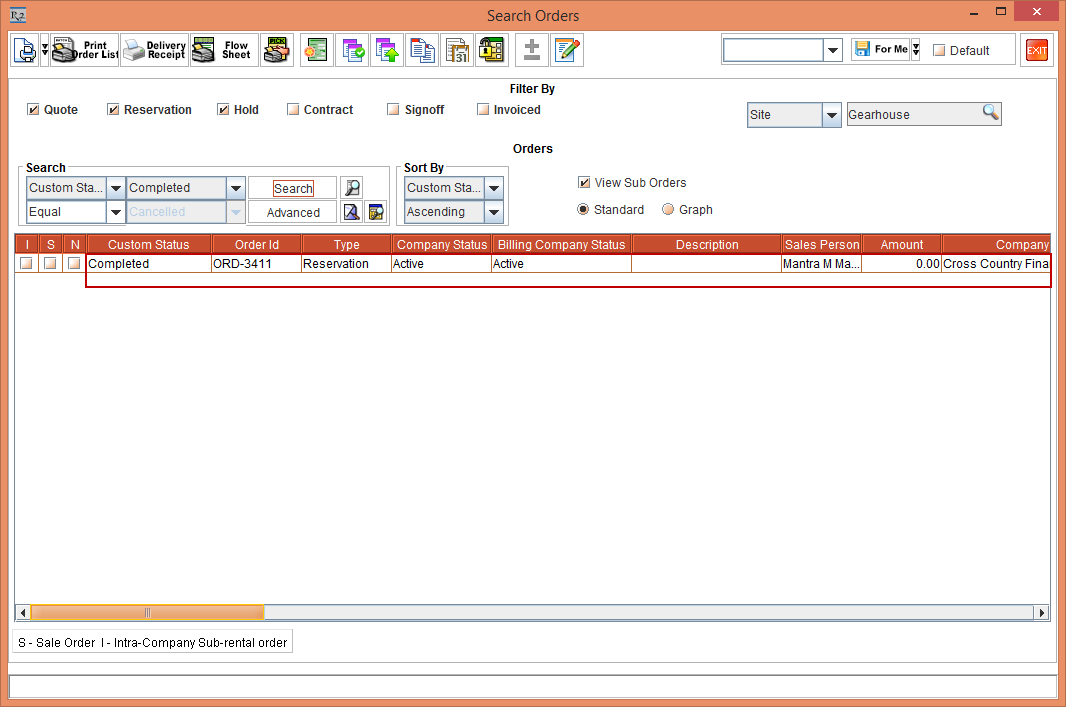
Open the Search Order window and select the Search drop-down as Custom Status and Completed, as shown in Figure 1.3.
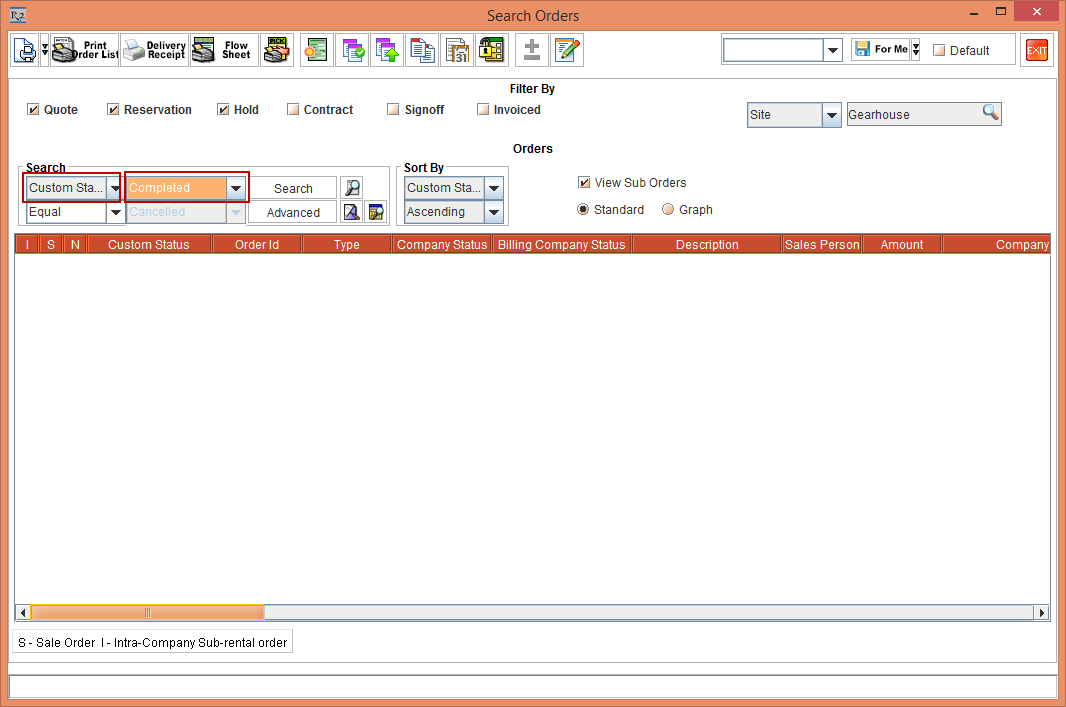
-
Click the Search button. The Order with Custom Status as Completed will appear , as shown in Figure 1.4.