
Reference No: 29391
Details
Support for changing the Quantity of a Miscellaneous Item on a Misc. PO which is linked to the Order.
This displayed in the following illustrated workflow:
Sample Workflow
Steps
-
Create a Rental Reservation Order [ORD#3340].
-
Add a Misc. Charges Item [AIRPORT-HILTON] to the Order with Qty as 1.
-
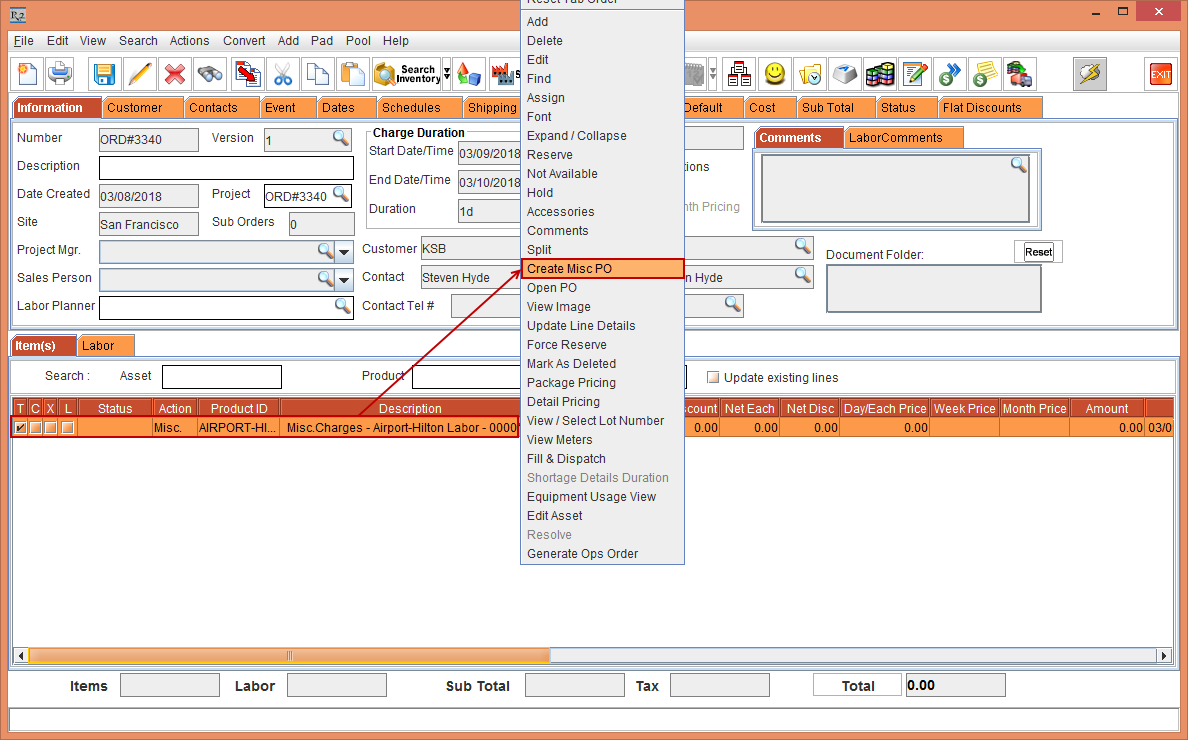
Right-click the Misc. Charges Item [AIRPORT-HILTON] and select the Create Misc PO option, as shown in the Figure 1.0.
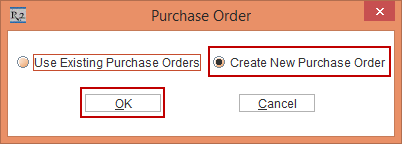
The Purchase Order dialog is displayed, as shown in Figure 1.1.
-
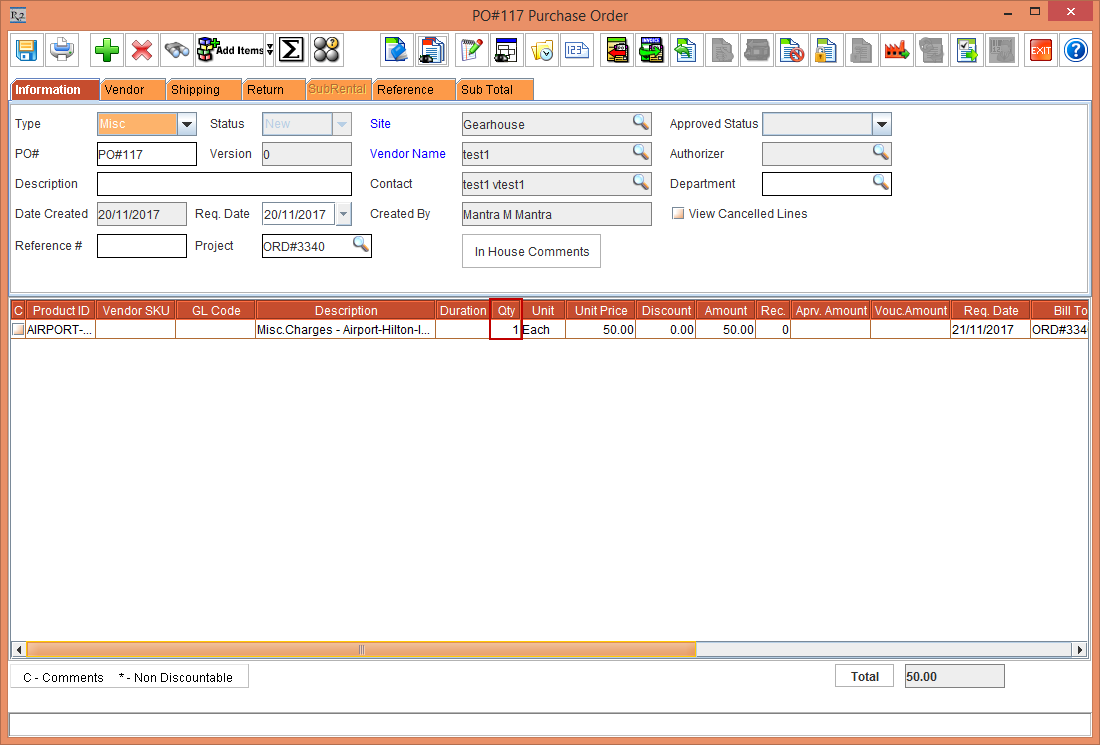
Select the Create New Purchase Order radio button and click the OK button. The Search Company / Contact window is displayed. Select a Company. The Purchase Order [PO#117] window is displayed, as shown in the Figure 1.2.
-
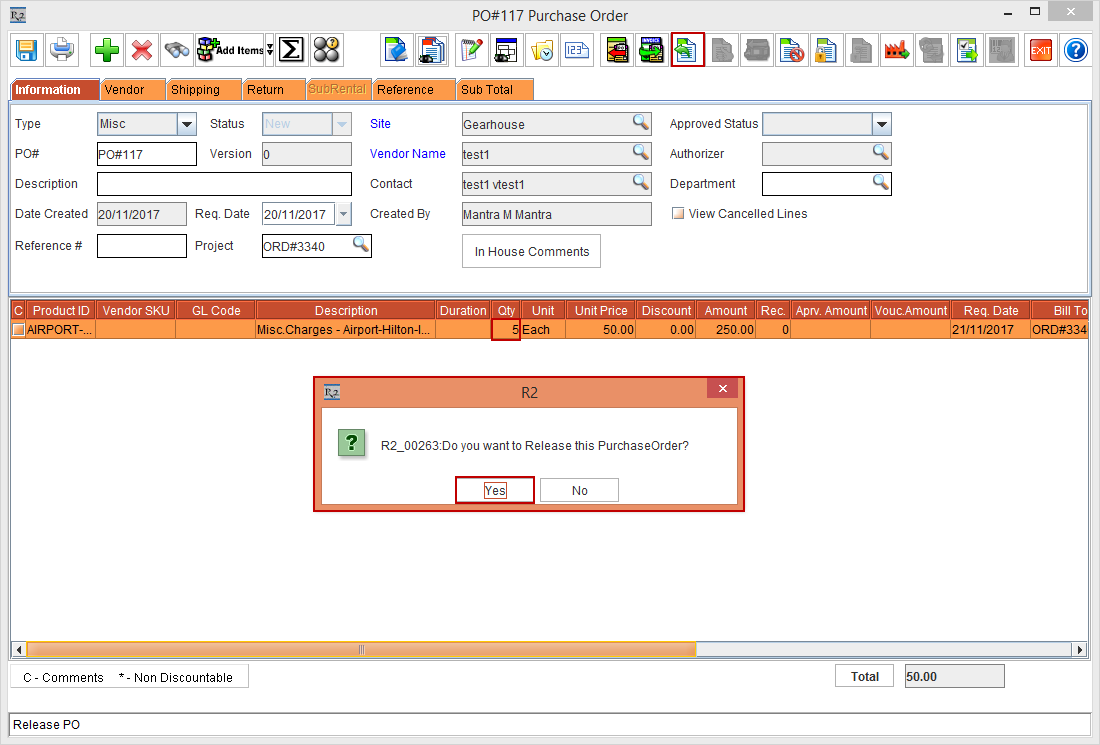
Change the Qty to 5 > click the Release button. A dialog is displayed, as shown in the following Figure 1.3. Click the Yes button. The Purchase Order is released.
-
From the Rental Reservation Order [ORD-3340], right-click the Item and select the option Open PO. The Misc Purchase Order is displayed, as shown in the Figure 1.4.
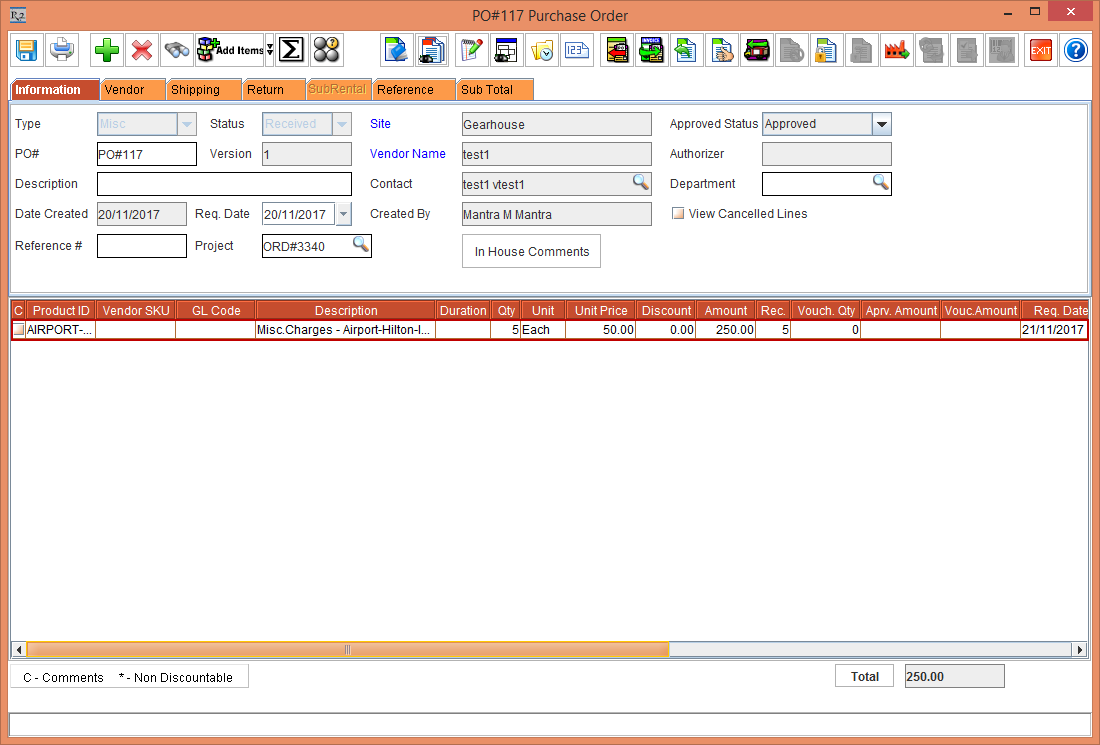
In the Misc. PO, the Quantity (QTY) should not be less than the Received Quantity (Rec).
-
Exit the Purchase Order [PO#117].
-
Exit the Rental Reservation Order [ORD#3340].