
Reference No: 28813
Details
In R2 support for adding/reserving/filling item is given from Current Date when Prep Date is past.
The above said feature is supported from:
-
Order Edit - Search Item and Add
-
Order Edit - Key in the Item ID
-
Order Edit - Key in the Asset ID
-
Order Edit - Fill All
-
Order Edit - Fill And Dispatch
-
Order Edit - Right Click Reserve
-
Order Edit - Right Click Fill & Dispatch
-
Fill Order Screen (task) - Add Items
-
Fill Order Screen (task) - Add & Prep
-
Fill Order Screen (task) - Fill Items
-
Fill Order Screen (task) - Pick Assets
-
Fill Order Screen (task) - Fill All
-
Fill Order Screen (task) - Read File
-
Fill Order Screen (task) - Read Data
-
Fill Order Screen (task) - Fill Items - Auto Fill and Auto Return
The details are explained in the sample workflow given below:
Sample Workflow
Prerequisites
-
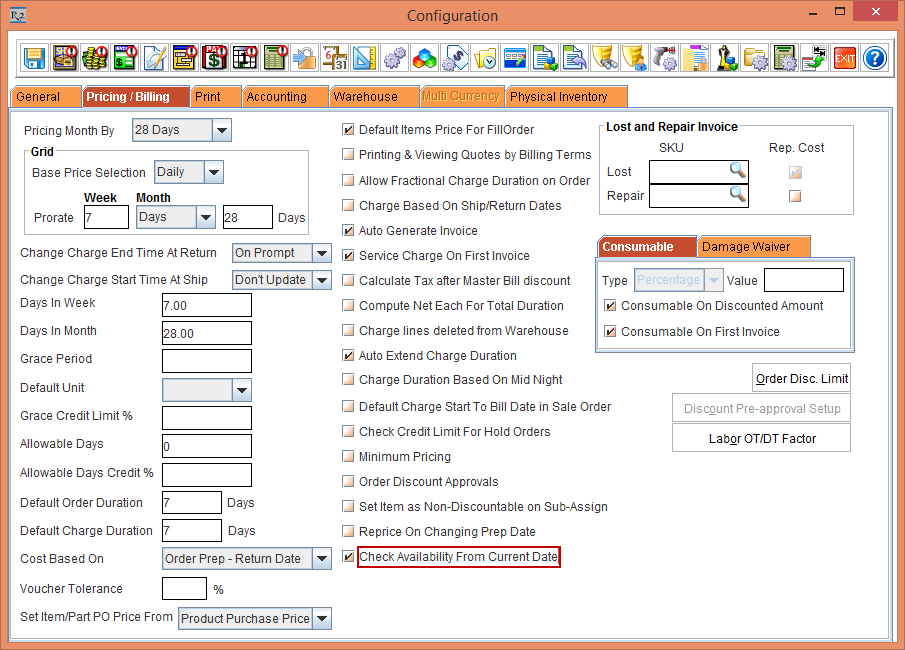
Select the Configuration module > Select the Pricing /Billing Tab > Select the Check Availability From Current Date check box, as shown inFigure 1.0.
-
Save and Exit the Configuration module.
Scenario 1
-
Create an Item [ITEM 1] with 1 stock as [ASSET -1190].
-
Create an Order [ORD-257] from 30-Jan-2017 to 01-Mar-2017.
-
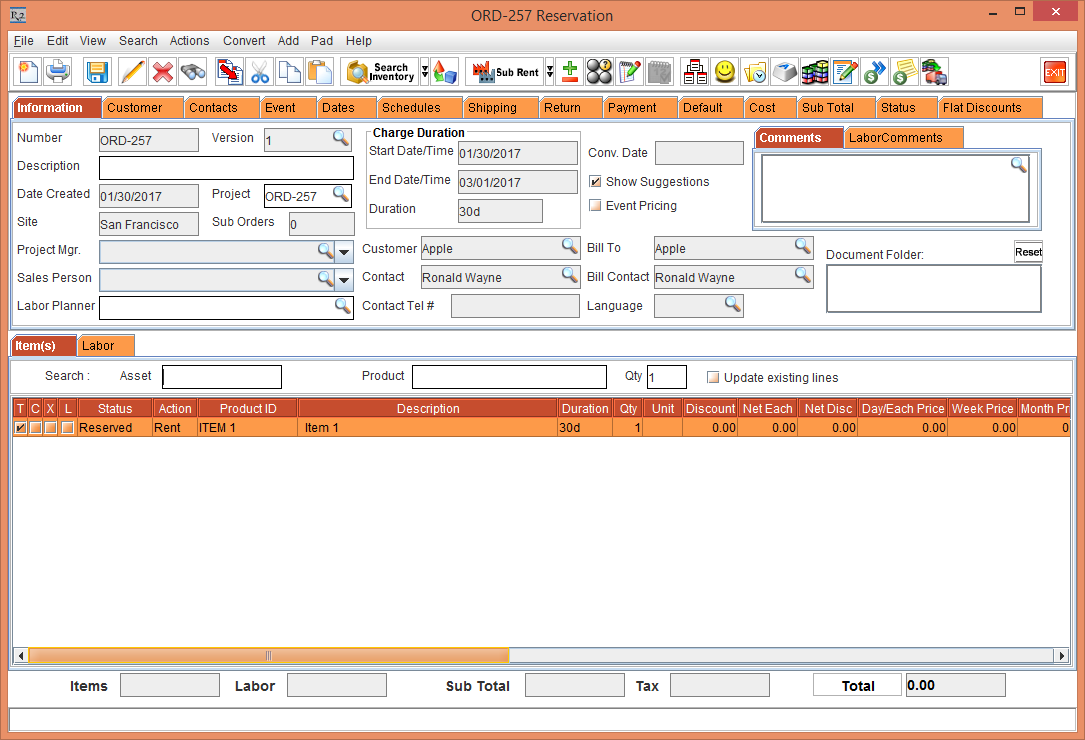
Add the Item [ITEM 1] in the Order [ORD-257]., as shown in Figure 2.0.
-
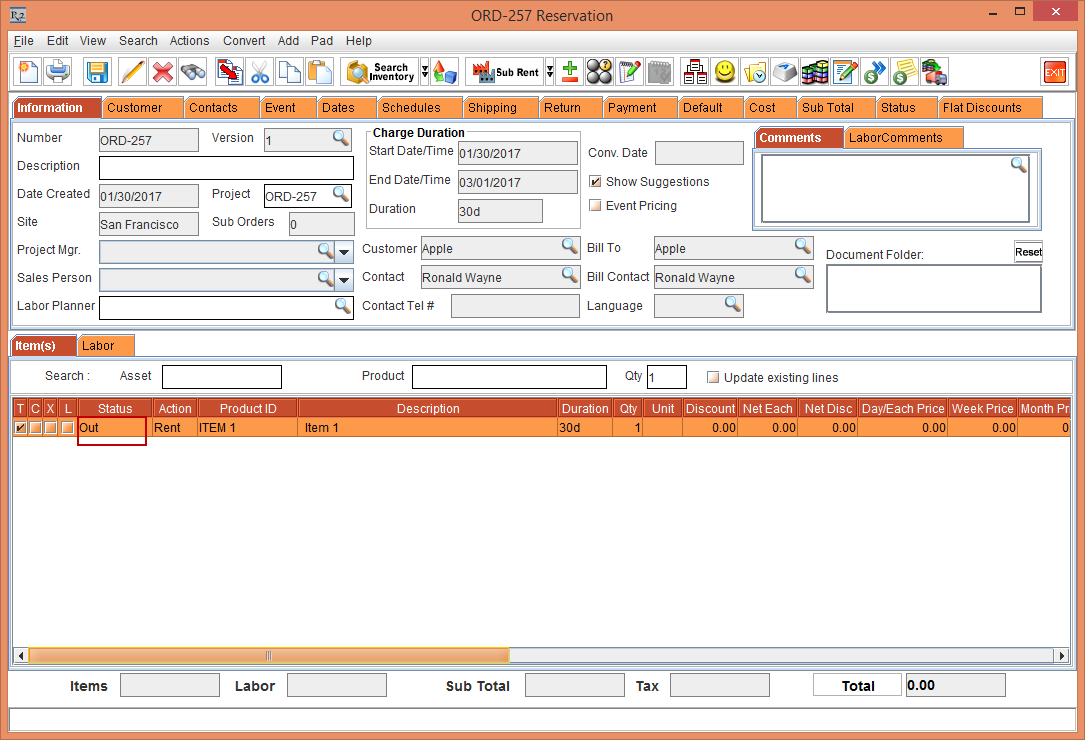
Fill and Ship the Item [ITEM 1] on 30-Jan-2017. The status change to Out, as shown in Figure 3.0.
-
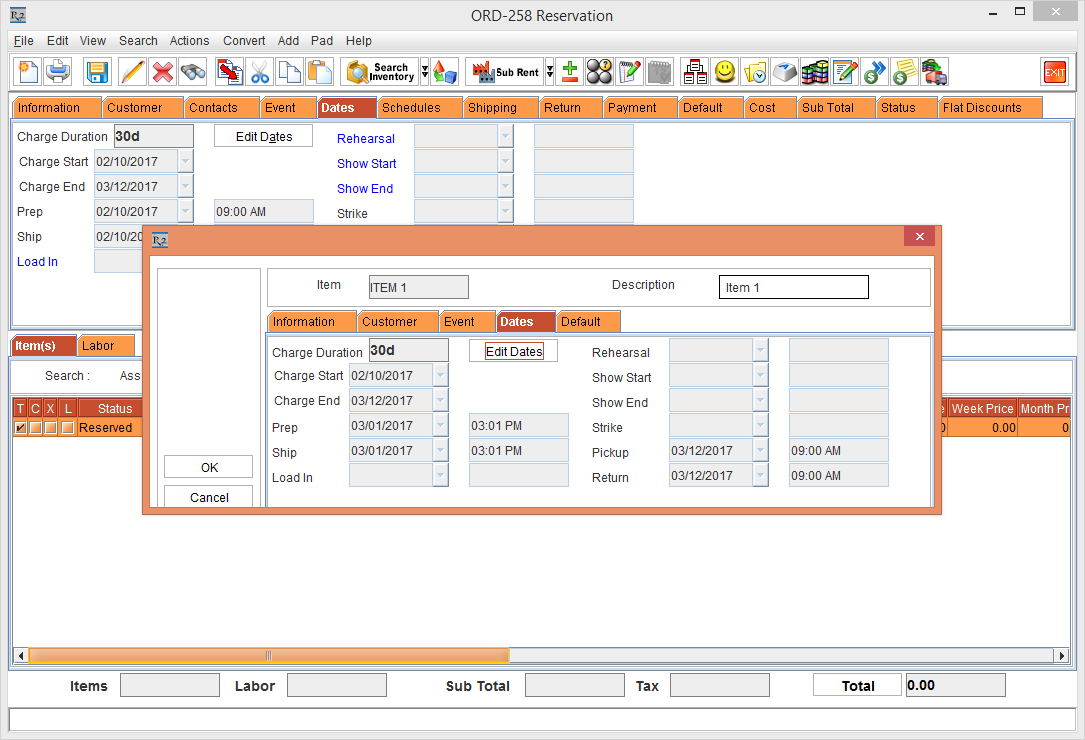
Create another Order [ORD-258] from 10-Feb-2017 to 12-Mar-2017.
-
Save the Order [ORD-258] and Exit.
-
Return the Item [ITEM 1] in Order [ORD-257] on 01-Mar-2017.
-
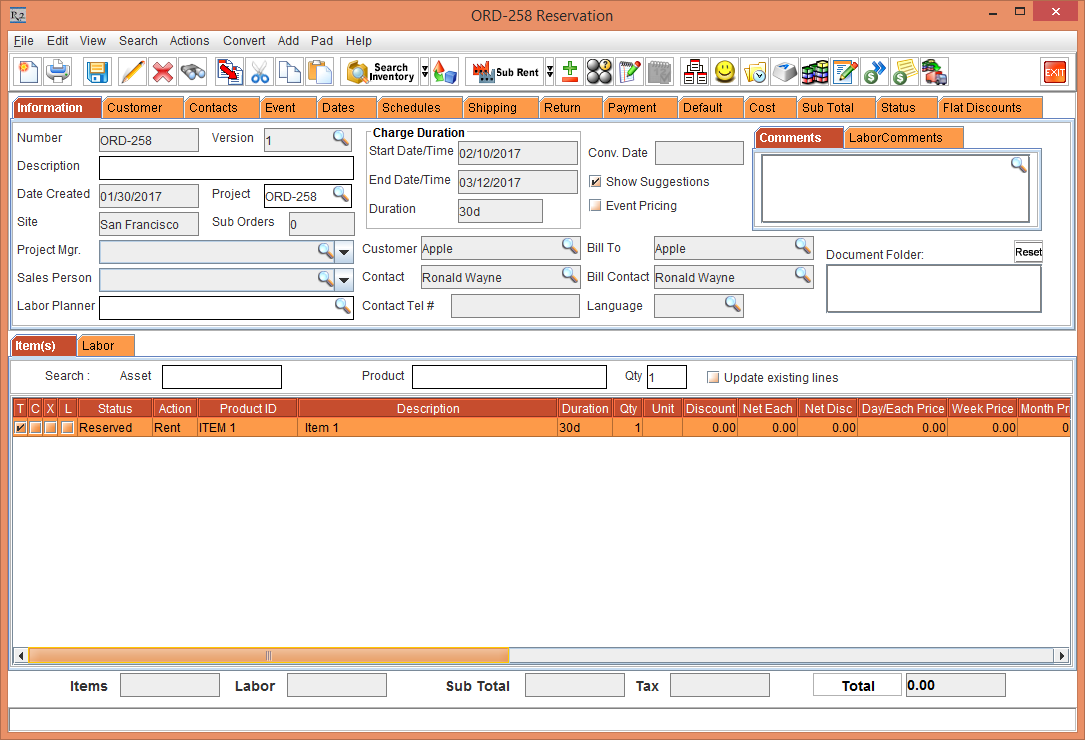
Add the Item [ITEM 1] in the Order [ORD-258] on 01-Mar-2017. Since the Item 1 is available from current date(01-Mar-2017), it gets added as reserved, as shown inFigure 4.0.
Scenario 2
-
Create an Item [ITEM 1] with 2 stock as [ASSET -1190] and [ASSET -1191].
-
Create an Order [ORD-257] from 30-Jan-2017 to 01-Mar-2017.
-
Add the Item [ITEM 1] as [ASSET -1190] in the Order [ORD-257].
-
Fill and Ship the Item [ITEM 1] on 30-Jan-2017. The status change to Out.
-
Create another Order [ORD-258] from 30-Jan-2017 to 01-Mar-2017.
-
Add the Item [ITEM 1] as [ASSET -1190]. It will be Reserved Status
-
Save the Order [ORD-258] and Exit.
-
Return the Item [ITEM 1] in Order [ORD-257] on 20-Feb-2017.
-
Do Fill All in the Order [ORD-258] on 20-Feb-2017. Since the ASSET -1190 is available from current date(20-Feb-2017), it should get filled.
Scenario 3
-
Create an Item [ITEM 1] with 2 stock as [ASSET -1190] and [ASSET -1191].
-
Create an Order [ORD-257] from 30-Jan-2017 to 01-Mar-2017.
-
Add the Item [ITEM 1] as [ASSET -1190] in the Order [ORD-257].
-
Fill and Ship the Item [ITEM 1] on 30-Jan-2017. The status change to Out.
-
Create another Order [ORD-258] from 30-Jan-2017 to 01-Mar-2017.
-
Add the Item [ITEM 1] as [ASSET -1190]. It will be Reserved Status
-
Save the Order [ORD-258] and Exit.
-
Return the Item [ITEM 1] in Order [ORD-257] on 20-Feb-2017.
-
Open the Order [ORD-258] > Select View > Fill Order.
-
Create a file by adding ASSET -1190 and add it using the Read File button.
-
Since the ASSET -1190 is available from current date(20-Feb-2017), it should get filled.