
Content was last updated in 06.23.07-00
Revision History
Version No.
|
Reference No.
|
Changes
|
|
06.23.07-00 |
R2-19956 |
Separating Lost/Missing items in Configuration. |
The General tab has settings related to Comments viewed and edited by, address mandatory fields, message settings, mandatory Pickup order fields, warehouse filter panel, location fields, project fields.
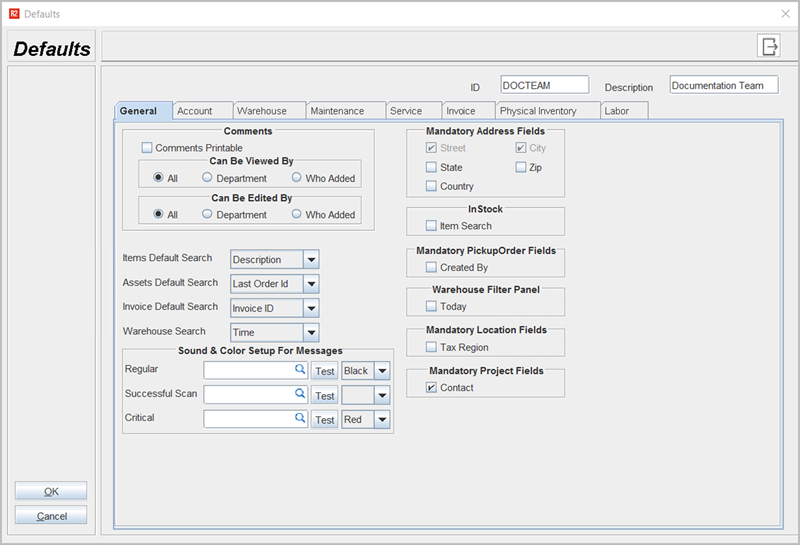
Table 1.0 General Tab
|
Fields |
Sub-fields |
Field type |
Description |
|
Comments |
Can be viewed by |
Select Option |
Select any one option for comments viewed/ edited by
|
|
Can be edited by |
|||
|
Comments Printable |
Select Checkbox |
Select this check box if comments needs to be printed. |
|
|
Mandatory Address fields |
|
Select Checkbox |
You can select any of the options to set any address fields as mandatory. |
|
Items Default Search |
- |
Select from Drop-down |
Select any item field as default for Item search option, default items fields such as: Description, Product ID, Stock, Model, Manufacture, Rent, Sell, Tax Group. |
|
Assets Default Search |
- |
Select from Drop-down |
Select any asset field as default for Assets searching option, default assets fields such as: Asset ID, Order ID, Description, Return, Item Status, Site ID, Site Name. |
|
Invoice Default Search |
- |
Select from Drop-down |
Select any Invoice field as default for Invoice searching option, default invoice fields such as: Invoice ID, Contract ID, Bill date, Company, Terms, Amount, Tax, Type, PO number. |
|
Warehouse search |
- |
Select from Drop-down |
Select any Warehouse field as default for Warehouse searching option, default warehouse fields such as: Time, Date, Number, Description, Customer/Vendor, Site. |
|
Sound and Color setup for messages |
|
|
If you want to set sound/tone for Regular messages, Successful scan message, Critical/ warning/error message you can select sound file from system by clicking import button, and select color of message text from drop down if needed and also test the message tone by clicking 'Test' button |
|
In Stock |
Item Search |
Select Checkbox |
Select Item search if you want to search items that are in stock |
|
Mandatory Pickup Order Fields |
Created by |
Select Checkbox |
You can set Created by field in Pickup Order as mandatory |
|
Warehouse Filter Panel |
Today |
Select Checkbox |
You can set Today date in Warehouse filter as mandatory. |
|
Mandatory Location Fields |
Tax Region |
Select Checkbox |
You can set Tax region in Location as mandatory field. |
|
Mandatory Project Fields |
Contact |
Select Checkbox |
You can set Contact field as mandatory in Project. |