
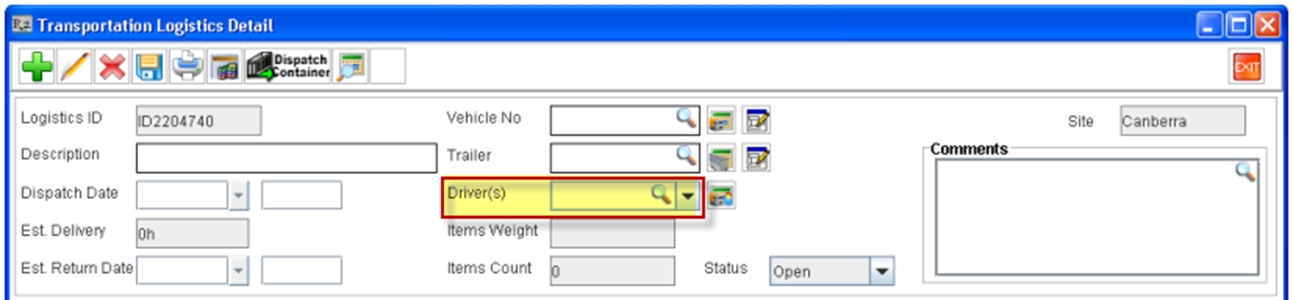
To Tag a Driver(s) to a Vehicle, the user has to first define the Driver Resources, which can be done from within the Search Driver dialog box. The Search Driver dialog box can be accessed by clicking the import button present in the Driver(s) field available in the Logistics Detail Window.
To Define a new Driver/Crew Resource
-
Access Logistics Detail window of Transportation Module.(This can be done either by editing or creating a new Logistics Schedule).
-
Click on the importable button present in the Driver(s) Field.
-
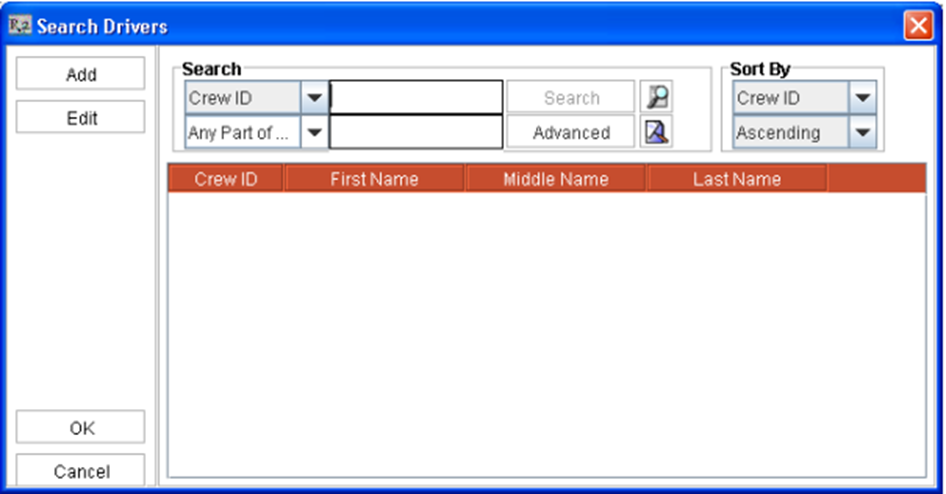
System will display the Search Driver Dialog box, wherein you can Add, Edit and Search for Driver/Crew Resources.
-
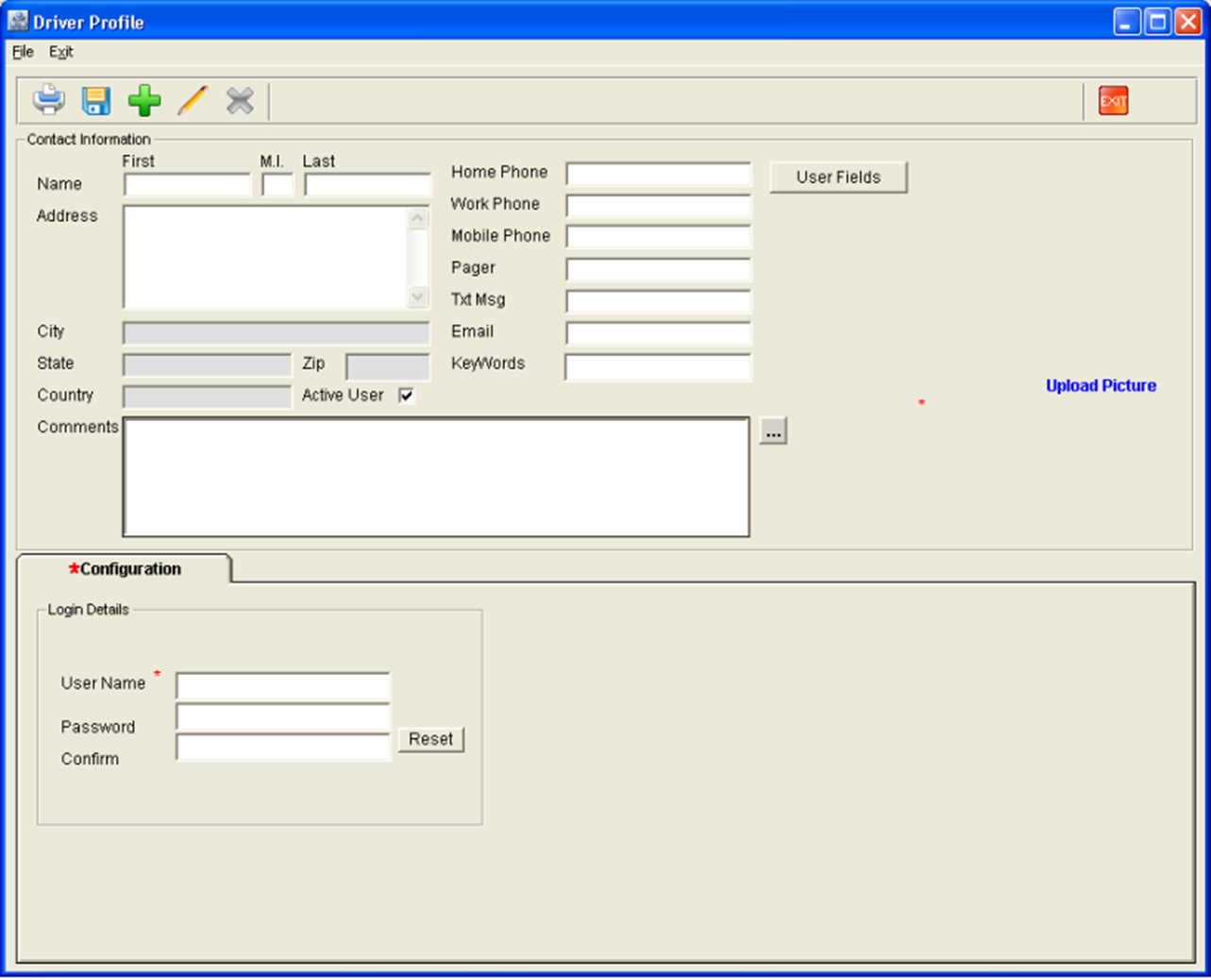
Click on Add, to display the Driver Profile Window, wherein you can define a new Driver/Crew Profile.
-
Enter the Name , Address, and Contact Details.
-
Enter the User Name and Password.
-
On tagging a Driver/Crew to a Logistics Schedule, system will display the User name in the Logistics Detail Window.
-
The defined Driver/Crew resource can be searched from within Labor Planning module resource search with Type set to "Driver".
Tagging a Driver/Crew Resource to a Logistics Schedule
The user can tag driver to a Logistics Schedule either from the Search Drivers window which can be invoked by clicking on the import button present in the Driver(s) field or by directly keying-in Driver name in the Driver(s) field.
-
Multiple Driver(s) can also be tagged to a Logistics Schedule.
-
On keying-in a Driver name in the Driver(s) field, system will add the Driver name to the Driver(s) list, if an exact match is found in the Driver(s) profile list.
-
On keying-in a Driver name in the Driver(s) field, if more than one resource profile matches the entered name, then system will display the Search Drivers window with the matching Driver names and user can tag the desired Driver name to the Logistics Schedule.
-
On tagging Driver(s) to the Logistics Schedule, system will display the Full name for the driver in the Driver list of Logistics Schedule.
-
The user can also delete a driver tagged to the Logistics Schedule by selecting the Driver name and using the Delete key from the keyboard.
-
While viewing the Logistics Schedule in the Transportation Logistics Main window, system will display the Full Name of the Driver which is selected from the tagged list.