
Show Order Feature in Transportation Logistics Details and Warehouse Schedules Windows
Details
In Transportation Module, you can view the orders of warehouse schedules in read-only mode from Logistics Schedule window and Warehouse Schedules window, using the Show Order icon present in the Tool bar or alternatively using the Hot key "Alt+Shift+O". Refer below illustrations for more information.
You can also view the orders of Warehouse Schedule from within Transportation Logistics Main window, using the Show Order feature which is present with effect to version 05.02.11-00.
Steps to View orders from within Transportation Logistics Details window
-
Open a Logistics Schedule from within Transportation Logistics module main window.
-
Select the Order Schedule in the Transportation Logistics Details window for which the order has to be viewed in read-only mode and use either of the below methods.
-
Click the Show Order icon

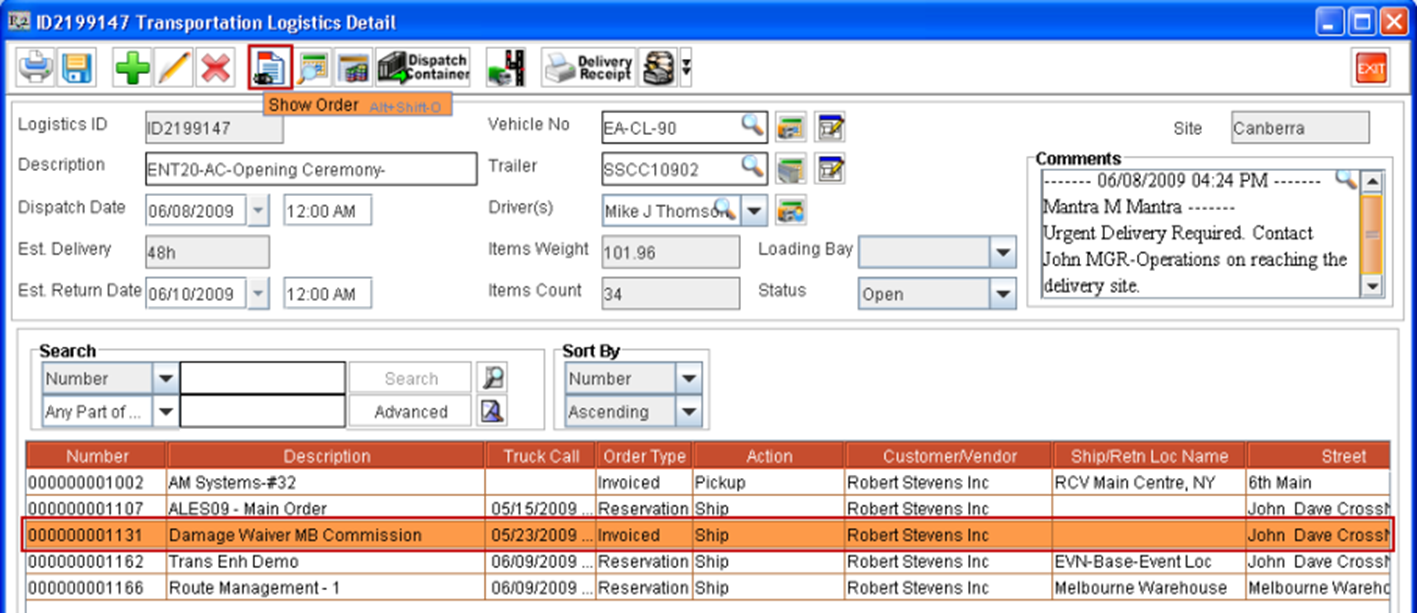
Figure 1.0 -
Use the Hot Key "Alt+Shift+O".
-
-
System will display the order in read-only mode for the selected order schedule.
Steps to View orders from within Warehouse Schedules window
-
Select an Order Schedule in Warehouse Schedules window and follow either of the below methods.
-
Click the Show Order
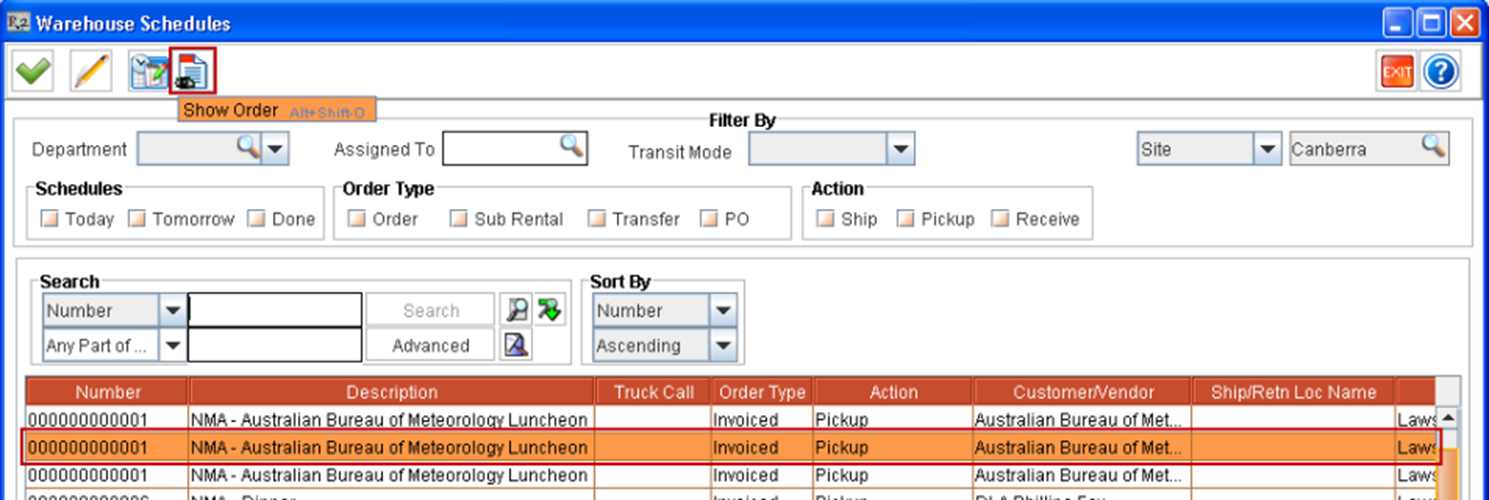
`Figure 1.1 -
Use the Hot Key "Alt+Shift+O".
-
-
System will display the order in read-only mode for the selected order schedule.