
The Logistics Log Print can be generated either from the Transportation Logistics Main window based on a selected date range or for the active schedule by clicking on the Logistics Print icon 
To Generate Logistics Log Print from Transportation Logistics Main window
-
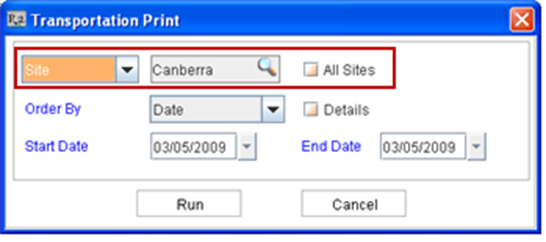
Click on the Logistics Print icon
-
Select the Order By option. The Logistics Log print will be sorted based on the order by option selected as either Date or Logistics ID.
-
Select the Site Filter options and Date Range by which the warehouse schedules has to be filtered.
-
Select the option Details, if item details has to be included in the Log Print.
-
Click Run.
Site Filter Options in Logistics Log Print Dialog
-
By default the site selected in the Transportation Logistics Main Window will be displayed as the default site in Transportation Print Dialog.
-
All Sites - Selecting this option will generate the Logistics Log Print belonging to all the Sites, Sub-Regions and Regions.
Site Filter drop-down menu options
-
Clicking on the importable button will open the Site/ Sub-Region/Region dialog box from which Site/Sub-Region/Region can be selected for generating the logistics log print.
-
Site - Selecting this option will generate the Logistics Log Print belonging to the selected Site.
-
Sub-Region - Selecting this option will generate the Logistics Log Print belonging to the selected Sub-Region.
-
Region - Selecting this option will generate the Logistics Log Print belonging to the selected Region.
On clicking the Print icon by highlighting a Transportation Schedule all the Site Filter options (highlighted above) will be disabled and the Logistics Log Print will be generated based on the site tagged to the highlighted Schedule.
To Generate Logistics Log Print from Transportation Details Window
-
Click on the Logistics Print icon
On generating the Logistics log print from Transportation Logistics Details window, the print output will be always generated without item details.
Logistics Log Print Format
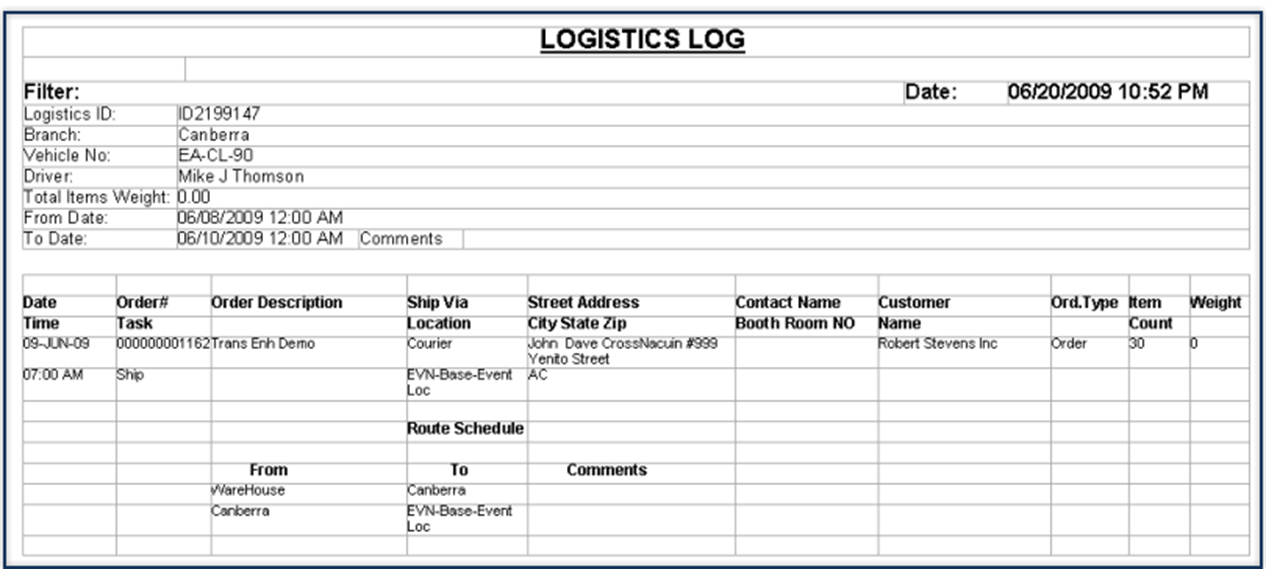
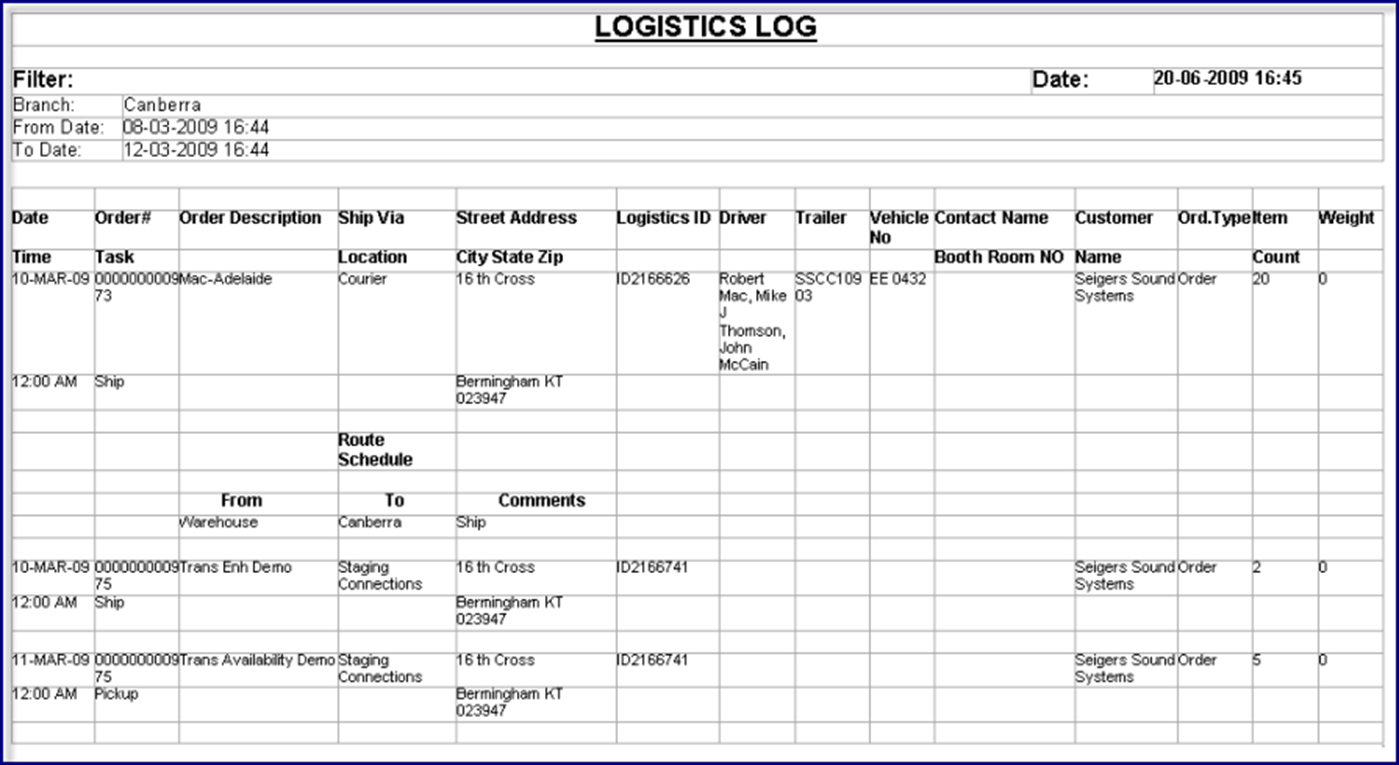
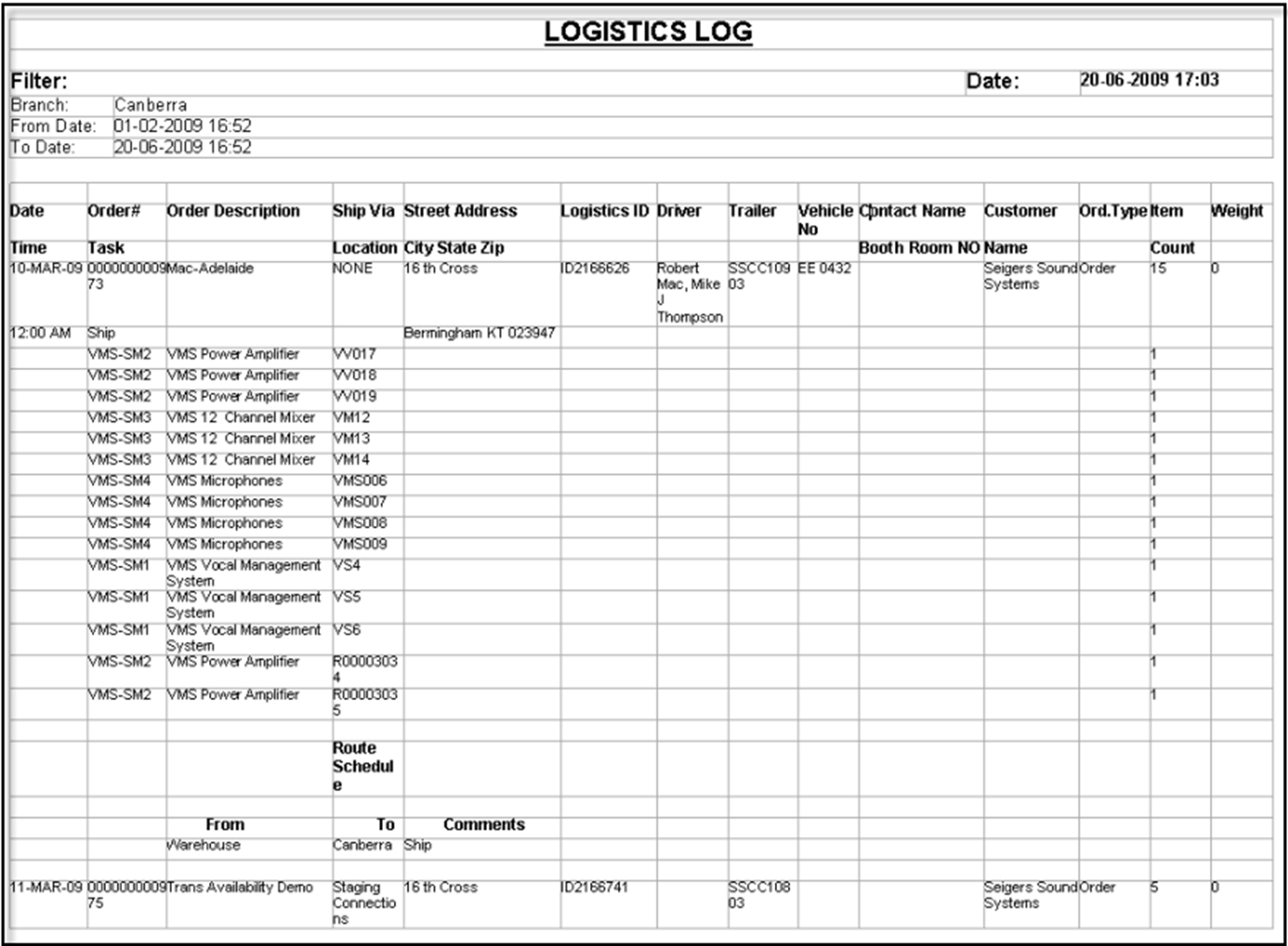
Field Information
|
Field |
Description |
|---|---|
|
Date |
Displays warehouse schedule date. |
|
Time |
Displays warehouse schedule time. |
|
Task |
Displays type of the Warehouse Task. |
|
Order # |
Displays order number for the warehouse task. |
|
Order Description |
Displays order description for the warehouse task. |
|
Type |
Displays type of the Order. |
|
Ship Via |
Displays the information selected as Ship Via in Order Shipping Tab. |
|
Item Count |
Displays the total number of items present in the Warehouse tasks added to the Transportation Schedules. |
|
Item Weight |
Displays the total weight items present in the Warehouse tasks added to the Transportation Schedules. |
|
Location |
Displays the ID of the shipping location. |
|
Street Address, City, State, Zip |
Displays the address information of the shipping location selected in the order. |
|
Logistics ID |
Displays ID of the Transportation Schedule. |
|
Branch |
Displays the Branch/ Site for which the Transportation Schedule is created. |
|
Driver |
Displays the name of the driver to whom the Transportation Schedule is assigned to. If multiple drivers are tagged then the name of all the Drivers will be printed separated by comma. |
|
Trailer |
Displays the ID of the Trailer that is tagged. |
|
Contact Name |
Displays name of the Shipping Contact selected in the order. |
|
Customer |
Displays name of the Main Customer |
|
Booth/Room No |
Displays the Booth / Room No selected in the order. |
|
Order Status |
Displays the status of the order. The order status will be displayed as follows: Order Type - Status Order - Contract Inventory Purchase Order - Purchase Order Sub-Rental Purchase Order - Sub-Rental Purchase Order Transfer Order - Transfer Order |
|
Route Schedule |
If any Route Schedule is defined for the Transportation logistic, then the same will be printed after details of the respective Transportation Schedule. |