
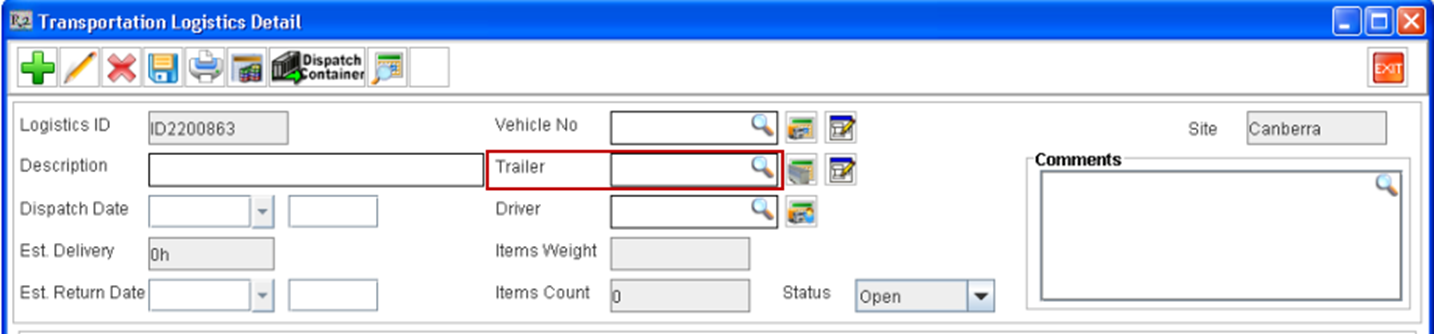
To Tag a Trailer to a Logistics Schedule, the user has to first define the Trailer Resources, which can be done from within the Trailers dialog box. The Trailers dialog box can be accessed by clicking the import button present in the Trailer field available in the Logistics Detail Window.
To Define a new Trailer Resource
-
Access Logistics Detail window of Transportation Module.(This can be done either by editing or creating a new Logistics Schedule).
-
Click on the Importable button present in the Trailer Field.
-
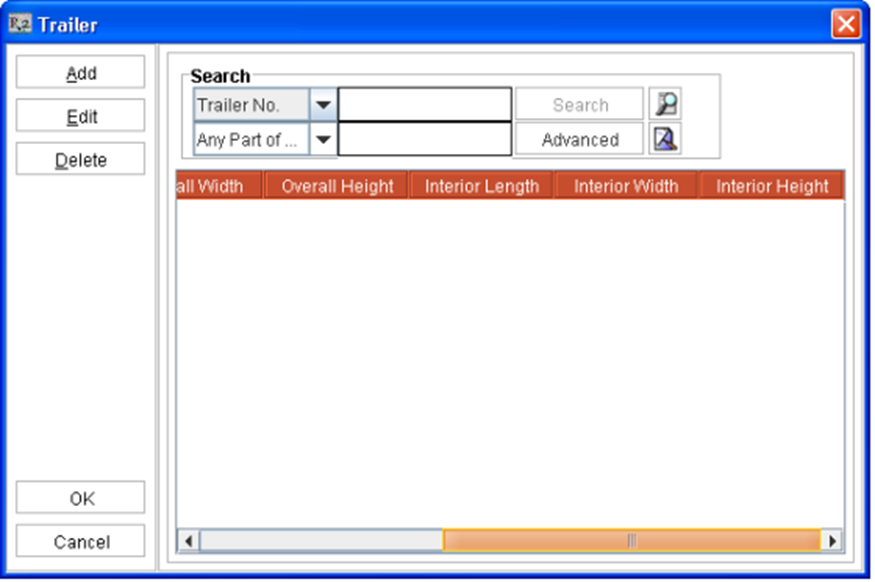
System will display the Trailer Dialog, wherein you can Search, Add, Edit and Delete Trailer Resource definitions.
-
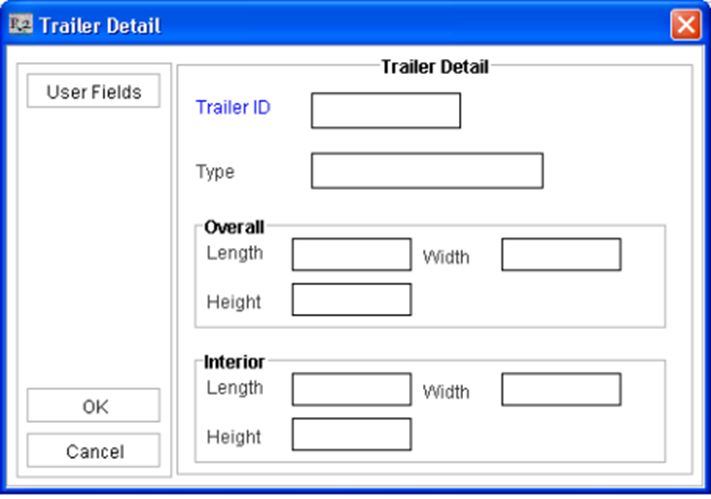
Click Add, to display the Trailer Detail window where in you can enter the information for the New Trailer definition.
-
Enter the ID, Description and other required information for the Trailer. Click OK to save the new definition.
On tagging a Trailer to a Logistics Schedule, system will display the Trailer ID in the Logistics Detail Window.
Tagging a Trailer to a Logistic Schedule
The user can tag Trailer to a Logistics Schedule either from the Search Trailers dialog which can be invoked by clicking on the import button present in the Trailer field or by directly keying-in Trailer ID in the Trailer field.
-
On keying-in a value in the Trailer field, system will tag the Trailer ID, if an exact match is found in the Trailer Master table.
-
If an exact match is not found, system will store the entered value as Trailer information for that particular Transportation Logistic and will not update the same in Trailer Master table.