
Details
In the Transportation Main Window, you can save the Save Filter Options, Search Criteria and Sort By options which are used for performing search operations. This can be done using the User View feature present in the top-right corner of the Transportation Main Window (as shown below). The saved filter can later be accessed on re-opening the Transportation Main window again.
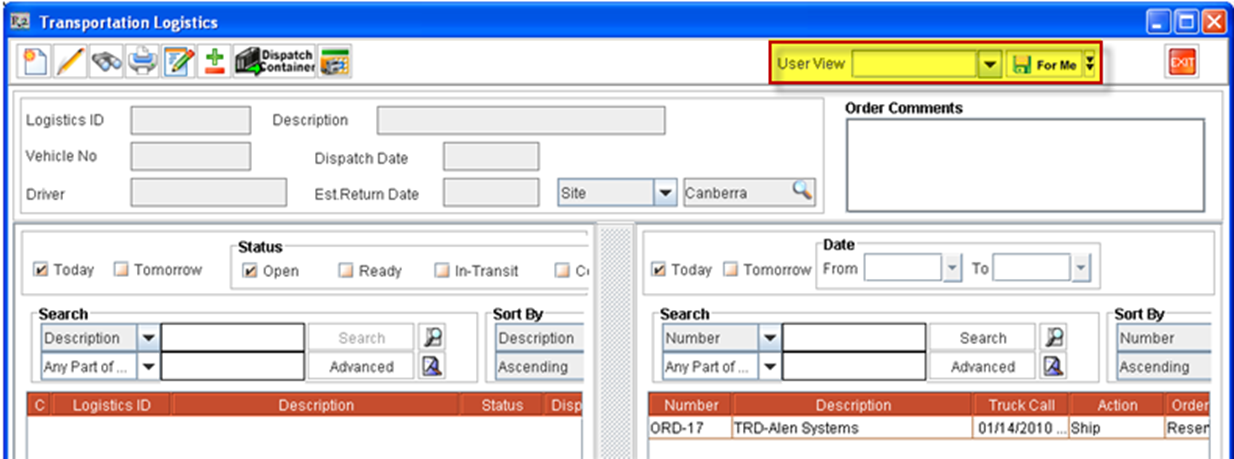
The Filter Settings, Search Criteria and Sort By options that will be saved in a User View are:
-
Filter Settings (In both Transportation Logistics Schedule and Warehouse Task section)
-
Today
-
Tomorrow
-
-
Status Filters (In Transportation Logistics Schedule section)
-
Open, Ready, In-Transit, Complete
-
-
Search Criteria ( In both Transportation Logistics Schedule and Warehouse Task section)
-
Search field (field selected for searching), Search method (Any Part of the field, Start of the field, Whole field)
-
-
Sort By ( In both Transportation Logistics Schedule and Warehouse Task section)
-
Sort Field, Sort Method (Ascending/Descending)
-
In addition, system will also save the position of Split pane (movable separator bar present between Transportation Logistics section and Warehouse Schedule section) in the Transportation Logistics Main window.
System will not save the Site (header section of Transportation Logistics), Date Range (in Warehouse Task Section - Right hand side) used for performing search in User Views.
Saving User Views
The User Views can be saved in two levels as either Logged-In-User level or in System Level . When an user view is saved in Logged-In User mode, the saved user views will be available only for the user which has created the user view. if the User View is saved in System Level, the saved user view will be available for all the users who logs-in. However, only employees who has Administrative rights can save the user views in System Level.
Saving User Views in Logged-In-User Level
-
Set the status and values for the filters/search criteria, which has to be saved.
-
In the User View field, type in a Name in which the filters/search criteria need to be saved.
-
Click on the For Me button next to the User View field.

The User View will be saved with the given name and can be later used by the logged in employee.
Saving User Views for All Users (System Level)
The option "System" will be visible and available for use only if the logged in user has Administrative rights.
-
Set the status and values for the filters/search criteria, which has to be saved.
-
In the User View field, type in a Name in which the filters/search criteria need to be saved.
-
Click on the drop down arrow next to the For Me button (as shown below) to display the option System.

The User View will be saved with the given name and can be later used by all employees.
Using Saved User Views
-
After saving the User views, re-open the Search Orders window
-
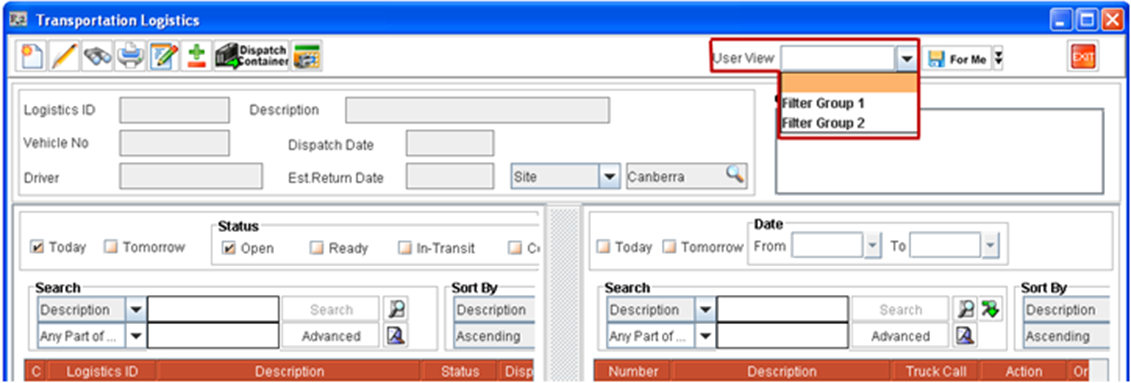
Click on the drop down available in the User View field.
-
Select the any of the listed user view from the drop down menu (as shown below).
Points to Note:
-
Every time an employee exits the Transportation Logistics Main window, the filter/search criteria status and values gets saved as user view with no name. When the same user re-visits the Transportation Logistics Main window next time, User View field will displayed as blank and filter/search criteria will be shown in the status and values with what was saved when the same user had exited the Transportation Logistics Main window in the last session.
For example, If search is performed to display all Transportation Logistics Schedules which are in Open and Ready status by selecting the respective Status Filter options in the Logistics Schedule section, then when the same user re-visits the Transportation Logistics Main window, the Status filter options selected for the previous search operation (Open, Ready) will be displayed as selected.
-
When a user logs-in to the application, the User Views saved by the logged in user using For Me option as well as the User Views saved by the Admin using the For System options will be available for selection.
-
On selecting a saved User View and making changes to the filter and clicking on the For Me button or For System button with same user view selected, R2 will update the saved view with the new filter options.
-
To Delete the a saved User View, select the view from the Drop down and press the Delete key on the keyboard, system will prompt the message ’Do you want to delete this user view’. On clicking ”Yes”, the user view will be deleted.
-
The System level user views can be edited/deleted by only the employees who have Administrative rights.
-
On accessing Transportation Logistics feature for the first time after upgrading to version 05.01.16-00, system will not default any filter/search/Sort settings present prior to the up-gradation.
-
On exiting the Transportation Logistics module and on accessing the module again, system will display the Transportation Logistics Main window with default search results based on the filter and search settings present in the last session. Hence, the time required to open the Transportation Logistics Main window may vary based on the size of search results fetched.