
Details
In Transportation Logistics module main window, you can print the Equipment Delivery Receipt for the order schedules which are added to the Transportation Logistics Schedules. You can print the Equipment delivery receipt, either for a individual order schedule or for multiple order schedules which are present in the same or different logistics schedules using the Print Delivery Receipt feature present in the Transportation Logistics window (Refer Fig 1.0).
Printing EDR for Individual Schedule Lines
-
Equipment delivery receipt can be printed for an individual order schedule, by expanding a Logistics schedule and following clicking on the Print Delivery Receipt icon present in the tool bar by selecting the schedule line.
Printing EDR for Multiple Schedule Lines
-
On generating EDR print for multiple schedules by selecting the order schedules/logistics schedules headers/both, system will generate single RTF file in which all the schedules will be included.
-
On generating EDR print by selecting a logistics schedule header, system will print all the order schedules which are present within the selected logistics schedule header.
-
While generating EDR print, system will ignore the purchase orders and transfer orders if present within the selected logistics schedules.
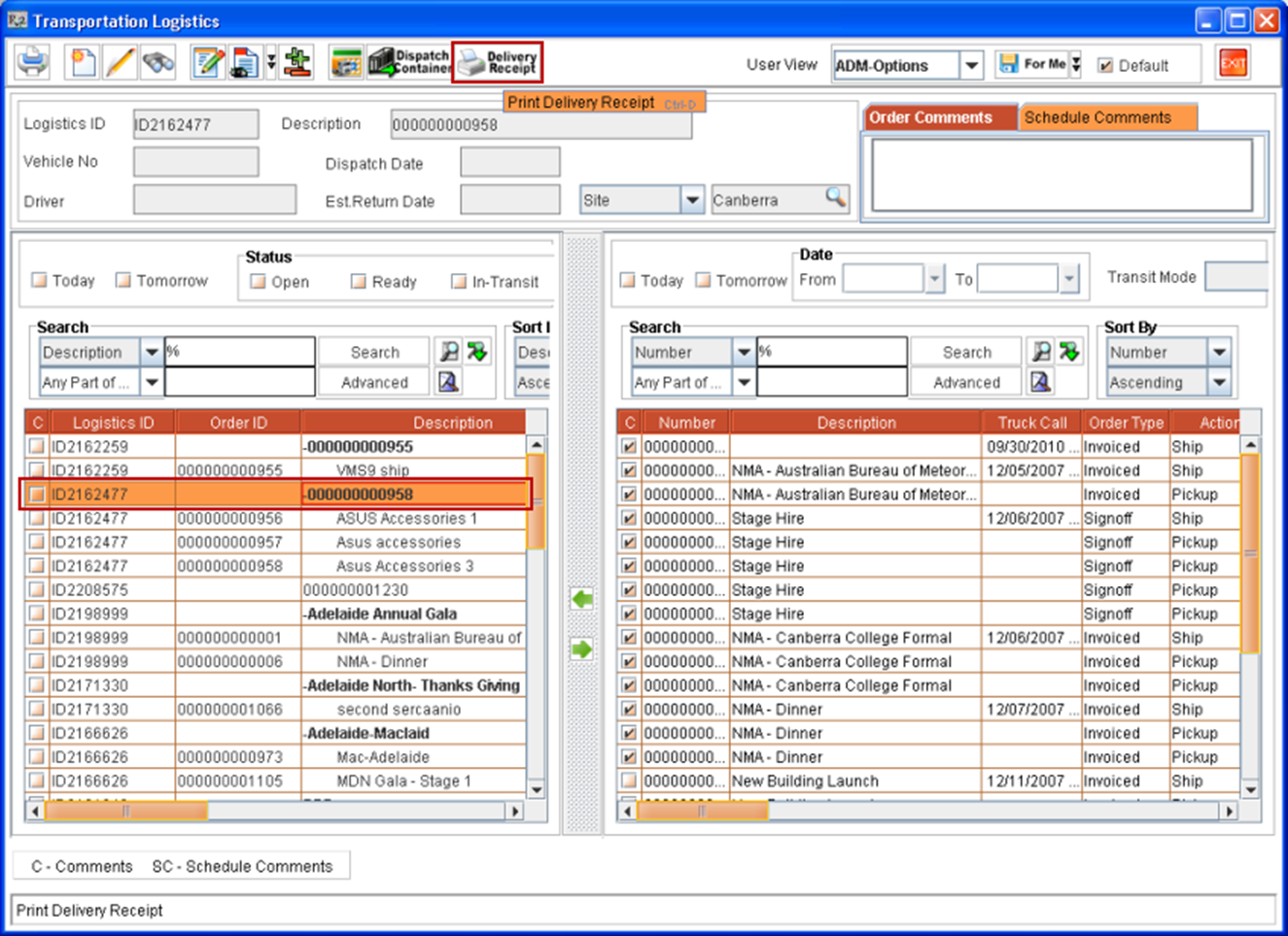
Steps to Generate Equipment Delivery Receipt Print
Print form setup should be defined with order type set as "Delivery Receipt" in Maintenance Module - Form Setup feature.
-
Access Transportation Logistics module
-
Search for the Logistics schedules for which EDR print has to be generated.
-
Select the Order Schedules/Logistics Schedule header / both (as per requirement for generating the EDR print).
-
Click on Delivery Receipt icon.
-
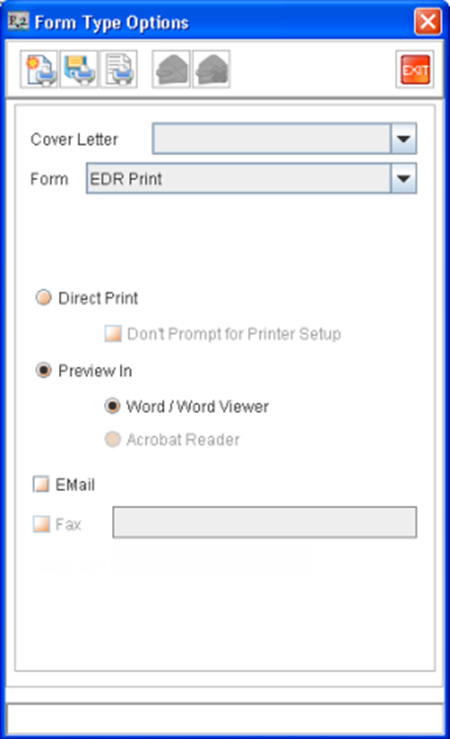
System displays Form type options dialog.
-
Select the appropriate print form definition in the dialog displayed.
-
Click on Print New icon.
-
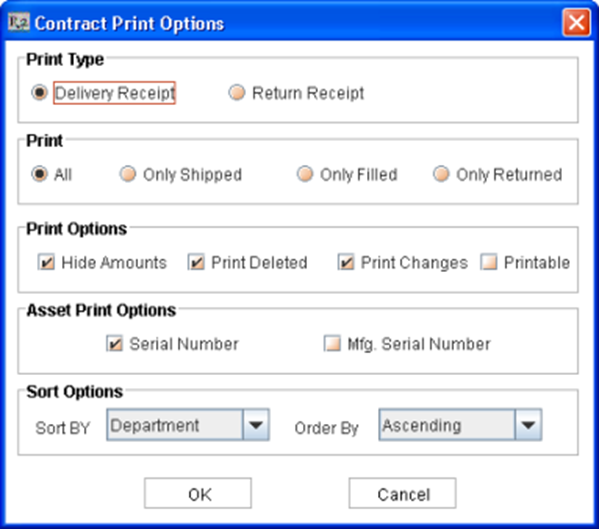
System displays Contract Print Options dialog.
-
Select Print Type as Delivery Receipt and click OK.
Follow the same steps for printing the Return Receipts also.