
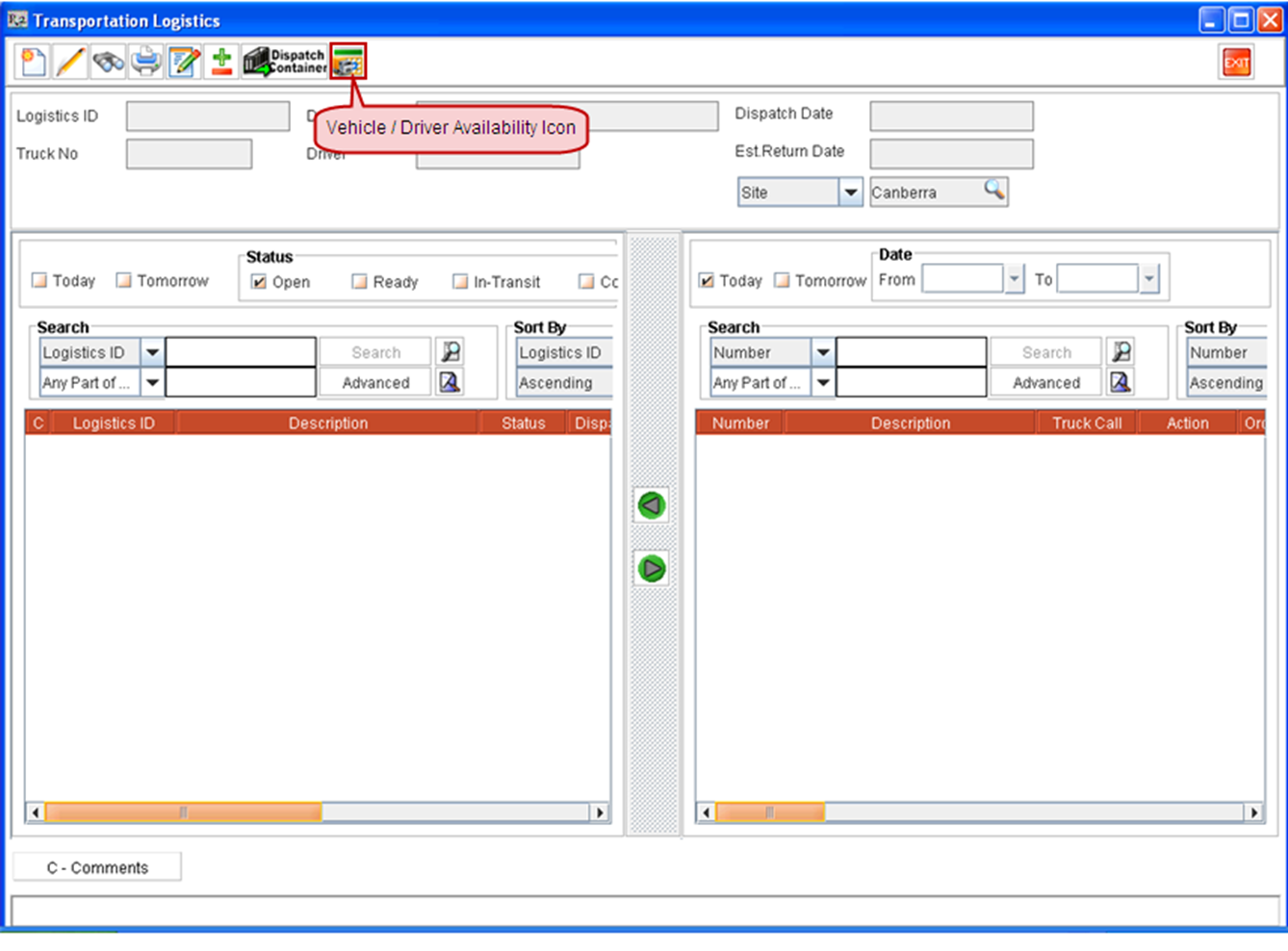
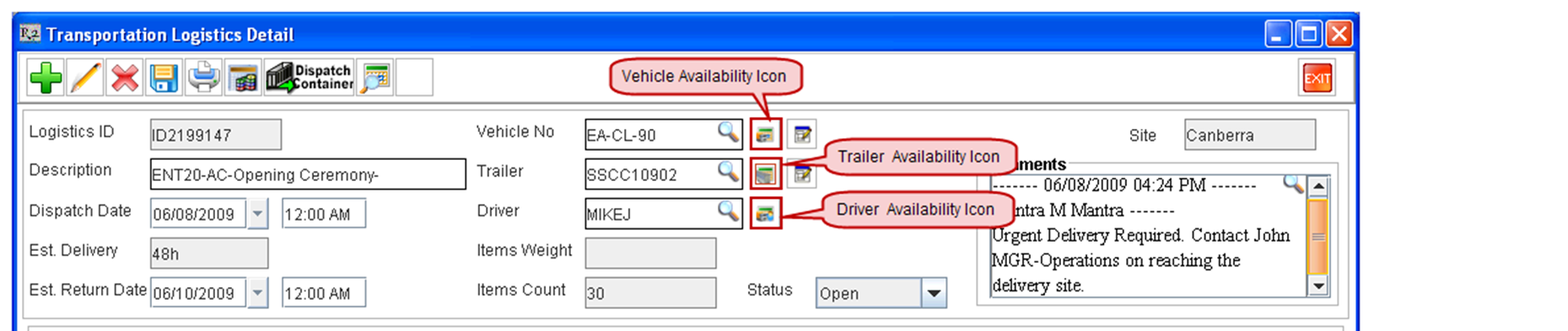
Availability can be viewed for the Driver, Vehicle and Trailer which are added to a Transportation Logistics Schedule. The features for viewing the availability is present in the Transportation Logistics Main window and Logistics Schedule Edit window as shown below:
Availability Window View Modes
-
On selecting Vehicle/Driver Availability icon from within the Transportation Logistics main window, system will display the Availability window by displaying the Transportation Logistics schedules,Driver Schedule Details, Vehicle Schedule Details, and Trailer Schedule Detail information. The default View option will be set as Vehicle Driver View.
-
On selecting the Vehicle Availability /Trailer Availability/Driver Availability from within the logistics Detail window, system will display the Availability window by displaying only the respective information.
Availability Views
The views present determines the information categories that would be displayed in the Availability window. The available view options in the list are as follows:
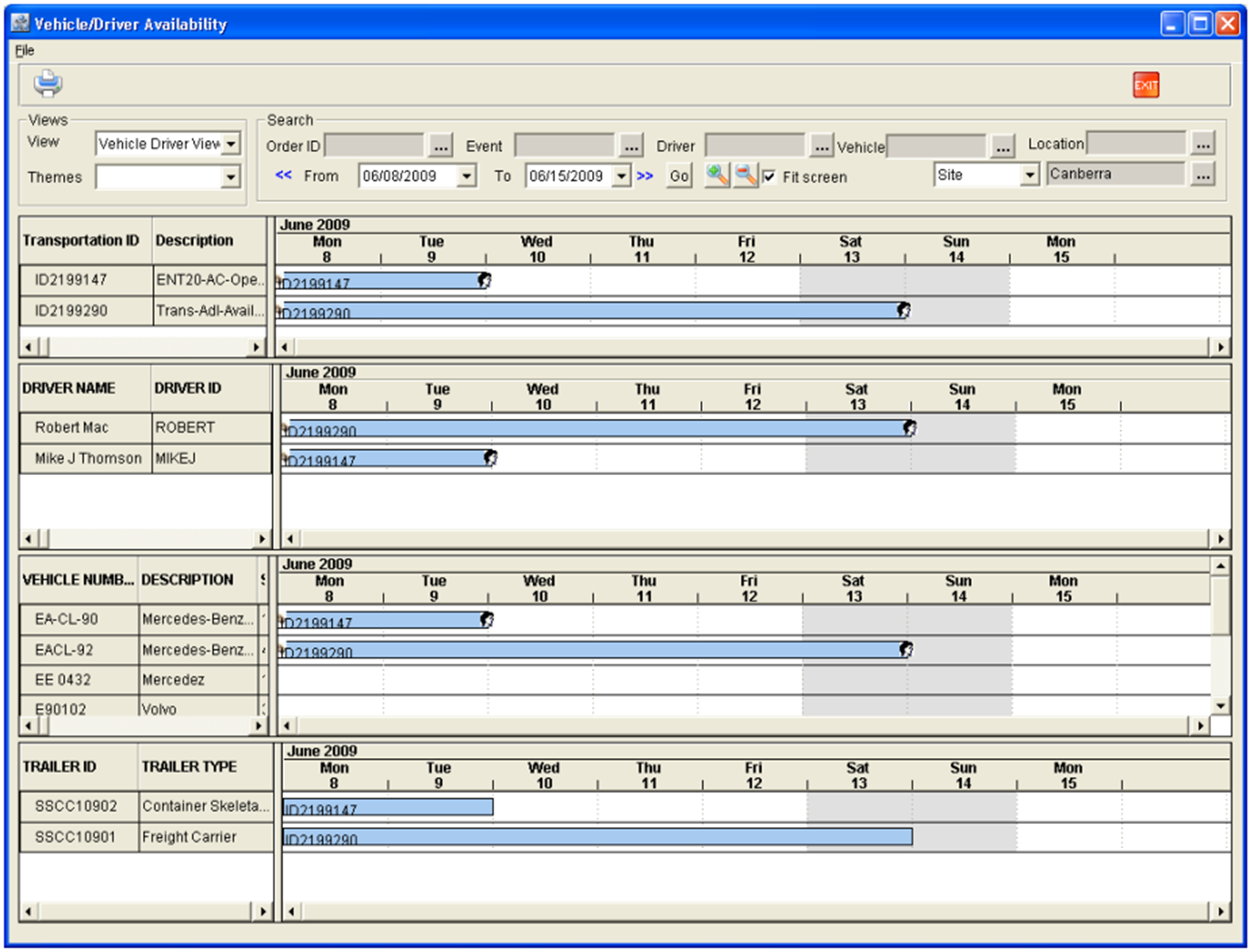
Vehicle Driver View
This view will be set as the default view when the Vehicle/Driver Availability icon present in the Transportation Logistics Main window is selected. On setting the view option as Vehicle Driver View, system will display the Transportation Logistics schedules,Driver Schedule Details, Vehicle Schedule Details, and Trailer Schedule Detail.
Vehicle View
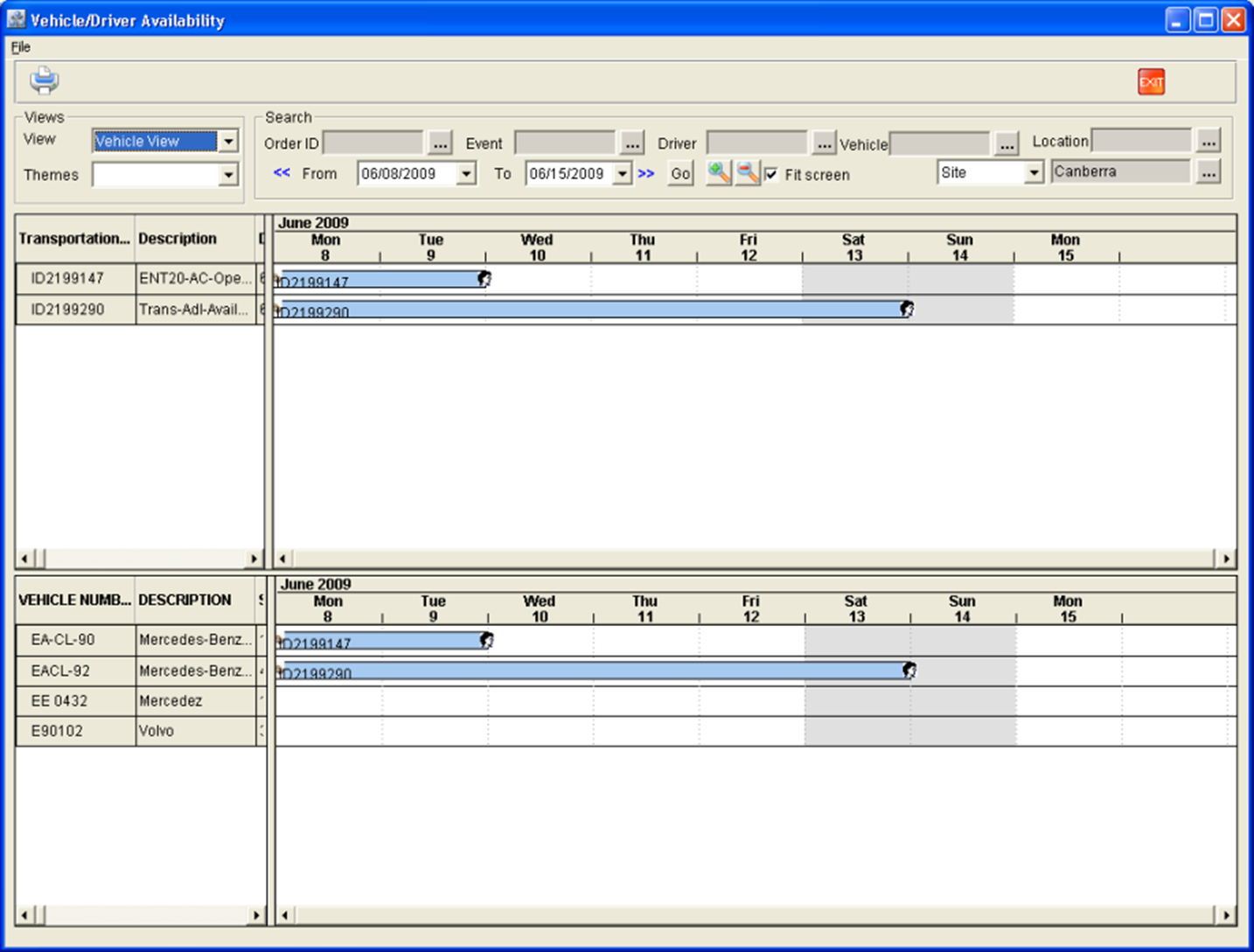
On setting the view option as Vehicle View, system will display the Vehicle Schedule Details along with the Transportation Logistics Schedules which are present in the selected date range.
Driver View
On setting the view option as Driver View, system will display the Driver Schedule Details along with the Transportation Logistics Schedules which are present in the selected date range.
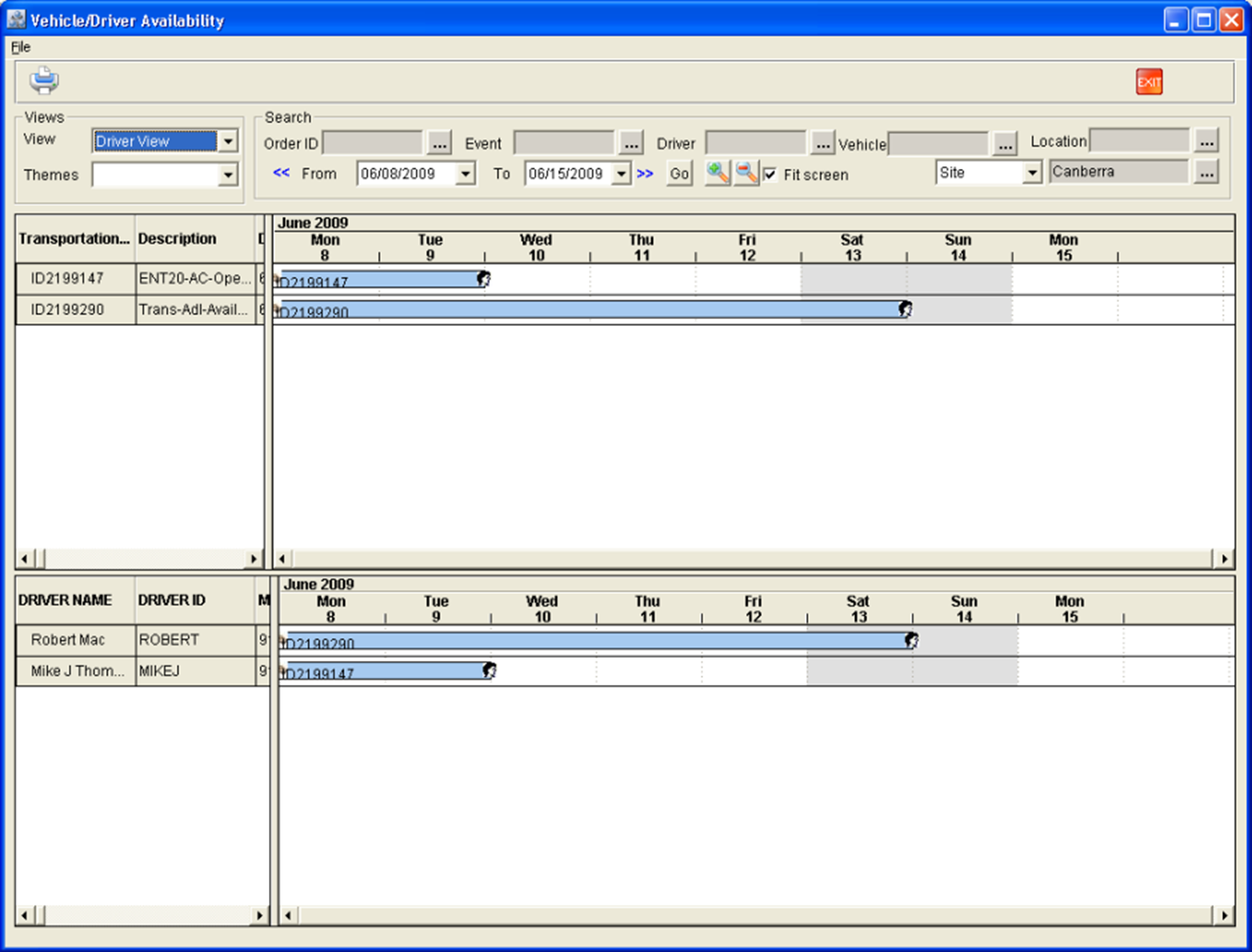
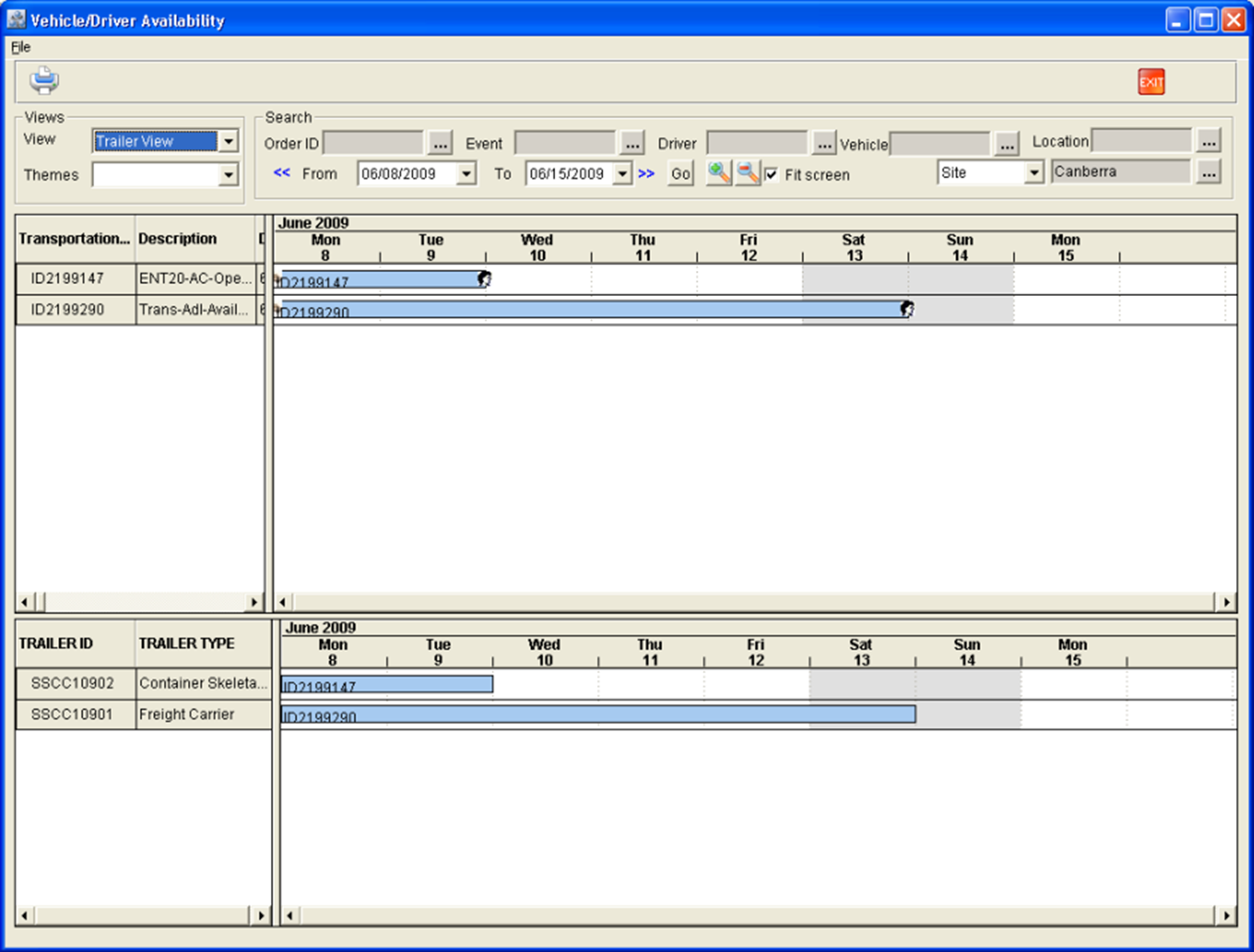
Trailer View
On setting the view option as Trailer View, system will display the Trailer Schedule Details along with the Transportation Logistics Schedules which are present in the selected date range.
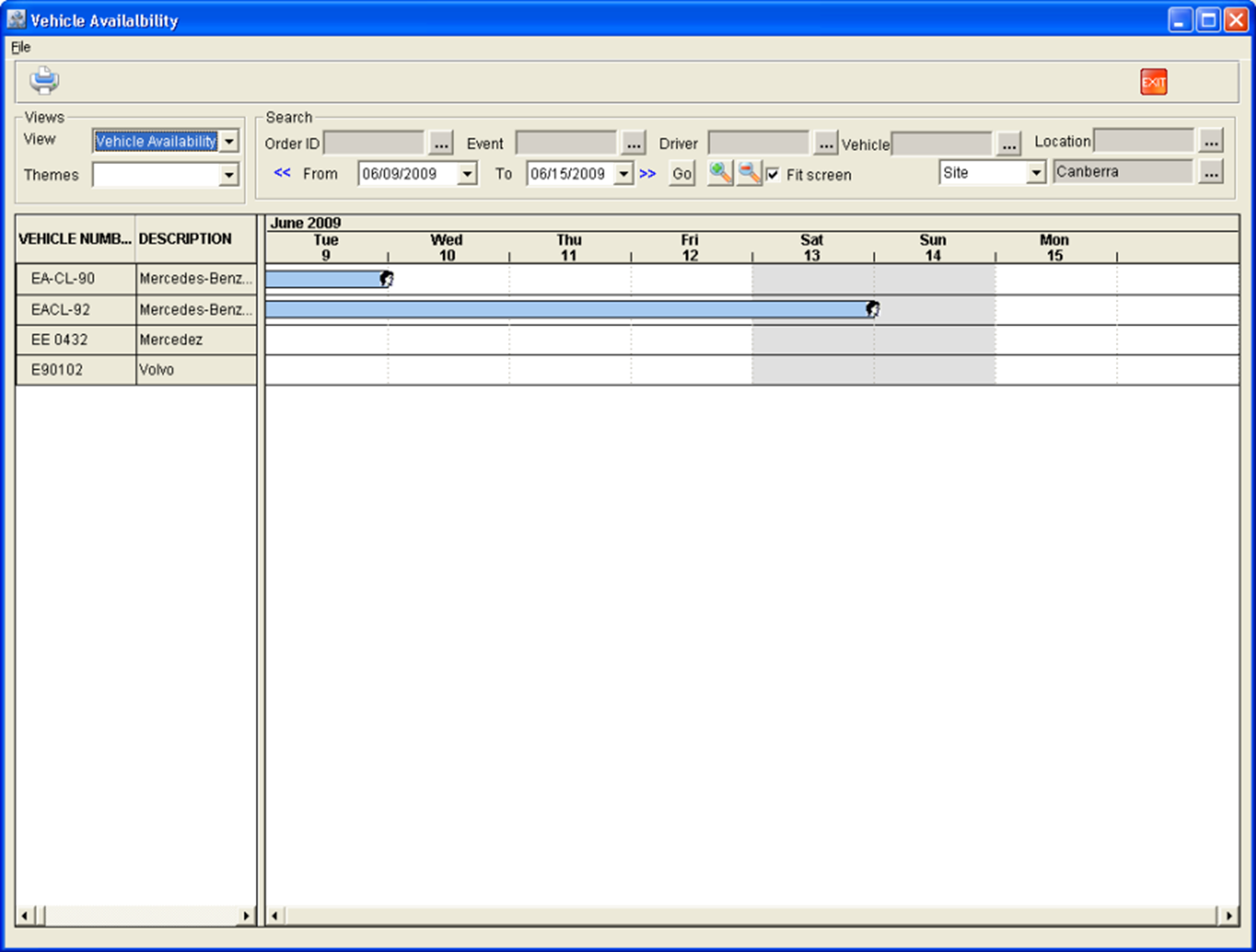
Vehicle Availability
On setting the view option as Vehicle Availability, system will display only the Vehicle Availability/Schedule details in the Availability window. The availability window will be displayed with this option set while viewing Vehicle availability from within the Logistics Detail window.
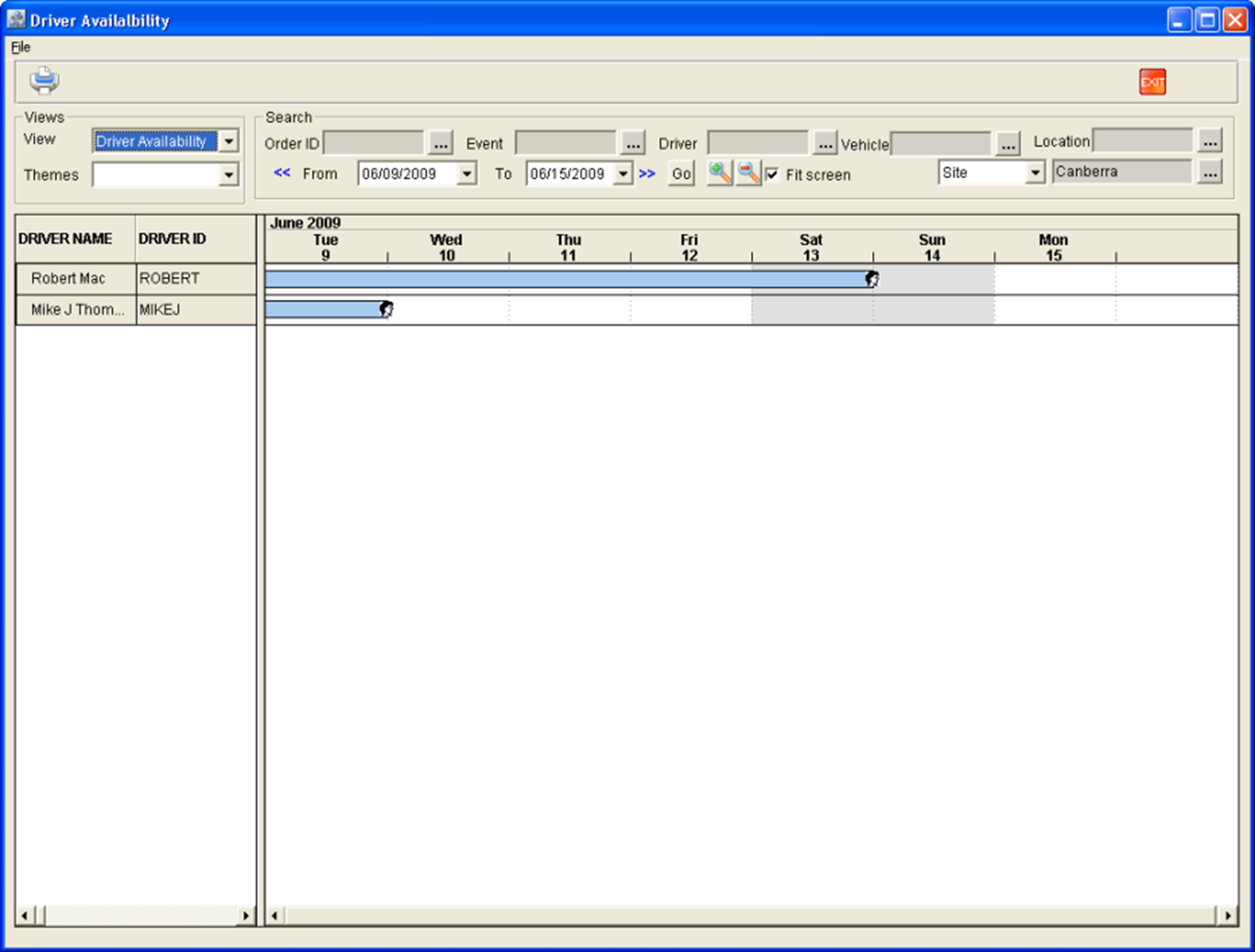
Driver Availability
On setting the view option as Driver Availability, system will display only the Driver Availability/Schedule details in the Availability window. The availability window will be displayed with this option set while viewing Driver availability from within the Logistics Detail window.
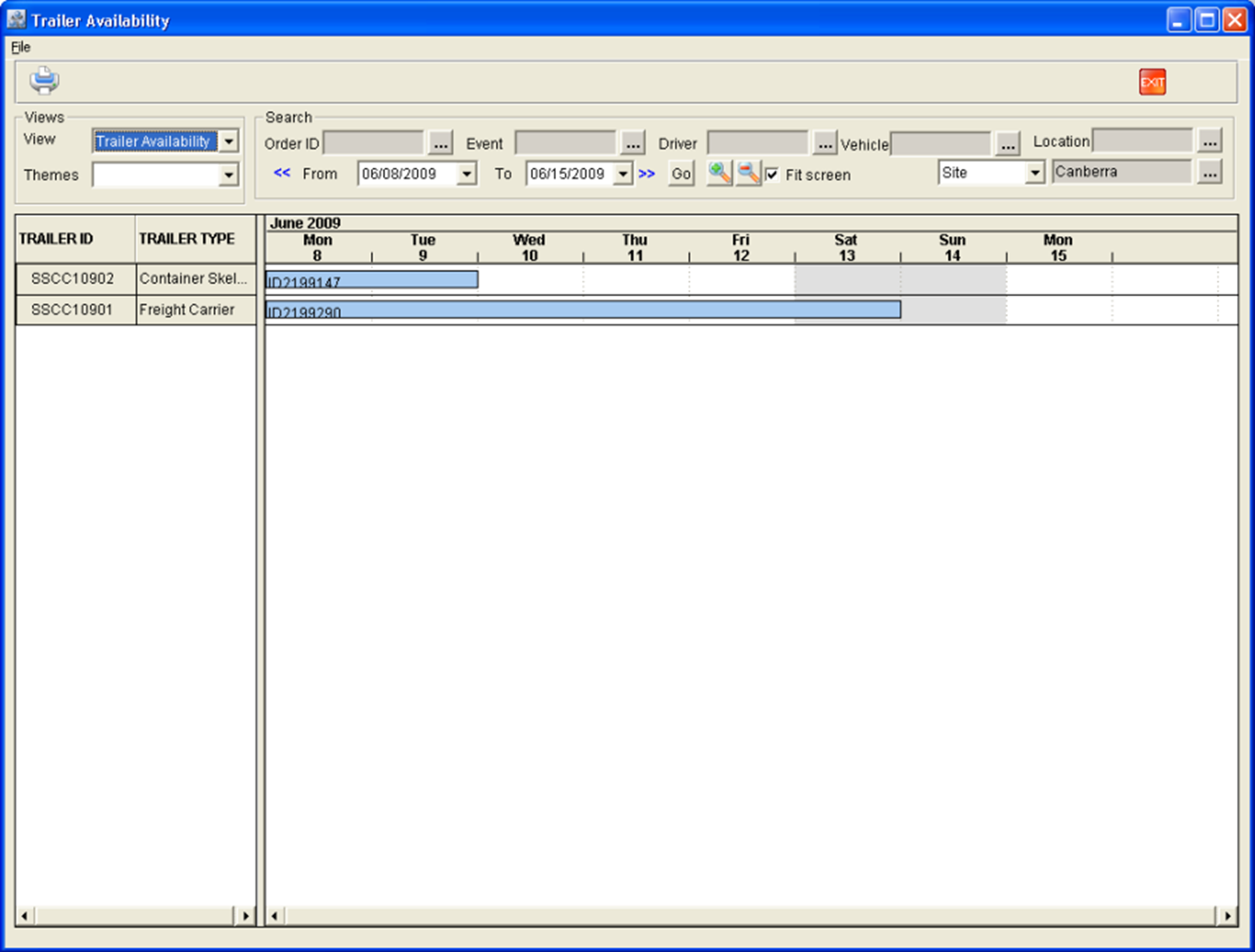
Trailer Availability
On setting the view option as Trailer Availability, system will display only the Trailer Availability/Schedule details in the Availability window. The availability window will be displayed with this option set while viewing Trailer availability from within the Logistics Detail window.
Viewing Transportation Schedule Details
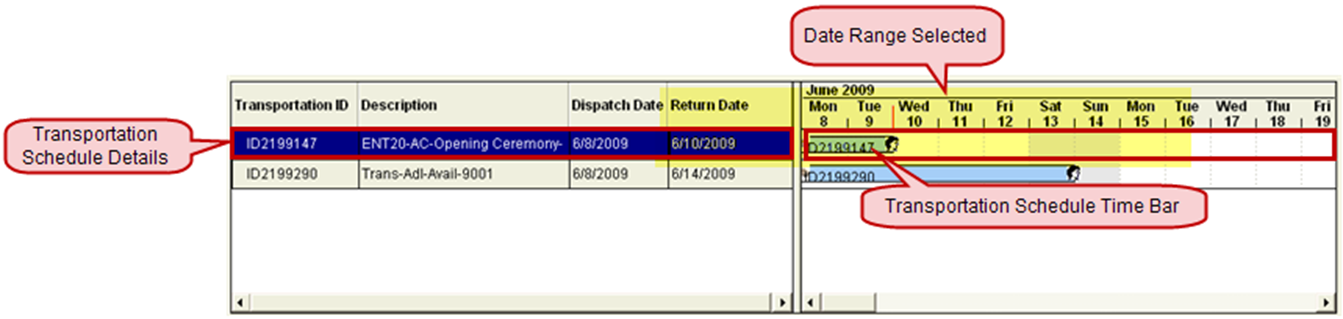
The Transportation Schedules section will display the logistics schedules for which the Dispatch Date is present between the selected date range and the filter options set. By default the date range option will be set to the 7 days starting from the current system date and system will display the Transportation Logistics Schedules which are present between the date range, by default.
The availability view of Transportation Schedule will display the details of individual Logistics Schedules in the Transportation Schedule Details section and the Transportation Schedule Time Bar will display the Graphical view of the duration in which the Transportation Schedule is present.
Viewing Driver Schedule Details
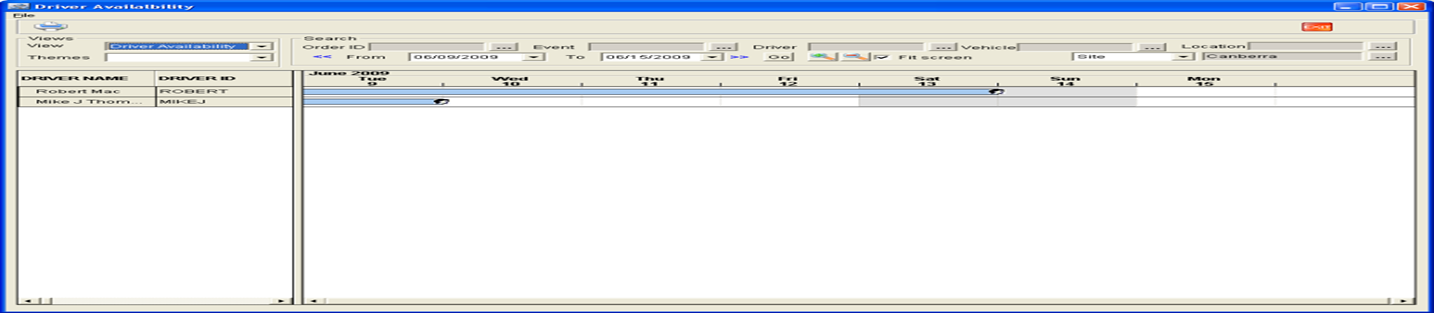
The Driver Schedule section will display the list of drivers and the details of Transportation Logistics Schedule of which they are already assigned to. The Driver schedule details will be displayed based on the date range selected in the search options. The Driver Availability Time Bar will display the Transportation Logistics Schedule ID of which the Driver is currently assigned and the time bar will be displayed starting from the Dispatch Date to the Est.Return date selected in the Transportation Logistics Schedule.
The Schedule Time bar will not be displayed/ extended to a date range if the Driver/Crewis not assigned any tasks.
View Vehicle Schedule Details

The Vehicle Schedule details section will display the list of Vehicles along with the details of Transportation Logistics schedule of which they are already assigned to, if any. The Vehicle Schedule details will be displayed based on the date range selected in the search options. If a Vehicle is already assigned to any Logistics Schedule, then a time bar for the vehicle will be displayed in the right side, with respect to the selected date range.
Viewing Trailer Schedule Details the Trailer Schedule
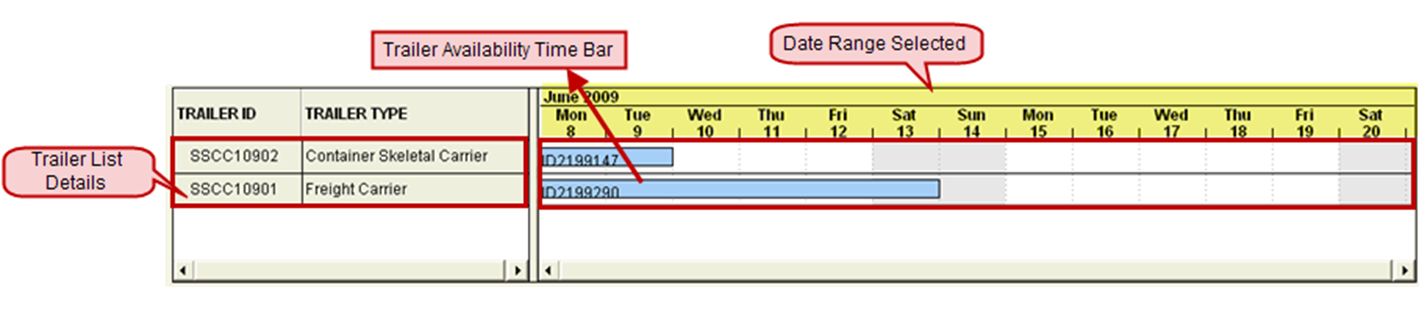
Details section will display the list of Trailers along with the details of Transportation Logistics schedule of which they are already assigned to , if any. The Trailer Schedule details will be displayed based on the Date range selected in the search options. If a Trailer is already assigned to any Logistics Schedule, then the time bar will be displayed based on the date range selected ( if assigned dates are present under the date range selected).
Filtering Availability Views
The Availability views can be filtered using the fields present in the Search Section. By default the information displayed will be filtered based on the default date range (Range of 7 days starting from the current system date).

Search Filter Options

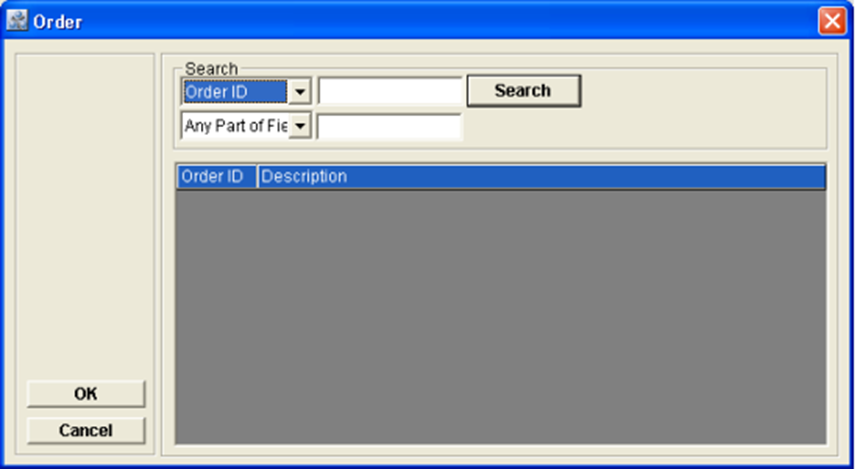
The Order ID field allows the user to select an Order ID by which the Information displayed will be filtered. Clicking on the Import button present in the Order ID field will display the Order Dialog , wherein the user can search and tag an Order ID(s) by which the availability information will be filtered.

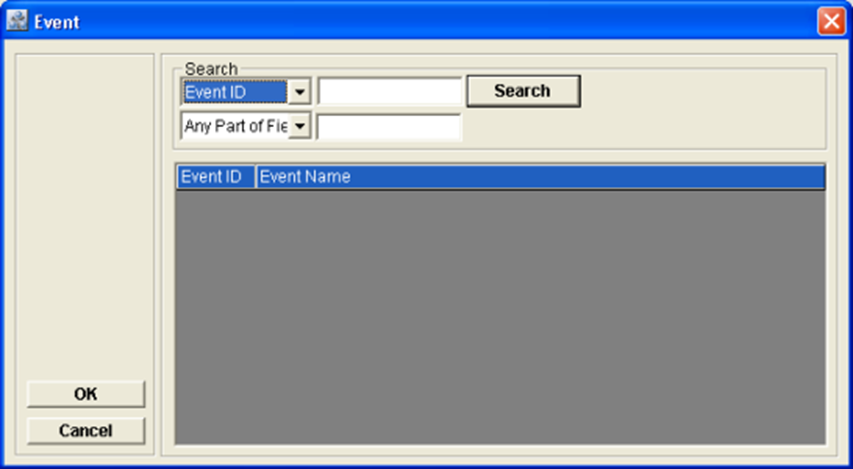
The Event ID field allows the user to select an Event ID by which the information displayed will be filtered. Clicking on the import button present in the Order ID field will display the Event Dialog, wherein the user can search and tag Event ID(s) by which the information will be filtered.

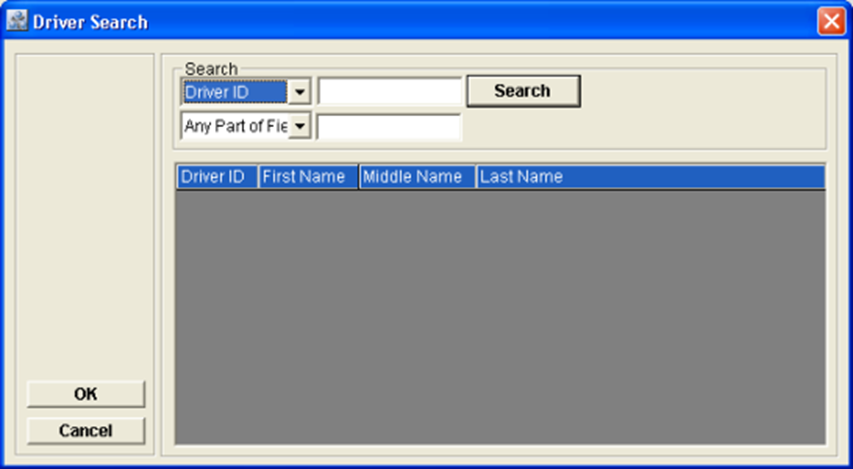
The Driver field allows the user to select a Driver Details by which the information displayed will be filtered. Clicking on the import button present in the Driver field will display the Driver Dialog, wherein the user can search and tag Driver ID(s) by which the information will be filtered.

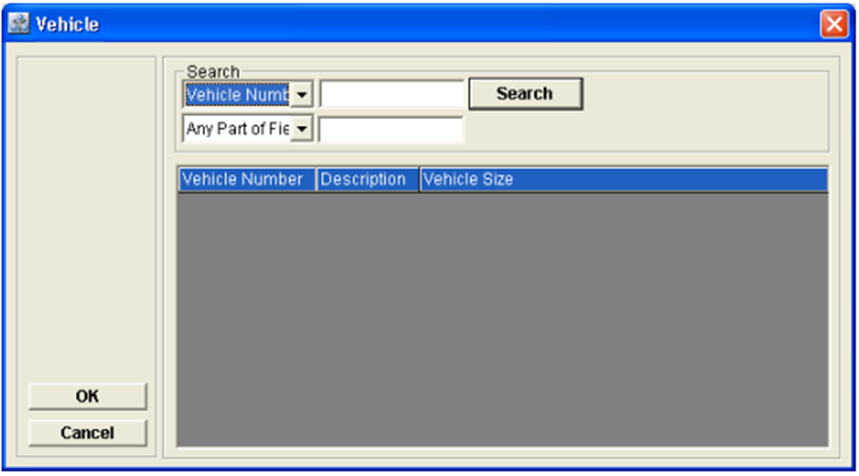
The Vehicle field allows the user to select a Vehicle Details by which the information displayed will be filtered. Clicking on the import button present in the Vehicle field will display the Vehicle Dialog, wherein the user can search and tag Vehicle ID(s) by which the information will be filtered.

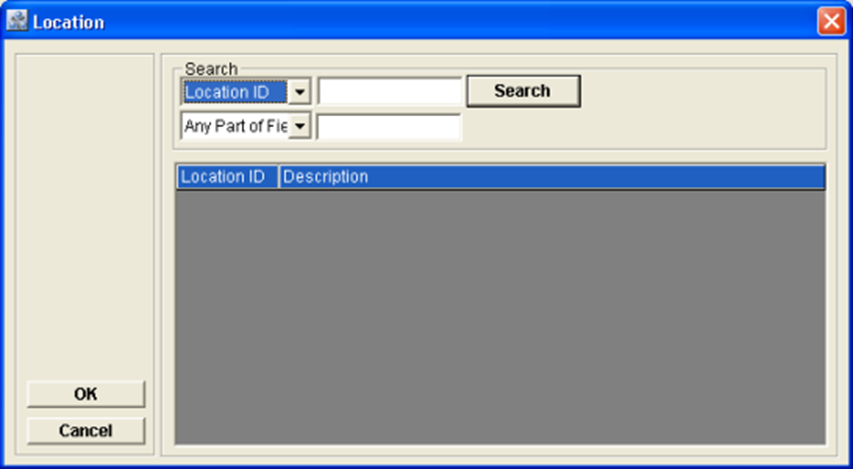
The Location field allows the user to select a Vehicle Details by which the information displayed will be filtered. Clicking on the import button present in the Vehicle field will display the Location Dialog, wherein the user can search and tag Location ID (s)by which the information will be filtered.

The Site Filter options will allow the user to view information based on selected site(s). The Available options present in the Site filter are :
-
All Site: Selecting this option will display the availability information for all the Sites including Sub-Regions and Regions.
-
Region: Selecting this option will display availability only for a selected Region.
-
Site: Selecting this option will display availability only for a selected Site.
-
Sub-Region: Selecting this option will display availability only for a selected Sub-Region.
-
Custom: Select the option Custom to make multiple selection of Site/Region/Sub-Region for which the availability has to be viewed.
Date Filter Options.
Clicking on the import button will open the Sites Dialog wherein Site/Sub-Region/Region can be selected for filtering.

The Date Filter options will display the availability based on the selected date range. By default the date range will be displayed for the range of 7 days starting from the current system date and the availability information also will be displayed accordingly.
-
The Date Forward icon (

-
The Date Back Icon (

Identifying Overlapped Resource allocation in Availability window
If a resource (Vehicle/Driver/Trailer) is assigned to a Logistics Schedule even though its currently assigned to another task, system will display the overlapped resource as below :

The tagged overlapped date range will be highlighted in Red border for the resource.