
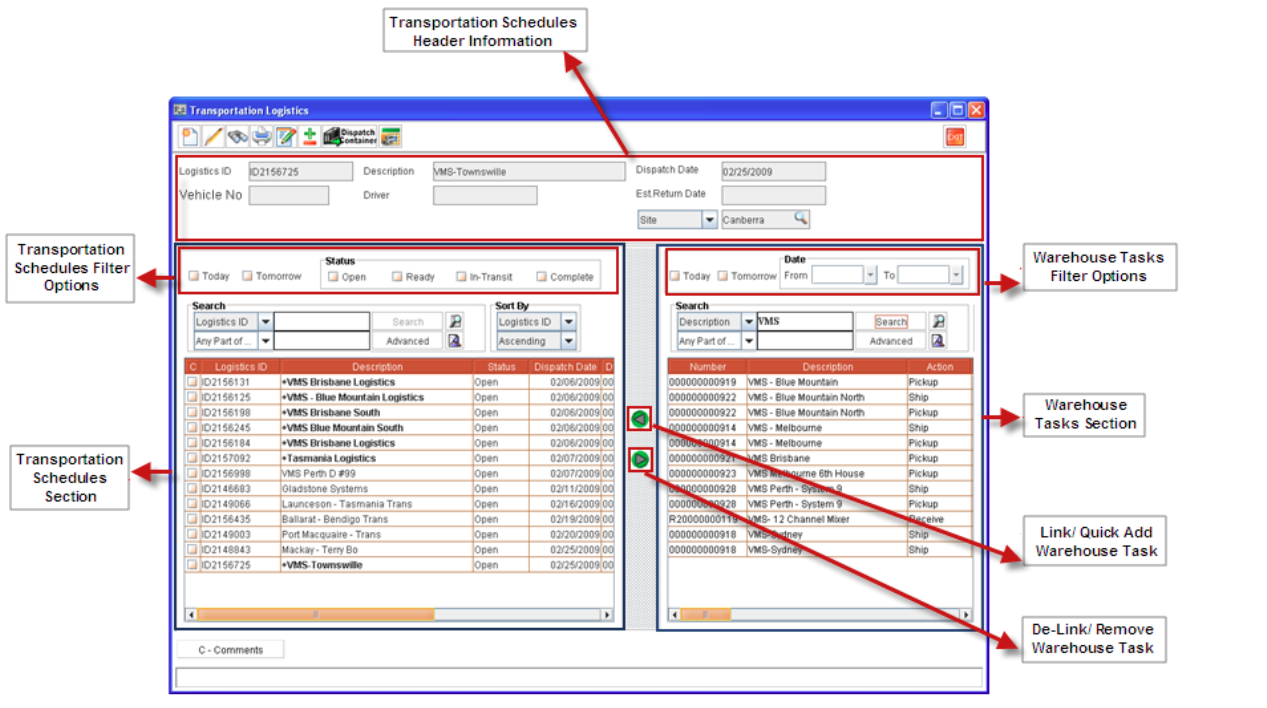
The Transportation Logistics window is organized in three sections namely Header, Transportation Schedule section and Warehouse Tasks section.
-
The Header section will display the information of the highlighted Transportation schedule such as Schedule Number, Description, Dispatch Date, Est. Return Date, Vehicle No and Driver to whom the schedule is assigned to.
-
The Transportation Schedule section will display existing Transportation schedules. The Warehouse tasks added to the schedules will be displayed under each Schedule header information.
-
The Transportation Schedule and Warehouse Tasks sections can be re-sized to have a detailed view of fields in the respective sections.
-
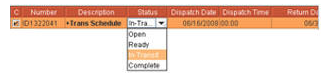
Status for Transportation Order Schedules can also be updated using the Status field. You can modify the current status by selecting a status from the list which will be displayed on clicking inside the status field.
-
The Transportation Schedule filter by options lets you filter the schedules based on its Status and Schedules which are created for the current system date (Filter Option Today) and the Next day of the current System Date (Filter Option Tomorrow).
-
The Site field lets you to filter Transportation Schedules and Warehouse Tasks based on sites. The site filter can be applied based on an Site, Region.
-
The Warehouse Tasks section will display the Warehouse Tasks, which can be added to the existing Transportation Schedules. By Default the filter option Today will be selected and the warehouse tasks which are schedules for current system date will be displayed in the Warehouse Tasks section .
-
The user can also select the items for dispatch/pickup using the Dispatch Container icon. Clicking on the Dispatch Container Icon by highlighting a Transportation Schedule will display the Scan Item/Container dialog wherein you can scan the individual items or container. On scanning an product / container , system will validate whether a product or a container is present in any of the warehouse task added to the highlighted transportation schedule.
-
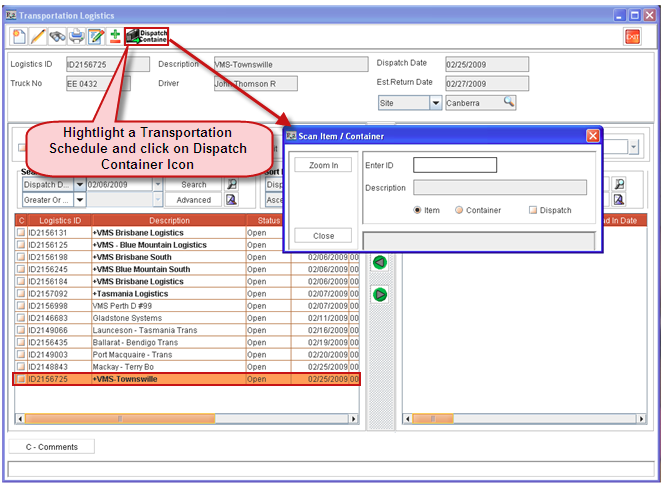
You can also scan product or container from within Transportation Details window
-
On selecting the option Dispatch while scanning items or container, the status of the asset will be updated as 'OUT'.
-
Warehouse tasks displayed in the Warehouse tasks section can be opened for editing from the Transportation Logistics window by highlighting a task and selecting the option Edit from the Right Click menu options or by double clicking a task.
-
Warehouse tasks added to a Transportation Schedule can be opened for editing from the Transportation Logistics window by highlighting the warehouse task added to the Transportation schedule and selecting the Edit icon

To Quick Link Warehouse Task
The Link (Quick Add) button allows the user to add a warehouse task to the existing Transportation Schedule.
-
Highlight Schedule header in Transportation Schedule Section.
-
In Warehouse Tasks section, highlight the desired task to be added to the Transportation Schedule.
-
Click on Link Button.
-
The Warehouse Task selected will be displayed under the highlighted Transportation Schedule.
To Quick De- Link Warehouse Task
The De-Link (Quick Remove) button allows the user to remove a warehouse task which has been added to the to the Transportation Schedule.
-
In Transportation Schedules section, highlight the Warehouse Task to be removed.
-
Click on De-Link Button.
-
The Warehouse Task selected will be removed from the Transportation Schedule.
Tool Bar Icons in Transportation Main Window
|
Icons |
Description |
|---|---|

|
New Icon. Creates a new Transportation Schedule for the site selected. |

|
Edit Icon
|

|
Print Icon. Clicking on the Print icon will display the Transportation Print dialog wherein you can generate the Transportation Logistics Log Print. |

|
Comments Icon. Click on the comments icon to display the comments defined for the Transportation Schedule. If any comments are defined for either Transportation schedule or the warehouse task added to the schedule, the comments column check box (C) in the Transportation Schedules section will be displayed as selected. |

|
Expand/Collapse Icon. On Clicking the Expand/Collapse icon, you can show/hide the Warehouse tasks added to the selected Transportation Schedule. By default the Transportation Schedule will be displayed as Collapsed, which can be expanded by clicking on the Expand/Collapse icon. |

|
Dispatch Container Icon. Clicking on the Dispatch Container icon by highlighting a Transportation Schedule will display the Scan Item/Container dialog wherein you can scan the individual id of the items or container. |

|
Vehicle/Driver Availability Icon. Clicking on the Vehicle/Driver Availability will enable you to view the Availability of the Vehicle and Driver. |
For more information on Transportation Logistics, click here.